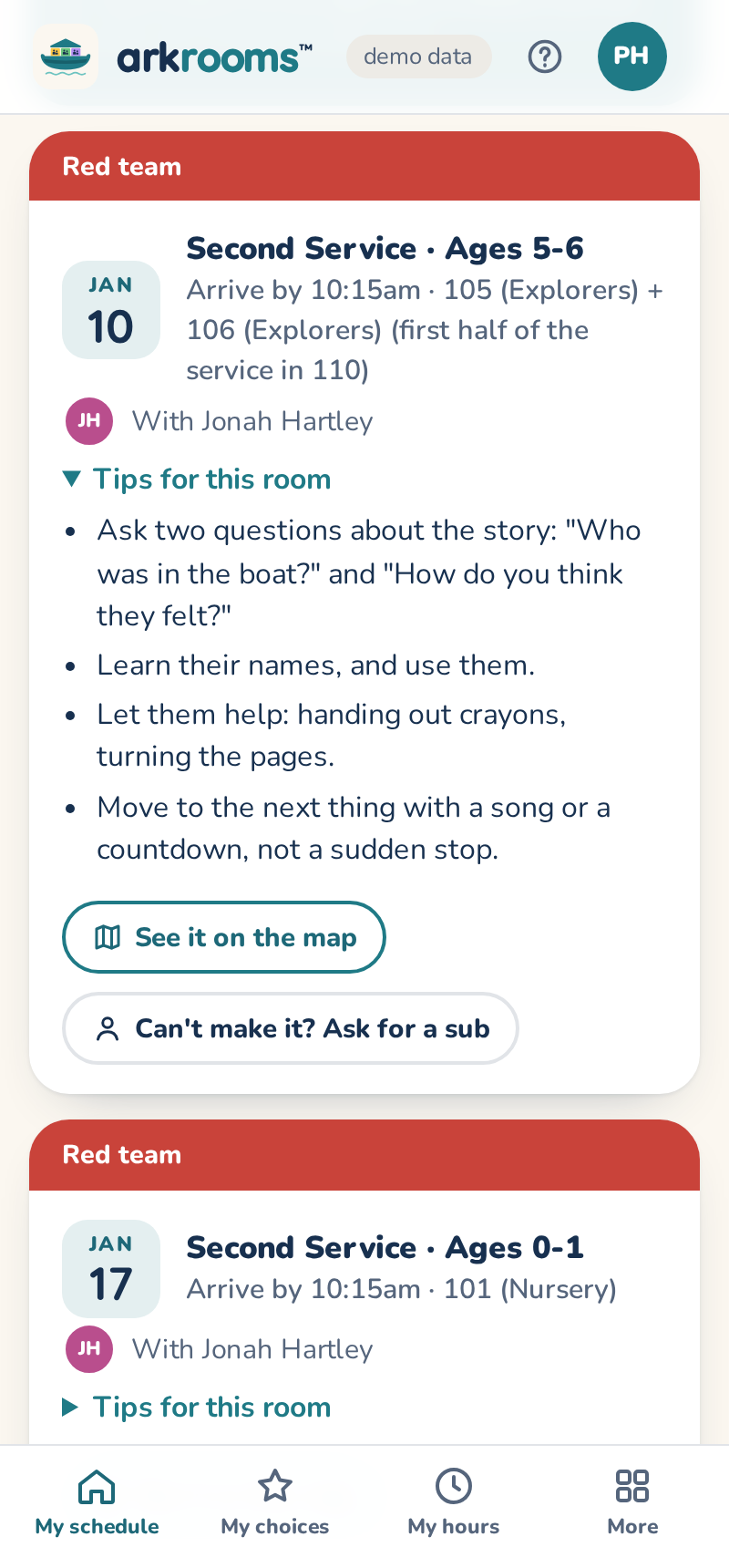
After signing in you see My schedule: every upcoming Sunday you serve, once your team leader has approved the schedule.

For each Sunday:
- Service and age group, e.g. Second Service · Ages 2-3, or Backup or Teacher · all services.
- When to arrive and which room: the room number, with its name when it has one. When some groups meet together first, it says where (in the demo, 3-4, 5-6 and 7-8 start Second Service together in 110, Kids Chapel).
- How to set up the room, when your admins have written it down, sometimes with a picture.
- Who you serve with.
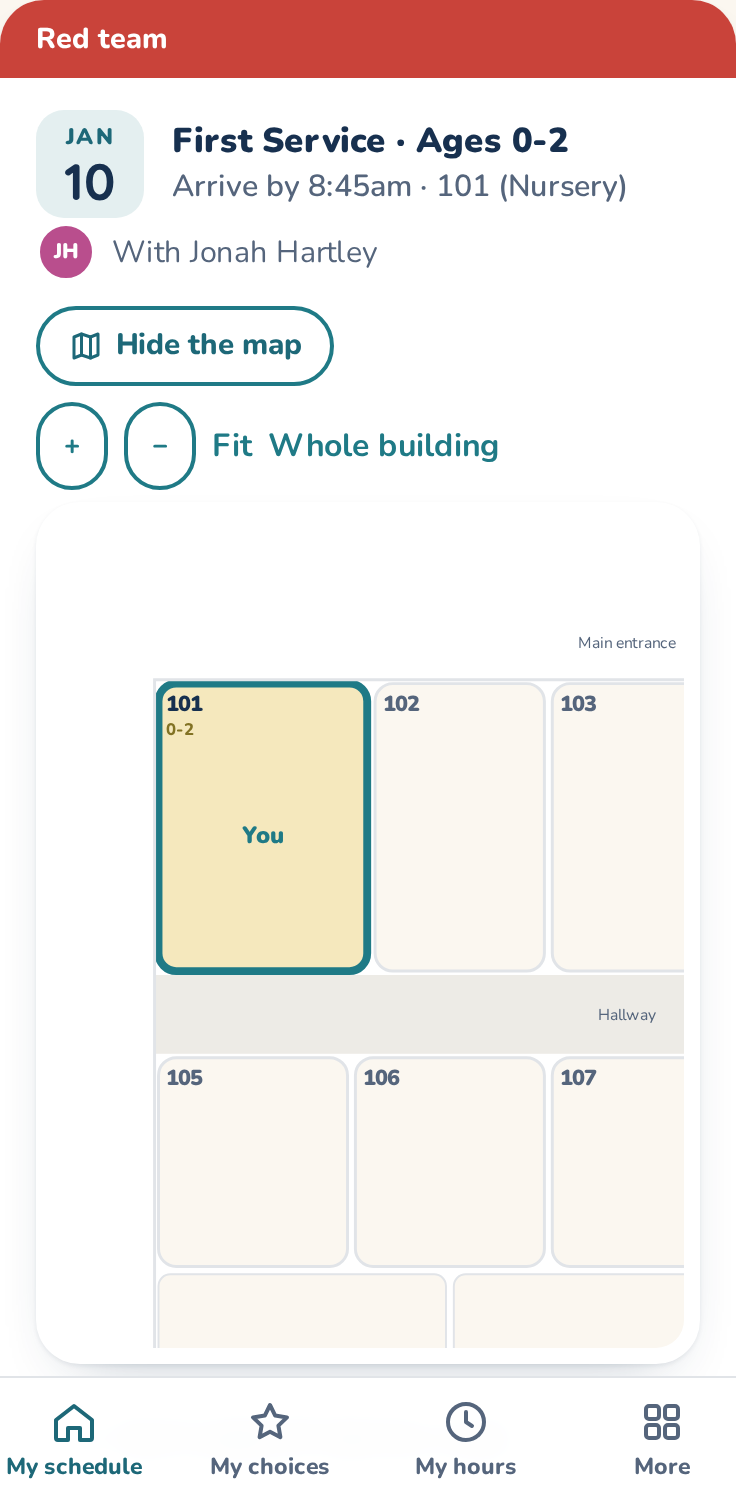
See it on the map under a slot shows the building with your room highlighted, the other rooms in use by age group, and (dashed) where your group meets for the first half of the main service. It opens on your room; pinch or use + and − to zoom, drag to look around, or Whole building.
Asking for a sub
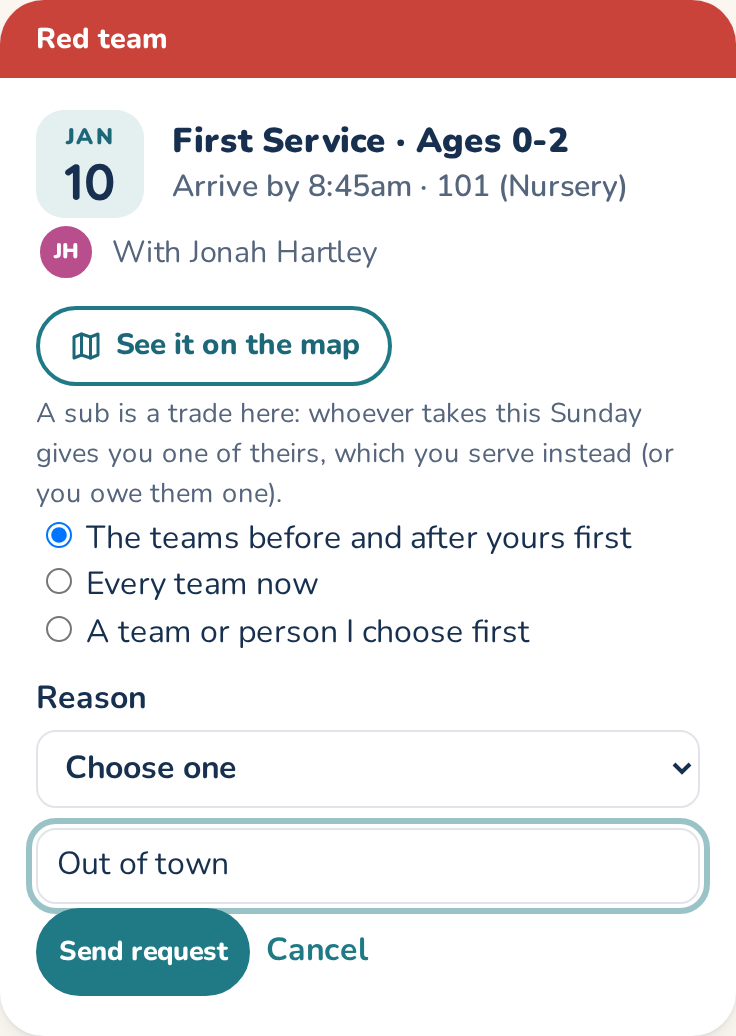
Can't make a slot? Tap Can't make it? Ask for a sub under it. The request goes first to the teams that serve just before and after yours (so a trade later moves each of you by only one block); after 3 days (1 day when the Sunday is within a week) it goes to every team. You can also pick Every team now, or A team or person I choose first: one team, or one person from the list of everyone who could take the slot (it still goes to every team on the same schedule). Pick a reason (away, unwell, family, work or other): that's what the people asked see. A note is optional and only your team's leaders and admins see it; it's deleted two weeks after the Sunday. Or cancel. You stay on the schedule until someone takes it; if nobody does, you're still responsible for finding a trained sub.
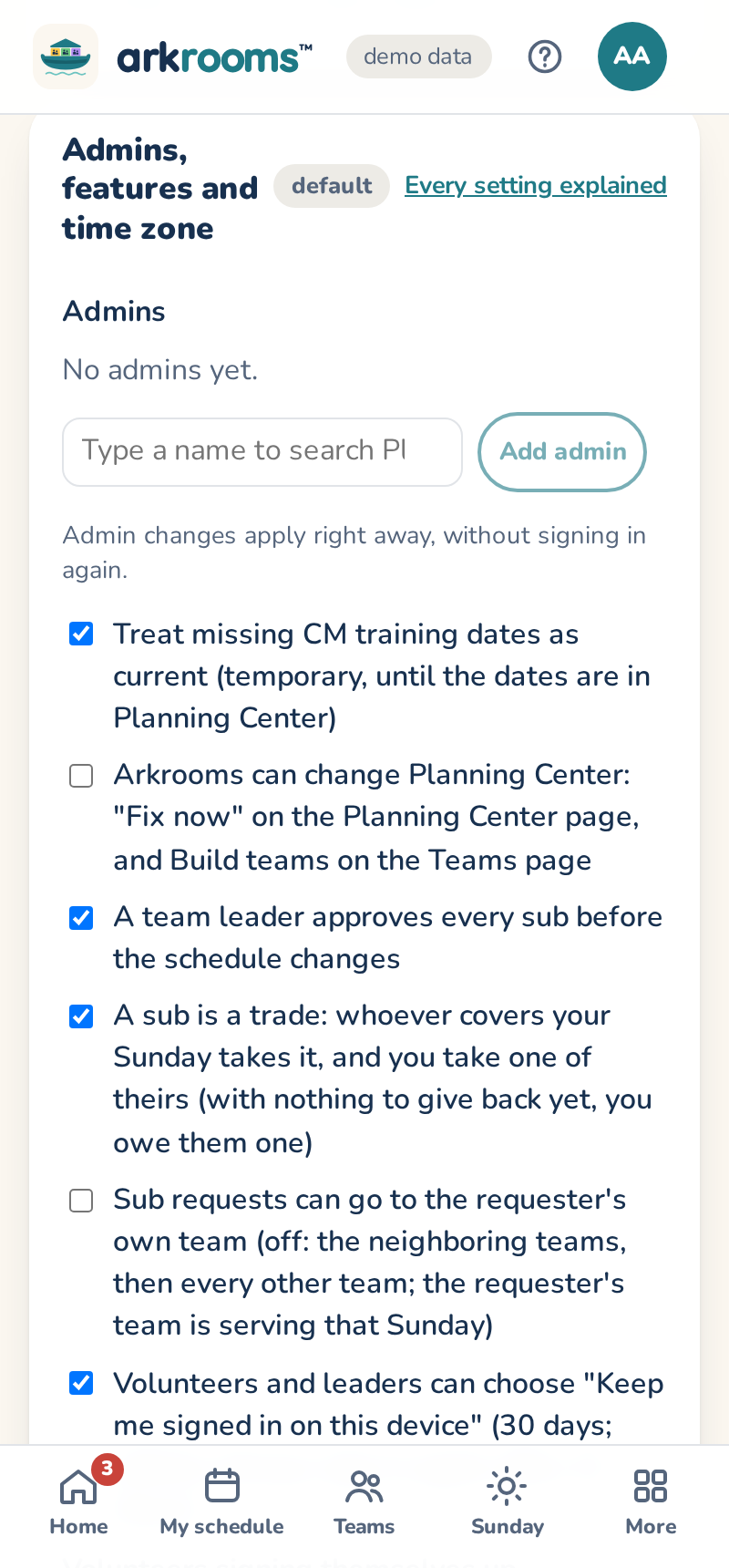
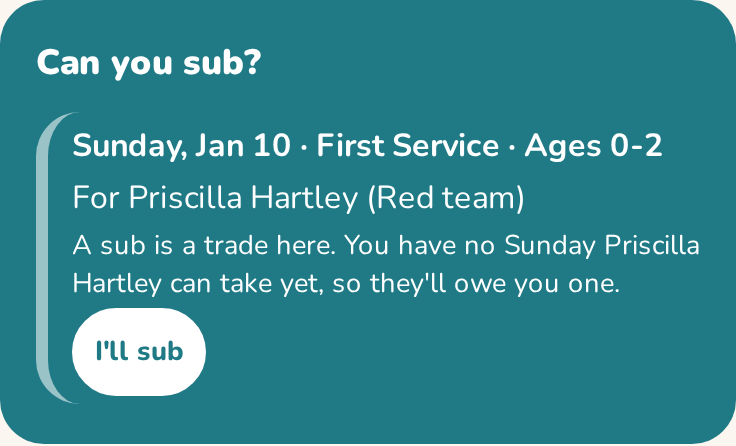
Where a sub is a trade (your church's setting), whoever takes your Sunday gives you one of theirs in return, and you serve that one instead. If they aren't on a schedule you can take yet, you owe them a Sunday, and your leaders can see that.
Policies to sign
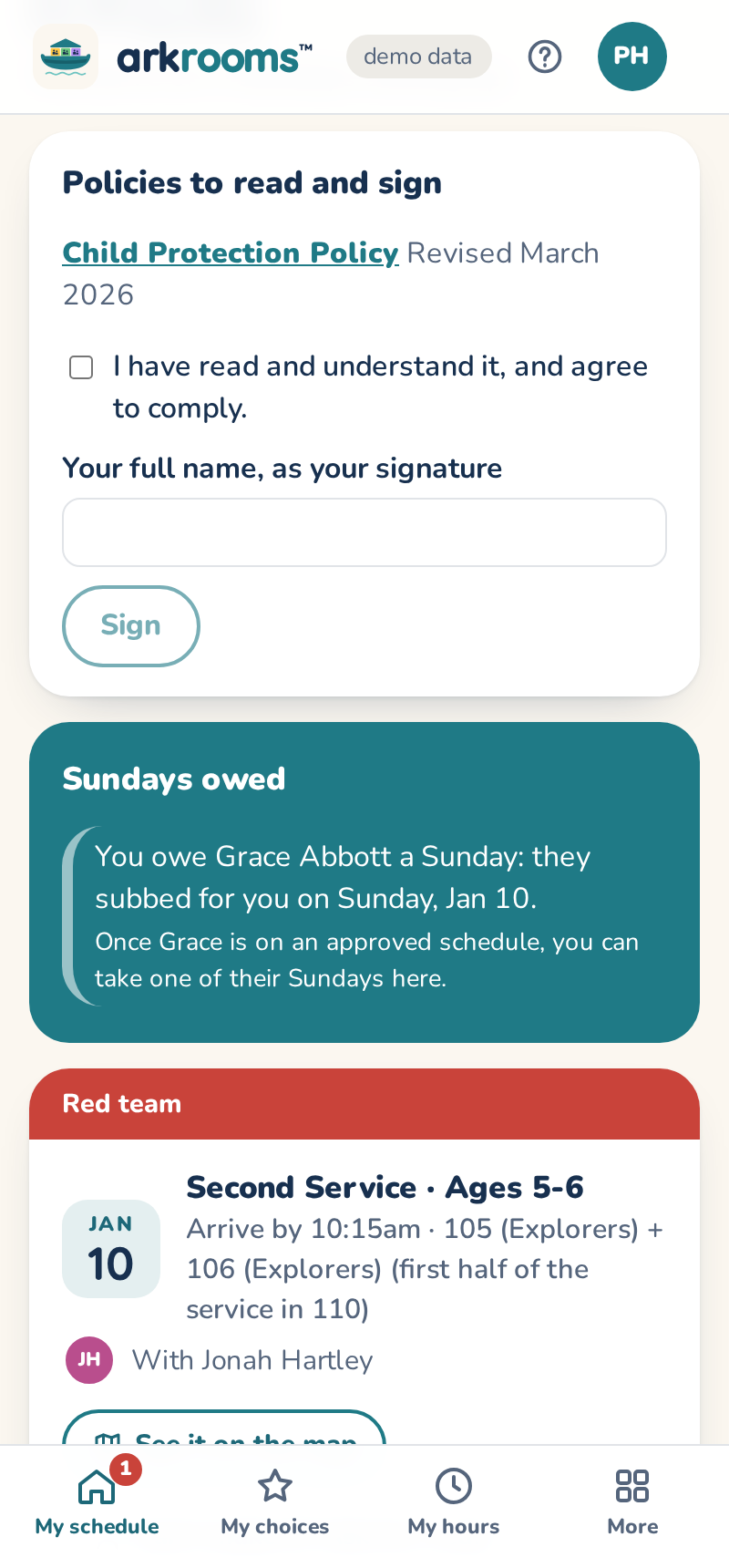
If your church asks volunteers to read and sign its policies (such as its child protection policy), they're at the top of My schedule: open each one, tick the box to agree, type your full name and press Sign. A new version asks you to sign again. If your church needs a policy signed before you serve, you're scheduled once it's signed.
Admins add them in Settings → Policies to sign: a PDF or a link, its version, who signs it (everyone, adults or team leaders), whether to sign again every few years, and whether it's needed to serve. Everyone asked gets an email, and a reminder two weeks later. The panel shows who has signed and who hasn't, with a CSV to download. Arkrooms keeps who signed which version, when, and the name they typed. Don't upload forms that ask for a Social Security number, birthdate or address.
Recurring tasks
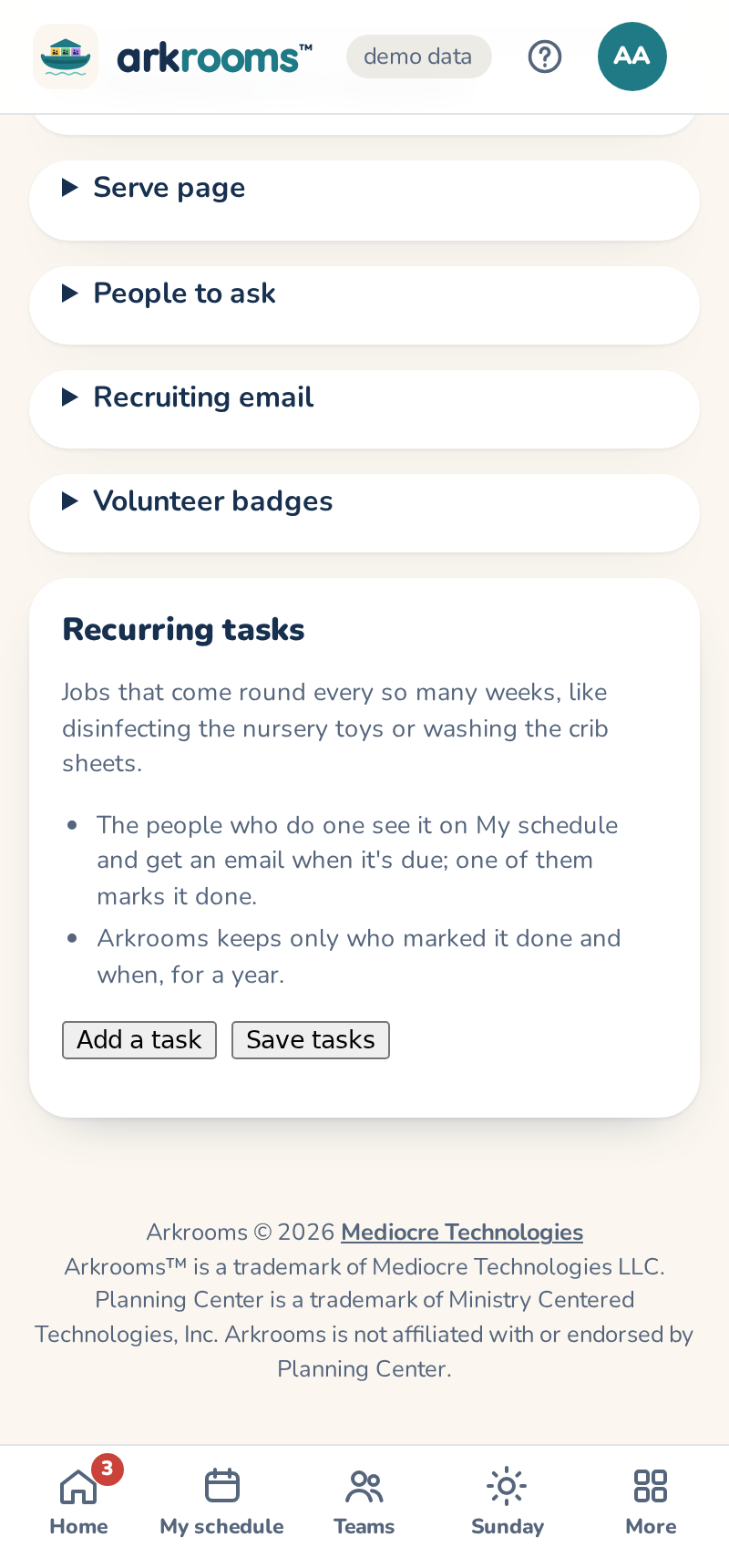
Jobs that come round every few weeks, like disinfecting the nursery toys or washing the crib sheets, can live in Arkrooms too. Admins list them on Settings → Recurring tasks: what to do, how many weeks apart, and who does it (the admins, or the team leaders and admins). When one is due, those people get an email and see it in Needs you and on My schedule, where one of them presses Done. Arkrooms keeps who pressed it and when, for a year.
Away dates and how often you serve
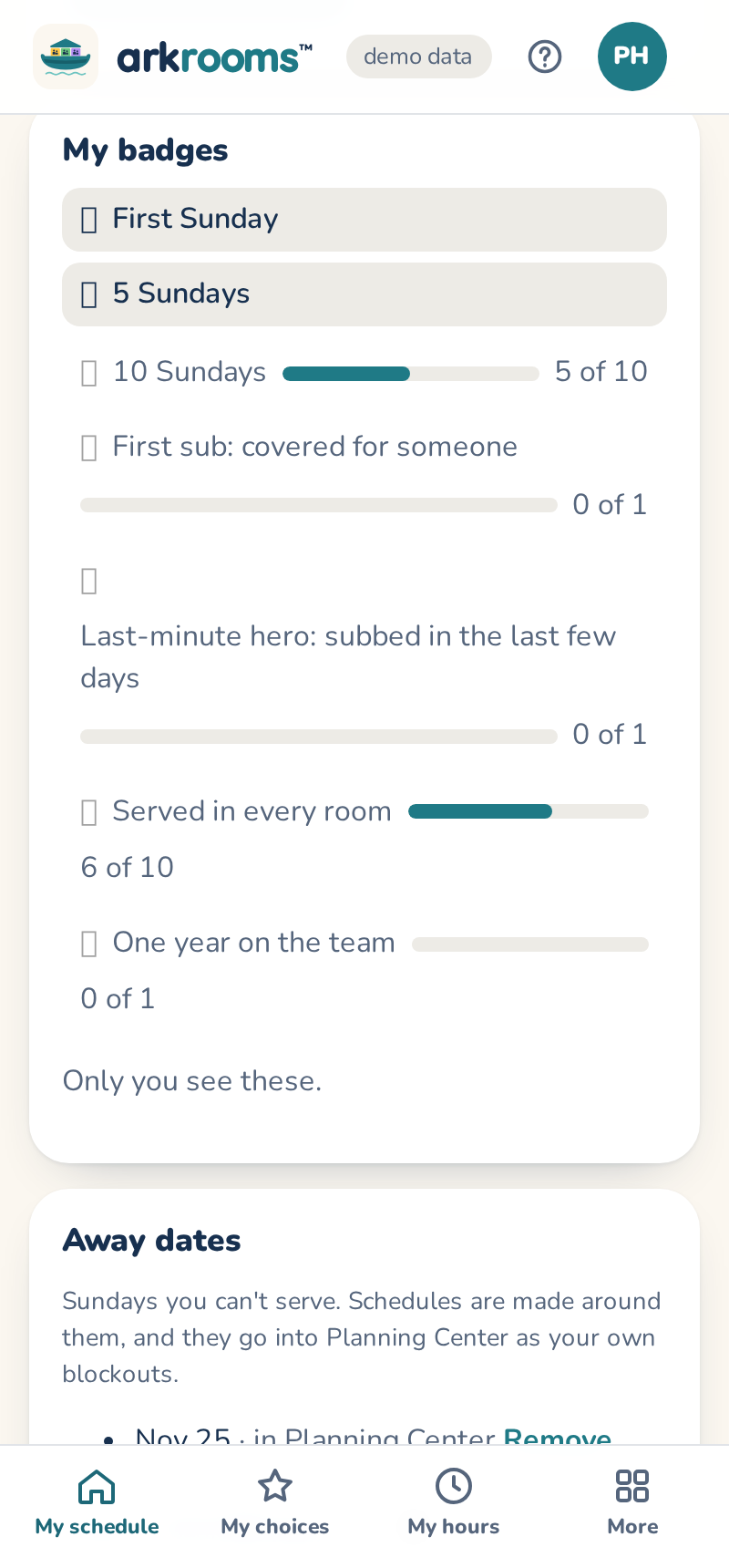
If your church schedules around away dates, My schedule → Away dates lists the Sundays you've said you can't do: pick a date (or a from–to range) and press I'm away, or Remove one. New schedules leave you off those Sundays, and the sub and trade lists don't ask you. If your church turned it on, each one also goes into Planning Center as your own blockout (you'll see "in Planning Center"), and removing it here removes it there. A few weeks before your team's block, you get one email asking which of its Sundays you can't do.
If your church lets you, How often I'd like to serve sets your preference (every week, twice a month, the weeks of the month you choose…) on your positions on the kids' teams in Planning Center, and schedules follow it.
Your Sundays in your calendar
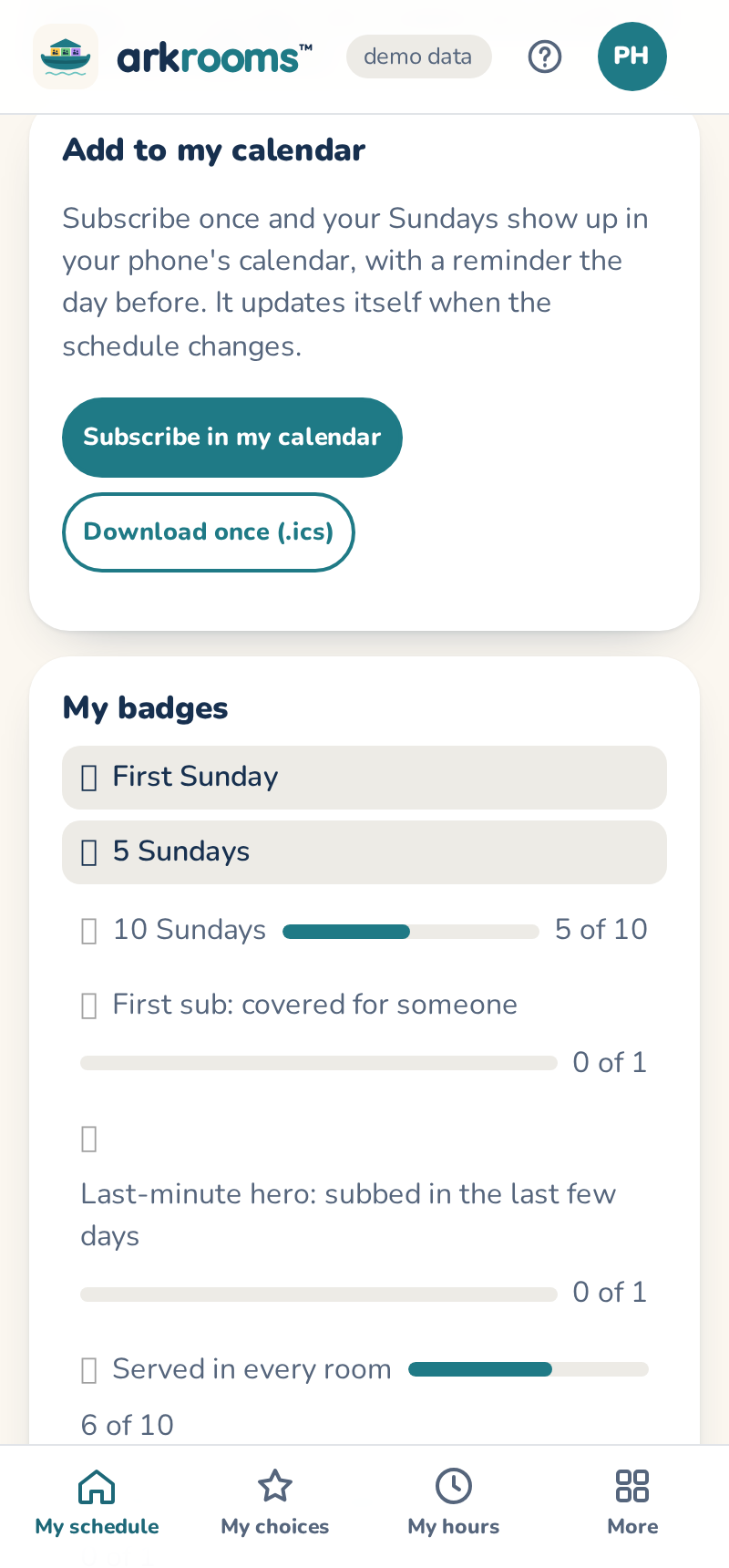
Under your schedule, Add to my calendar → Subscribe in my calendar gives you a private calendar address. Open in my calendar app adds it (or copy the address into Google Calendar's "From URL"). Your approved Sundays show up with the service, rooms, who you serve with and a reminder the day before, and they update themselves when the schedule changes. Keep the address to yourself; Get a new address replaces it if it's shared by mistake. Download once (.ics) adds today's schedule without staying up to date.
Your badges
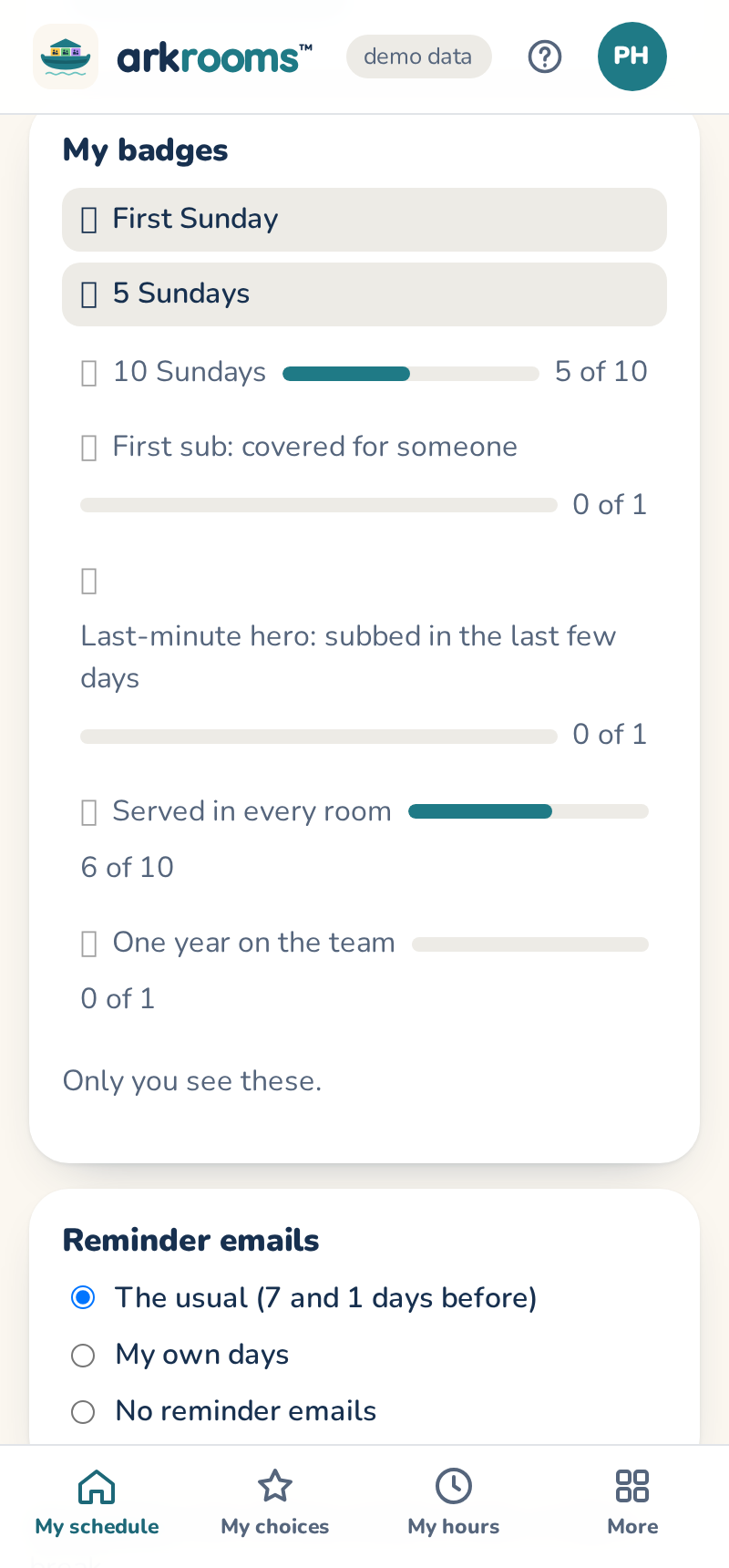
My badges, under your schedule, is like a frequent customer card: the badges you've earned (your first Sunday, 5, 10, 25 and 50 Sundays, your first sub, stepping in at the last minute, serving in every room, each year on the team) and a progress bar to the next of each. Only you see yours; nothing is ranked. A new one is celebrated once, the next time you open the app. Admins choose which badges the church uses, or turn them off, under Settings → Volunteer badges.
In December, Your year joins your badges: the Sundays you served that year, the subs you took and the badges you earned. Only you see it; Share it hands the sentence to your phone's share sheet (or copies it) if you'd like to. Admins can turn it off, or show it in January for the year just ended, in the same settings.
Tips for your room
Under each room on My schedule, Tips for this room opens a few short tips for the room's ages, like "Just let them play" for toddlers or "Ask two questions about the story" for preschoolers. Arkrooms starts every church with its own; admins change them, one a line, under Settings → Volunteers → Tips for volunteers (babies, toddlers, preschool and elementary), or put Arkrooms' back. A backup, the teacher and a job like the hall monitor get none.
Reminder emails
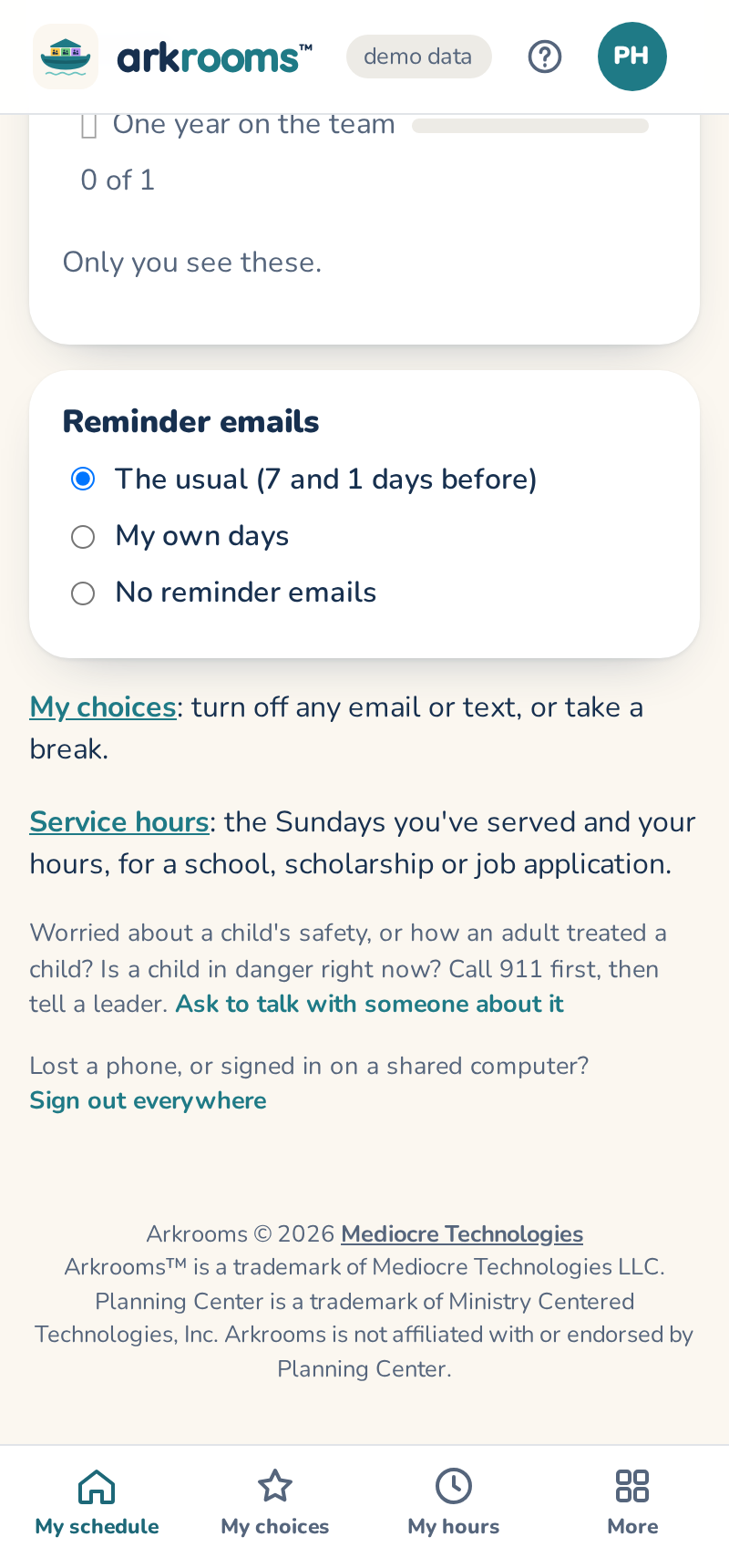
Reminder emails under your schedule: keep the usual (set by the admins), pick My own days (e.g. 3, 1 for three days and one day before), or turn them off.
Last-minute emergencies
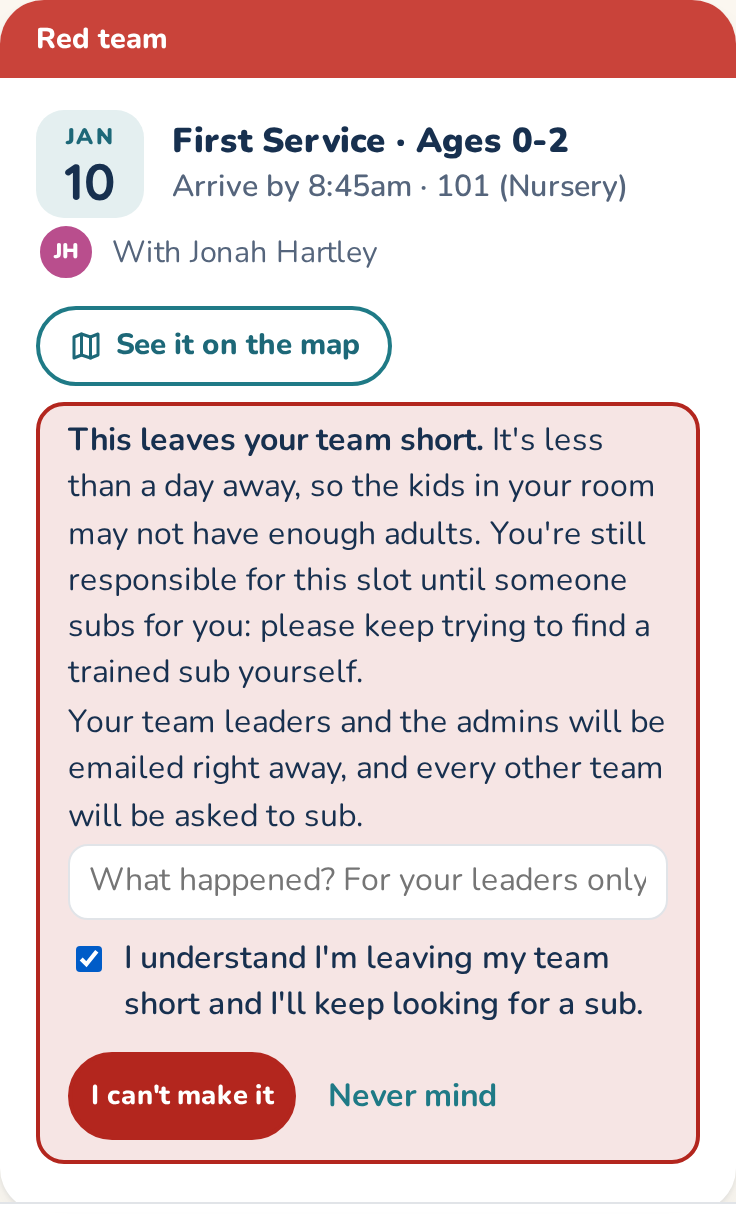
Within 24 hours of a slot (until a few hours after it starts), Ask for a sub becomes Emergency: I can't make it. It asks you to confirm that you understand you're leaving your team short and that you're still responsible for finding a sub. Then every team is asked at once (marked urgent), and your team leaders and the admins are emailed right away. An open sub request you already made can be turned into an emergency the same way.
Taking a sub request
Requests you can take show at the top of My schedule under Can you sub?: only ones that keep every rule (training, which services you serve, a woman in every room, not double-booked). Tap I'll sub: the serving team's leader gets an email to approve it (it's listed under Waiting for a leader until then, and the person who asked stays on the schedule). Once approved, the slot is yours; it shows Subbing for … on your schedule, and a ⇄ next to your name everywhere else (hover or long-press it to see who you're covering). If the leader declines, you get an email and the request is open again.
Where a sub is a trade, pick which of your Sundays they take in return: the list only has the ones that keep every rule for both of you. Then tap I'll sub and trade. Once it's approved, you each serve the other's Sunday (Traded with …). With no Sunday to give back yet, they owe you one.
Sundays owed on My schedule lists who owes you a Sunday and whom you owe. Once the person who subbed is on an approved schedule, either of you can settle it: pick one of their Sundays (only ones that keep every rule are listed). The one who owes it serves that Sunday instead of them, and you both get an email.
Trades
There's one way to get covered: Can't make it? Ask for a sub. When your church counts a sub as a trade, whoever covers you gives you one of their Sundays back (see above). Trades you agreed before this changed stay on your schedule.