
Rooms in the top bar sets which building rooms each age group uses at each service, the room names, and the map colors. Pick a service, then tap an age group and tap rooms on the plan (or use the room buttons) to add or remove them. Choose your main service's first half (in the demo, Second Service, first half) to set where groups meet together before going to their rooms.
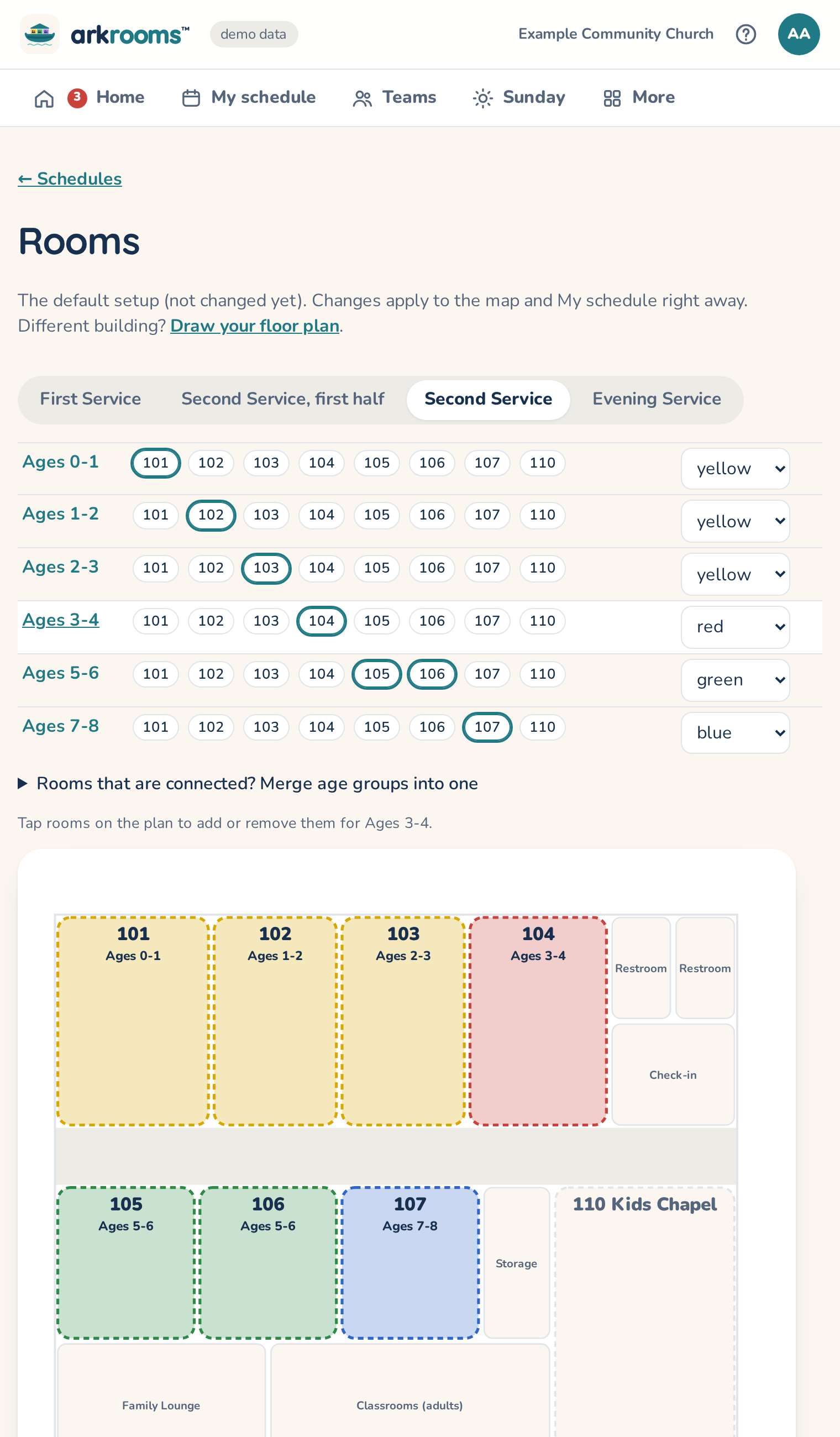
Every change is checked as you go: a room can hold one age group per service, unless groups share exactly the same rooms (like two groups that both use rooms 102 and 103). A clash shows at the top and outlines the room in red; fix it to save. Saved changes apply to the map and My schedule right away. Use the default goes back to the default setup, and Show as config.yaml gives the text to copy into config.yaml so the command-line tools match.
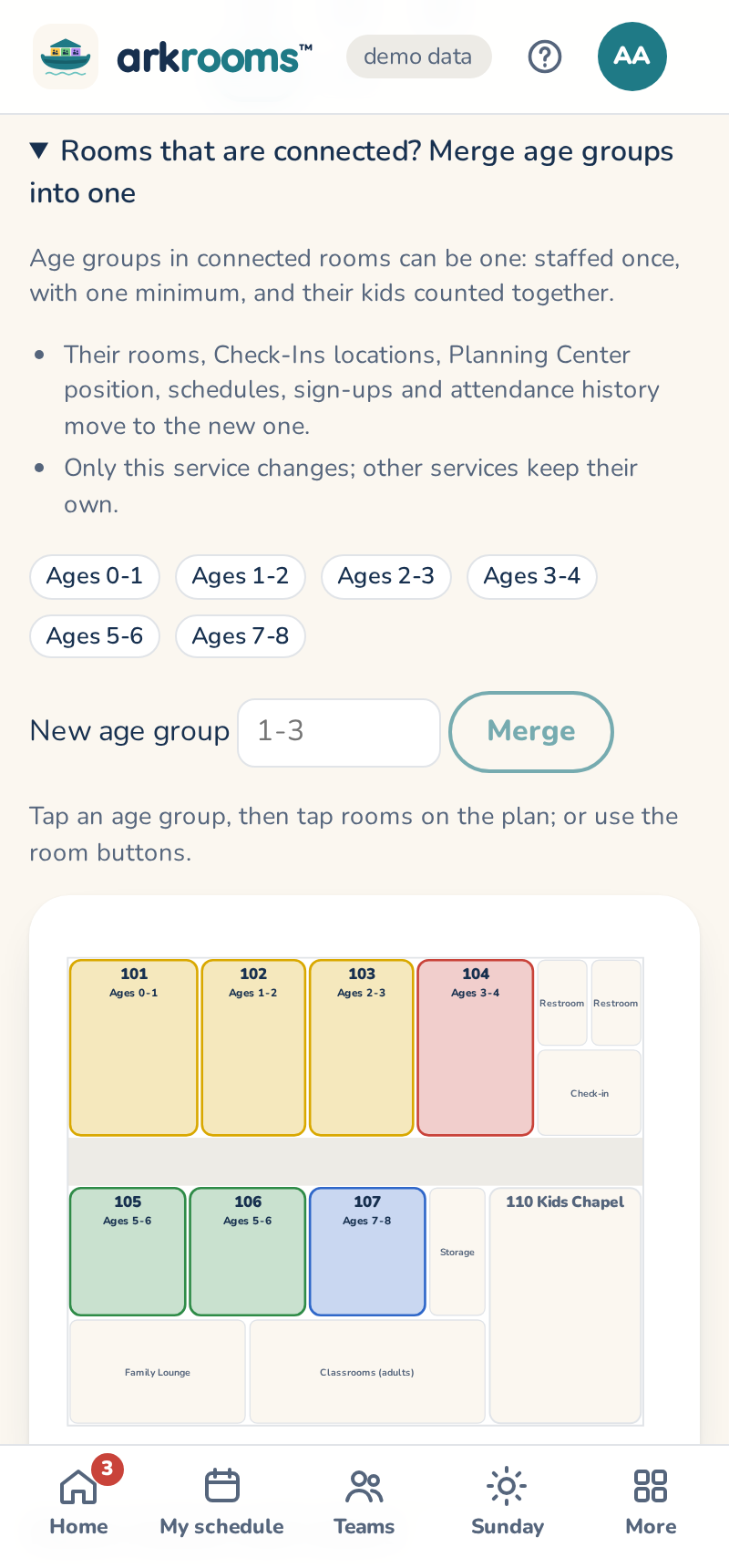
Rooms that are connected: make them one room
Two age groups in rooms that open into each other, working as one space? Make them one age group. Open Rooms that are connected? Merge age groups into one under the age groups, tick the ones to merge, name the new one (like 1-3) and Merge. It's then staffed once, with one minimum, and its kids are counted together for the kids-per-adult ratio. In one step:
- its building rooms, Check-Ins locations and color are theirs together;
- it publishes to the first one's Planning Center position (if your church has a position for each, pick the one to use on Settings → Publishing);
- schedules, sign-ups, sub requests, swaps and lesson links move to it, with the people in them together;
- attendance (Kids per Sunday) adds up their history, so the trend carries on;
- on Settings → Rules, it keeps the highest minimum and the strictest ratio.
Only that service changes: other services keep their own age groups, so the rooms can still be split at another service.
Your own floor plan
A different building? Draw your floor plan (on the Rooms page) opens an editor. Start from the built-in plan or a blank one, and optionally trace over a picture of your real plan, such as a photo of the fire exit map. Choose what to draw, then drag on the plan:
- Kids' room: a room age groups can use. Give it the number your church uses (C05, 104…); the Rooms page and the maps show it.
- Other room (kitchen, restrooms) and Hallway: to help people find their way.
- Note: a label like "North exit", sideways for a hallway that runs up and down.
An L-shaped room? Pick it, and under Shape choose which corner is cut away and how much of the room's width and height it takes. The L moves and resizes with the room.
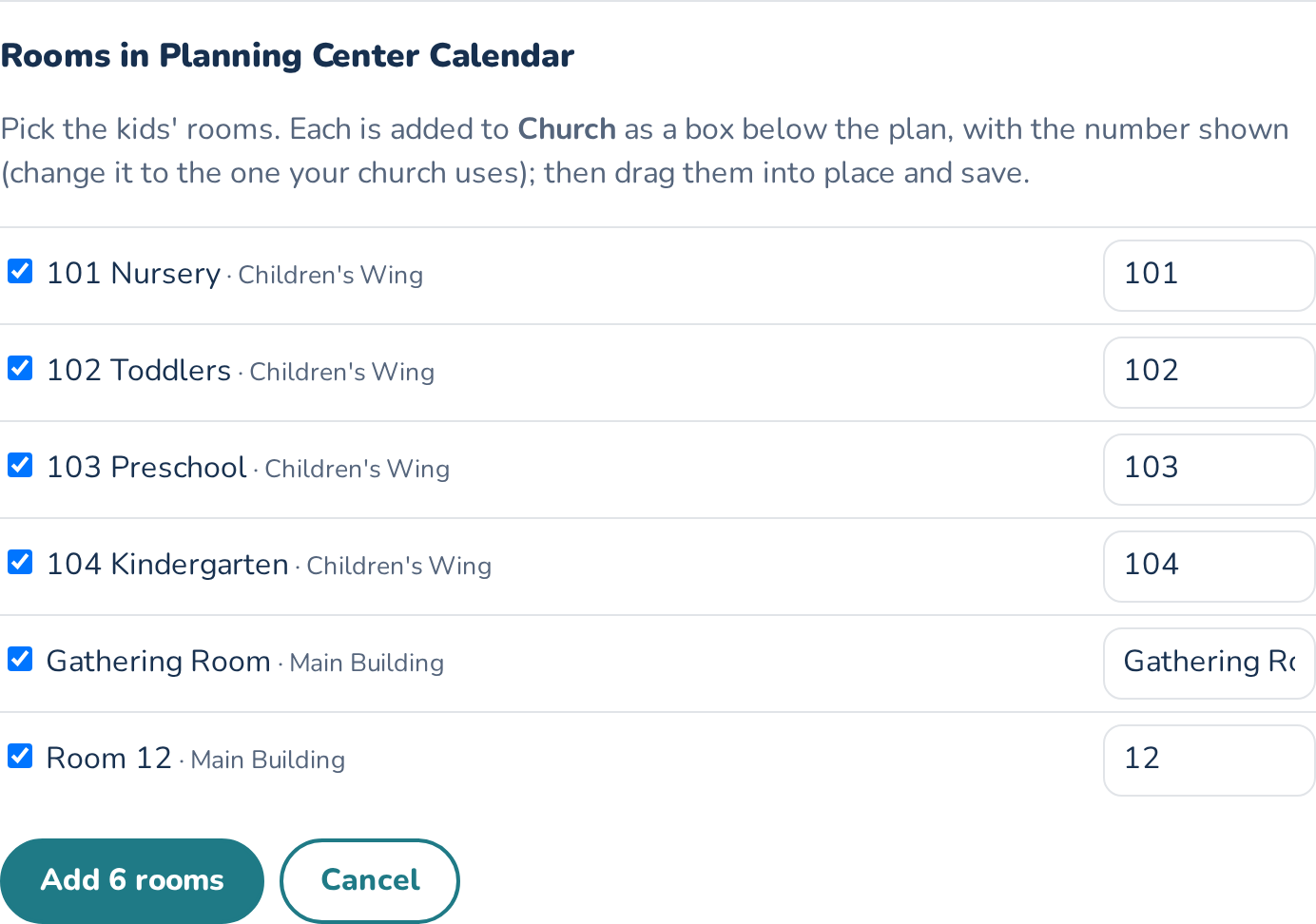
Rooms already in Planning Center Calendar? Add rooms from Planning Center Calendar lists them (with their Calendar folder, often a building or wing): tick the kids' rooms, check each one's number, and they're added as boxes below the plan to drag into place. Nothing changes in Planning Center.
The other way round: a kids' room you drew that isn't in Calendar yet can be created there. Click it, then Also create this room in Planning Center Calendar; after you confirm, it's created as you (you need room Editor in Calendar), in a room folder named for the building, and linked so bookings and setups work. Save the plan to keep the link. Nothing in Planning Center is ever renamed or deleted.
More than one building, or more than one floor? Add a building or floor gives each its own plan (and picture) under its own tab. Room numbers must be different across buildings. The maps open on the building where the groups are, mark the other buildings in use with a dot, and the printout has a page per building.
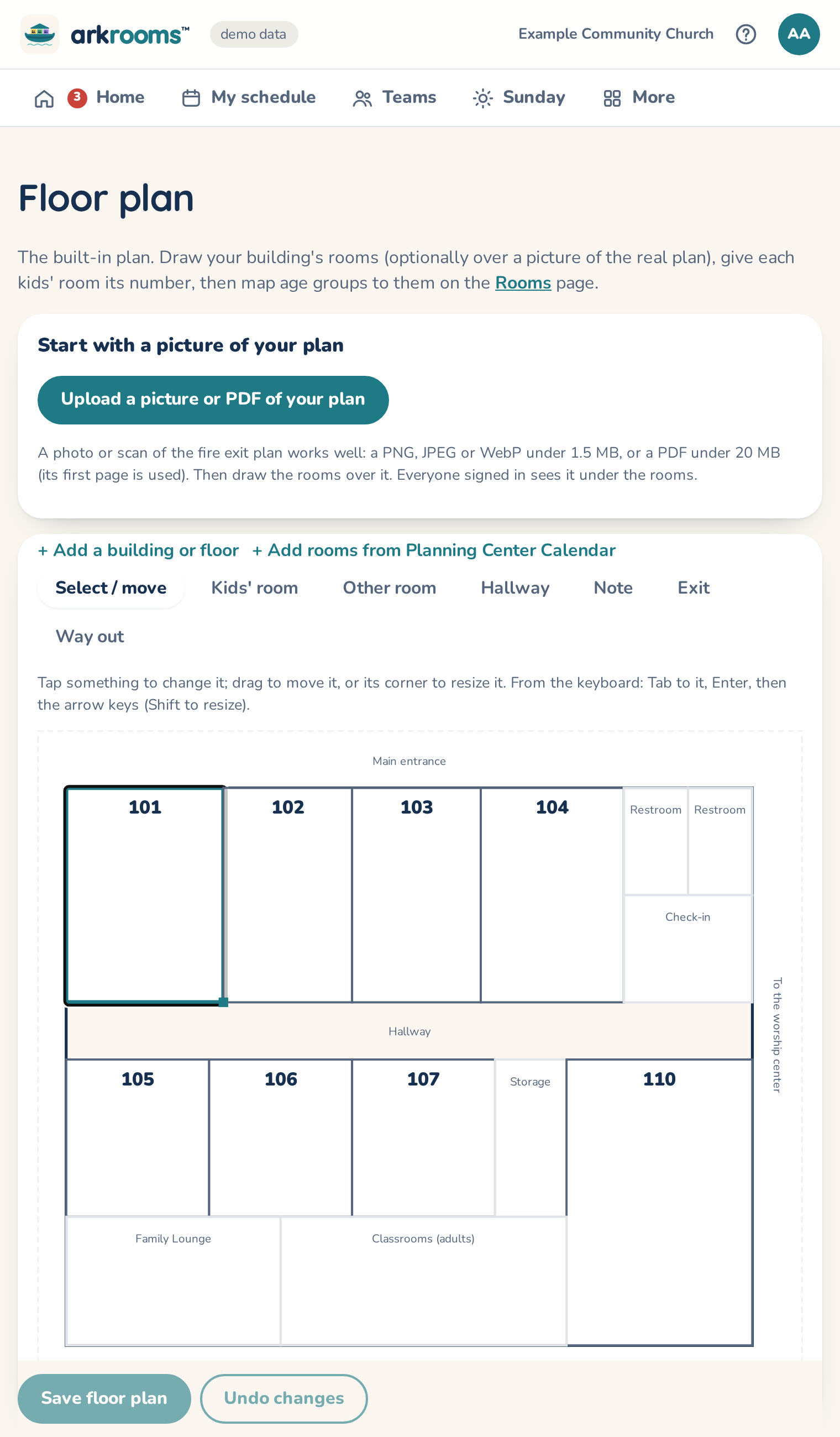
Tap anything to change or remove it, drag it to move it, or drag its corner to resize it. The plan is checked as you go. You can't remove a room an age group still uses until you change that on the Rooms page. Saved plans show on every map, printout and My schedule right away; Use the built-in plan goes back.
Fire escape routes
Optional, and off until you turn it on (Rooms → Fire escape routes).
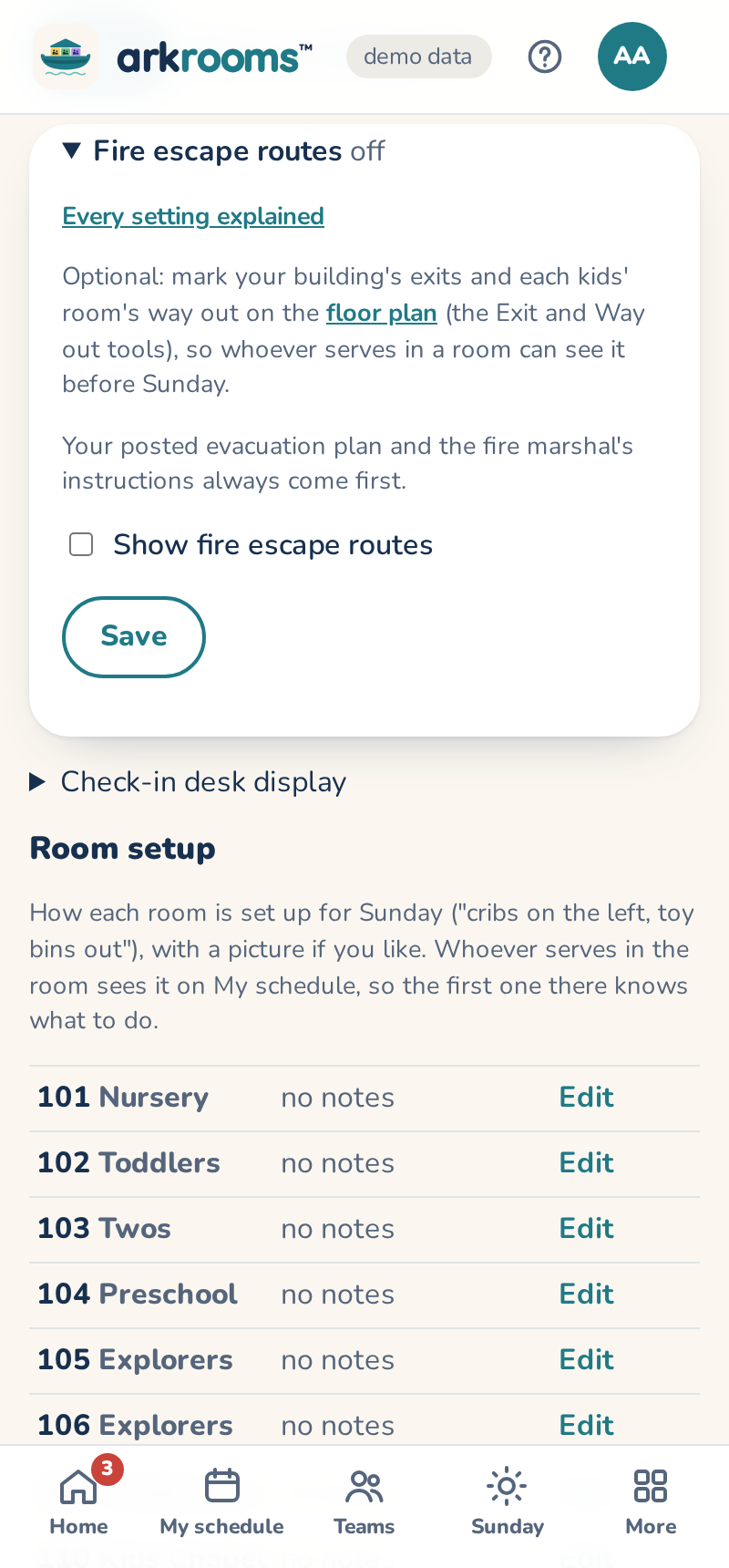
- Draw them on the floor plan: - Exit marks a door out (on an upper floor, the stairway down; never an elevator). - Way out draws a route from a kids' room: tap the room, tap the turns along the hallways, then tap the exit. Each room has one, with an optional note ("cribs go in the evacuation crib by the door"). - The Rooms page lists kids' rooms in use that don't have one yet.
- Where people see them (each can be turned off): - My schedule: a Way out link for your own room, with the exit, the note and where to meet outside. - The map: a Show fire escape routes switch, off until someone taps it. - The printed maps: drawn lightly, so names and rooms still read first.
- Other emergencies: where to shelter in severe weather (the inside hallway by 103, sitting against the wall), and your own short steps for severe weather, an earthquake and a power cut. They show with each room's way out on My schedule; leave any blank to leave it out.
- Drills (their own setting): on This morning, a leader or admin picks Fire or Severe weather, taps Start a … drill, then Everyone's out: stop (or Everyone's sheltered: stop). They untick anyone who wasn't in a room, add a sub, and save. Children are recorded as a number per room, never by name. - Admins see the history on the Rooms page and can download it as CSV. - A reminder can go to the admins after so many months without a drill.
Your church's posted evacuation plan and the fire marshal's instructions always come first: Arkrooms shows what you drew and doesn't check it against the building or the fire code.
Room setup
Under Room setup on the Rooms page, write how each kids' room is set up for Sunday ("cribs on the left wall, toy bins out") and, if you like, add a picture of it (a phone photo is fine; it's made smaller before it's saved). Whoever serves in the room sees it on My schedule, under that Sunday, so the first one there knows what to do.
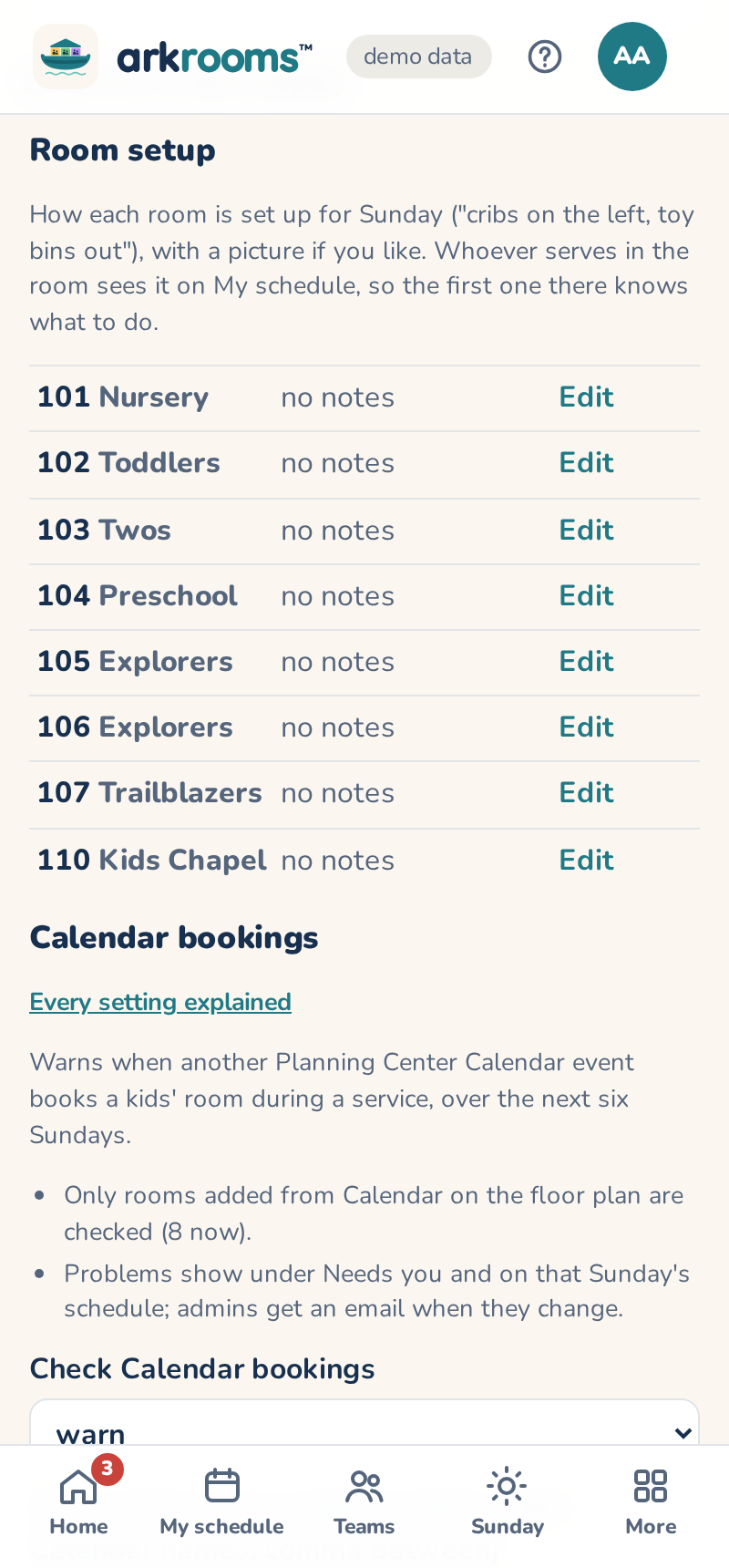
If the room came from Planning Center Calendar and has room setups there, Use a setup from Planning Center Calendar loads one: its diagram becomes the picture and its description the notes (if the notes are empty). Press Save to keep it; load it again if the setup changes in Calendar.
Each room can also have two short checklists: before the session (e.g. first-aid kit stocked, walkie-talkie on) and after it (e.g. wipe tables, bag soiled linens, toys to the wash bin). Volunteers see both on My schedule; on the day, one of them taps All done when the after-session list is finished. The Rooms page shows when each room was last done.
And how to lead a session there: one step a line, minutes first if you like ("10 Opening activity", "15 Craft", "5 Clean up"). Write them once for every service, or give a service its own when the same room holds a different class then. Volunteers see the numbered steps, with the total time, under the room on My schedule.
Calendar bookings
Does your church book rooms in Planning Center Calendar? Under Calendar bookings at the bottom of the Rooms page, turn Check Calendar bookings to warn. Every hour the app reads Calendar's bookings for the next six Sundays. It says when another event books a kids' room during a service, like a funeral reception in the nursery. Only rooms added from Calendar (above) are checked, and nothing changes in Planning Center.
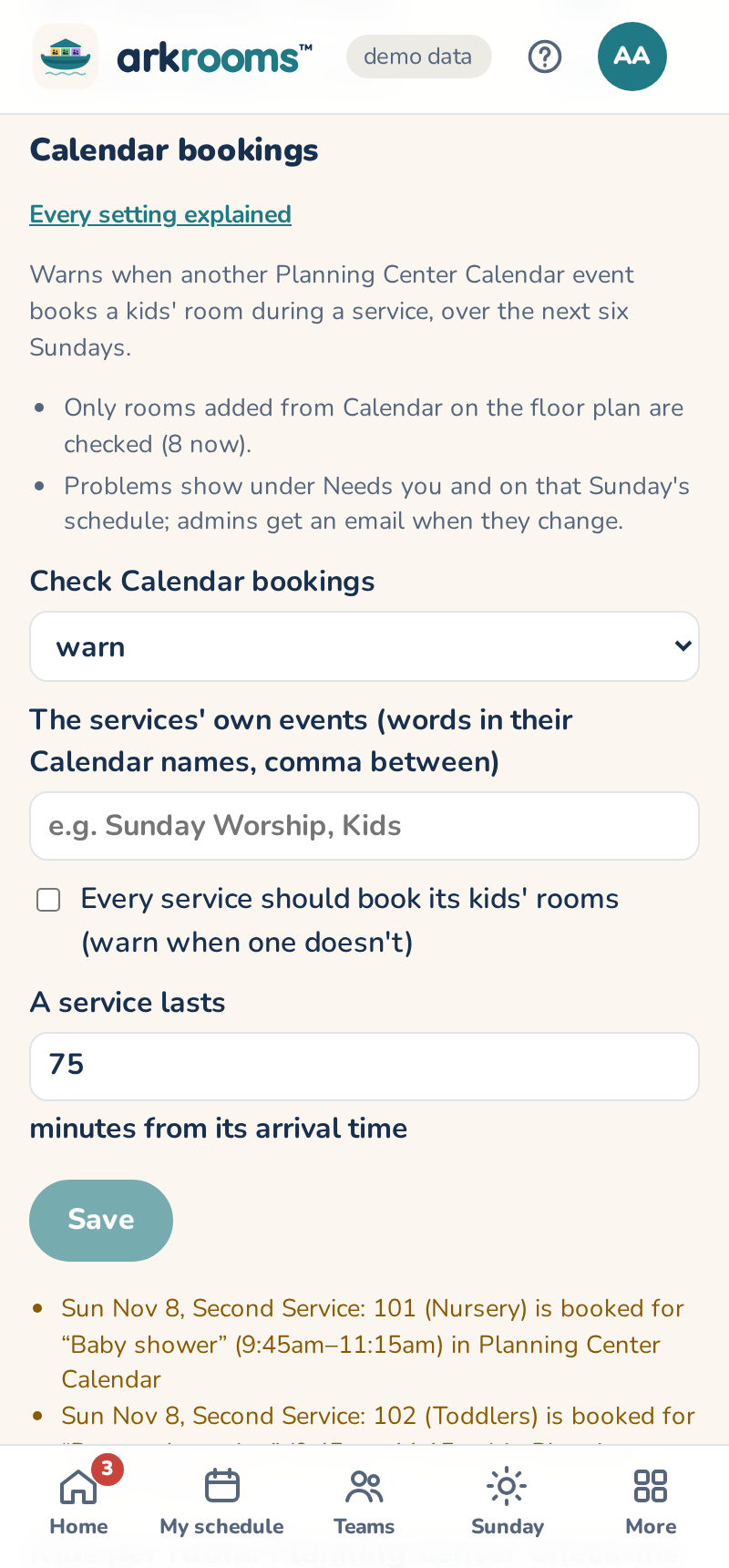
- The services' own events: words from the names of the Calendar events your services book rooms with ("Sunday Worship", "Kids"). Those bookings are never a problem.
- Every service should book its kids' rooms: also warn when a service doesn't book a room it uses.
- A service lasts: how long after the arrival time (Settings → Services) a room is in use. The default is 75 minutes.
Problems show under Needs you and on that Sunday's schedule. The admins get an email whenever the list changes. Sort out the booking in Calendar, or move the age group to another room.
Counts: from Check-Ins, Headcounts or your leaders
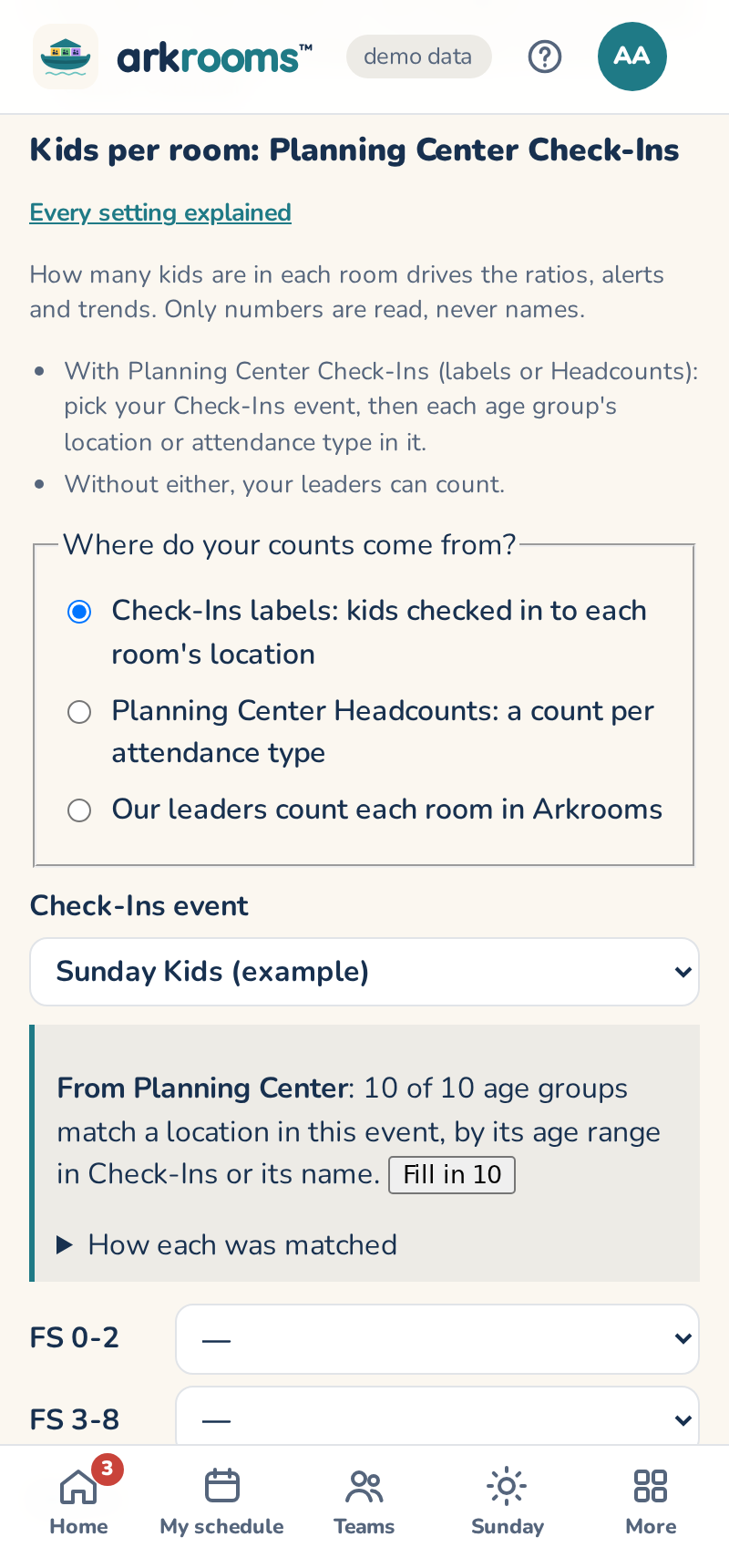
How many kids are in each room drives the ratios, the alerts and the trends. Under Kids per room at the bottom of the Rooms page, say where your counts come from:
- Check-Ins labels: kids checked in to each room's location. Pick your Check-Ins event (the one kids check in to on Sundays), then each age group's location in it, and Save. From Planning Center matches each age group to a location by its age range in Check-Ins, or by its name ("Ages 0-1"), and Fill in picks those for you; How each was matched says why any age group wasn't.
- Planning Center Headcounts (a clicker count per room, no labels): pick the event, then each age group's attendance type. There's no volunteer count, so that column is left out.
- Our leaders count: no Planning Center needed. On Sundays, This morning has a number box in each room; a leader enters how many kids are there and presses Save (the latest count wins). Arkrooms keeps the number for 30 days, then only the Sunday's total.
From Check-Ins or Headcounts, leaders then see on Sunday mornings how many kids are in each room (This morning, under "Team leaders"). Only counts are read, never names, and nothing changes in Planning Center. If it says Check-Ins didn't answer, the message says why: connect again (Settings → Planning Center) to allow Check-Ins, or ask your Planning Center administrator for Check-Ins access for the account that connected.
Once an age group has a location, its line also shows Check-Ins' own limits (the fewest volunteers, kids per volunteer, and the most kids) next to Arkrooms' minimum adults and kids per adult. Check-Ins enforces its own at the door, so when they differ, Use Check-Ins' values copies them into Settings → Rules. If the location isn't named like the position Arkrooms publishes for that age group, it says which rename to make: Planning Center only counts a scheduled volunteer as a volunteer there (and toward the room's limits) when the names match.
Checking kids in and out in the room: Check-Ins roster stations
Arkrooms can't check a child in or out: Planning Center Check-Ins has no way for another app to do that. Each room's volunteers use a Check-Ins roster station instead, which already has the room's roster, confirmed arrivals, check-out by scanning the parent's label, medical notes and texting parents. In Check-Ins:
1. Stations → New station, kind Roster: one per room, or one shared station locked to a folder of rooms (a tablet at a hallway desk). 2. Turn on confirm arrivals, so a child counts as in the room only once a volunteer taps them in. 3. Agree a lost-label rule with your volunteers (for example, a parent without their label waits for a leader, who checks who they are first). 4. Whether a volunteer's own phone can be a roster station without a station key is Planning Center's call; ask them (Arkrooms hasn't verified it).
Arkrooms keeps what Check-Ins doesn't do: the leader view of every room, kids expected and staffing, and alerts.