
Each team serves a block of Sundays (two, in the pictures). The home page lists the upcoming blocks; yours is marked your team. Admins can do everything a leader can, for any team, when a leader is away: edit, approve and publish a block, and approve or assign subs. A block starting within two weeks that still isn't approved shows on the admins' Needs you list too.
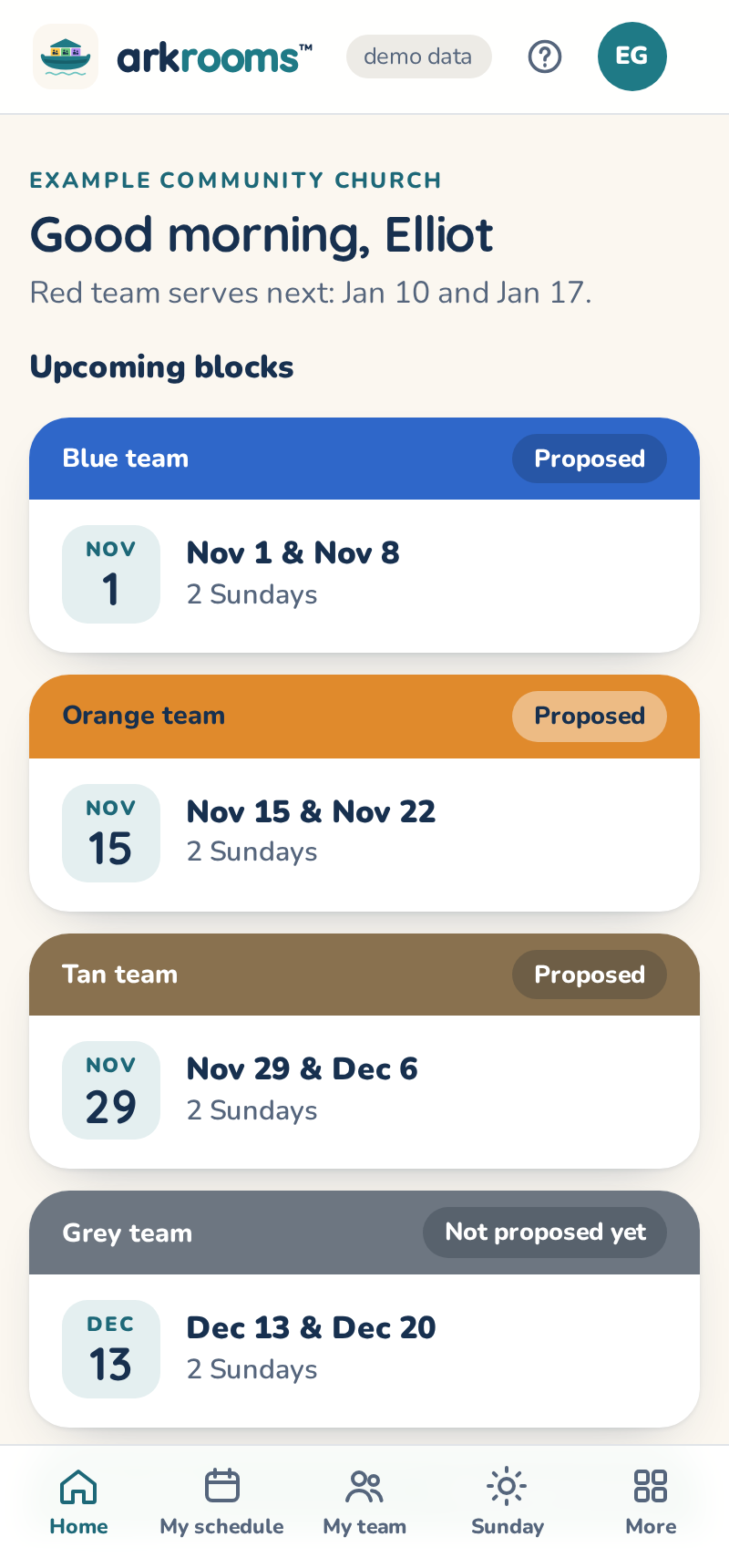
Needs you at the top lists what's waiting on you, most urgent first: sub offers to approve (with Approve and Decline right there), your team's blocks starting within 6 weeks that aren't approved, sub requests on your Sundays in the next 3 days that nobody has taken, and serious alerts. The red … needs you in the top bar shows how many.
Short of volunteers (admins) shows, when the upcoming schedules have a room with fewer adults than the rules need, which rooms are short on how many Sundays and by how many adults, and roughly how many more eligible adults each team would need to fill every room. Teens don't count, and a room with a kids-per-adult ratio needs enough for the kids expected. It's counts only, from the schedules already made; People to ask on the Teams page is where to start.
Open your block to see the proposed schedule. The scheduler fills every room following the rules (two adults per room, at least one woman, couples together, training current, fair turns). The line under the title says whether it found any rule problems: problems with your church's rules, checked against your settings and Planning Center's data.
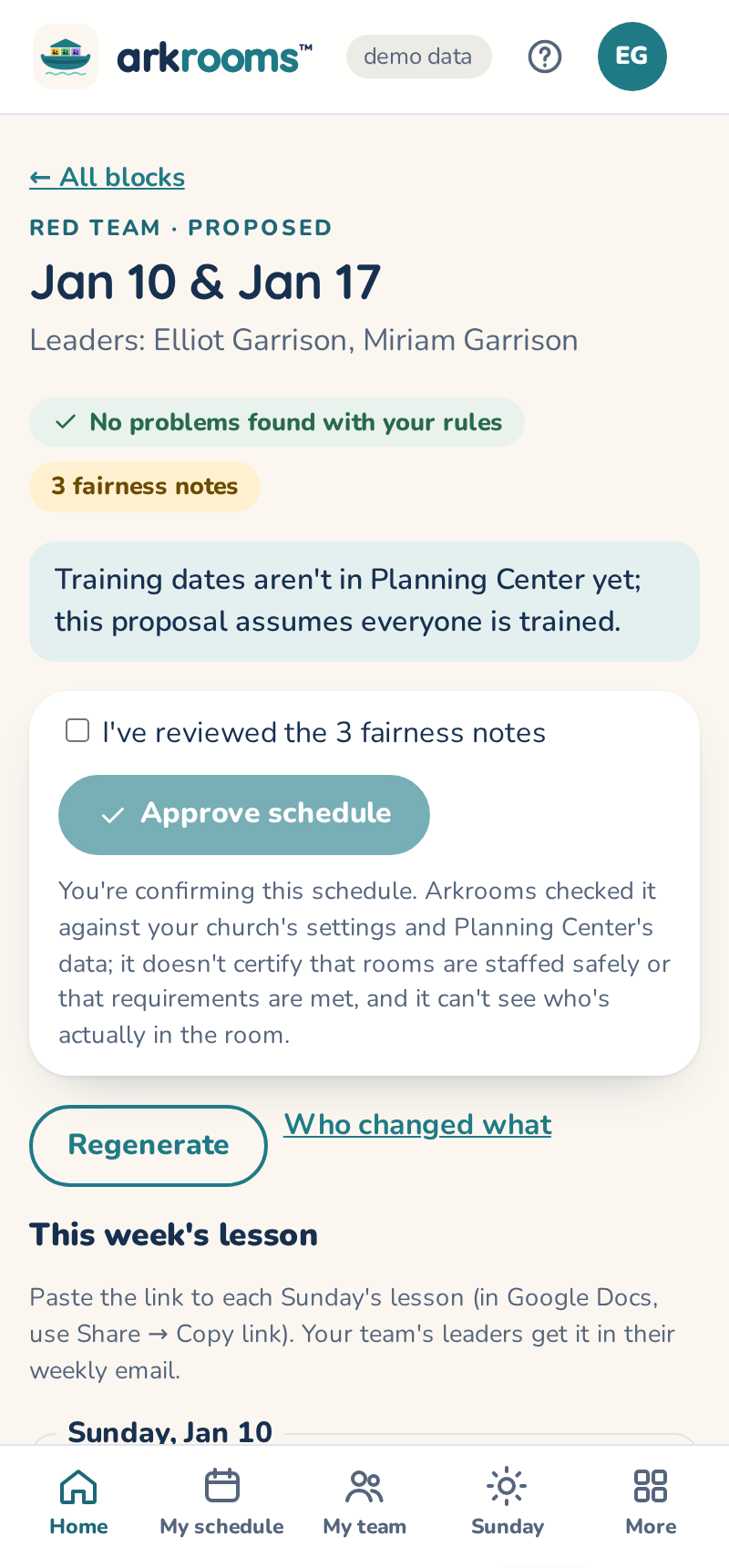
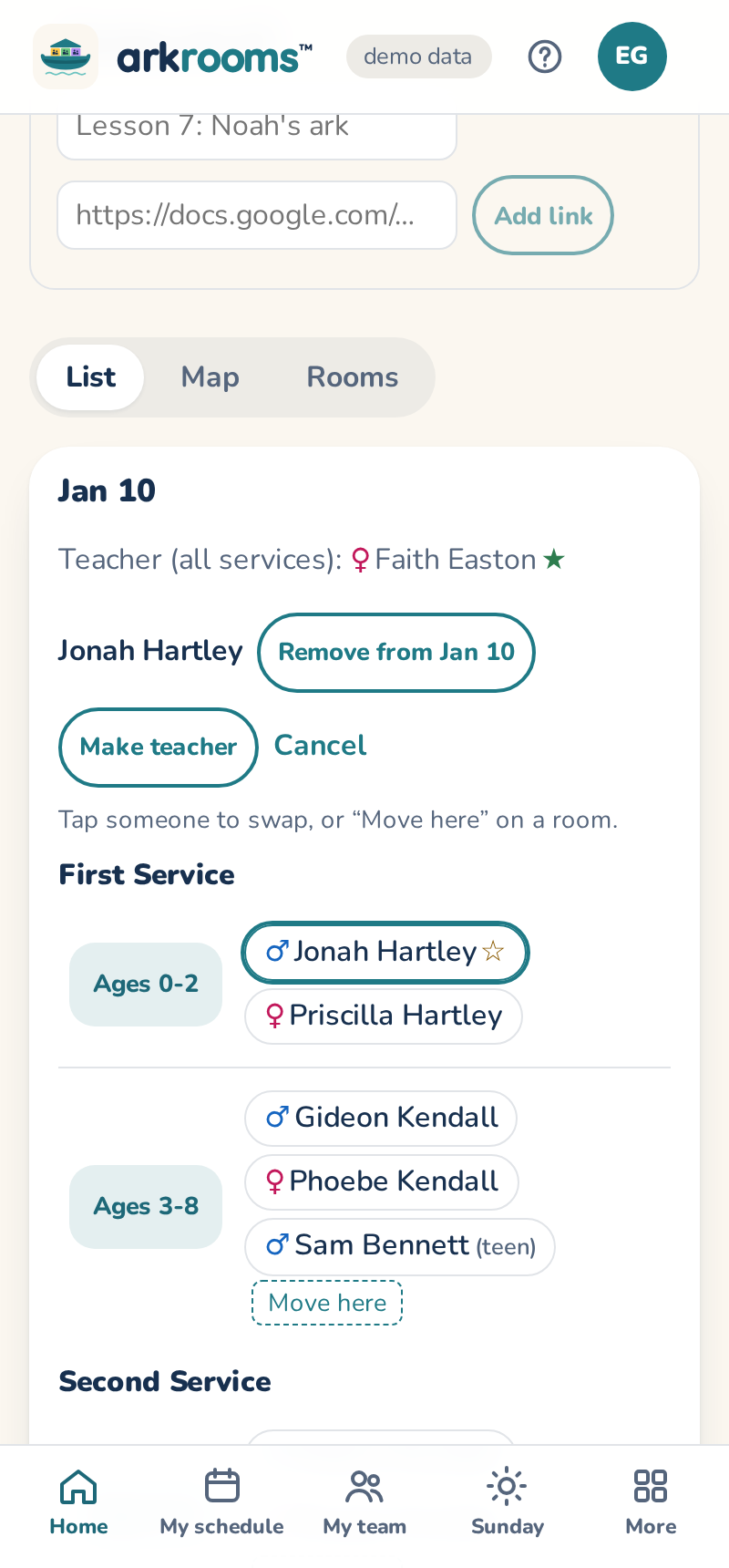
Symbols next to names: ♀/♂ gender, ★ that Sunday's teacher, ☆ can teach, and a colored dot for someone from another team.
Changing the schedule
Tap a person to select them. Then tap someone else to swap them, tap Move here on another room, Remove them from that Sunday, or Make teacher. Use Add someone to bring in a team member who isn't serving that day. Every change is re-checked right away, and Undo takes it back. Regenerate starts over with a fresh proposal, a different one each time that still keeps every rule (Undo brings back the one before). Proposals also try not to put people in the same room, or as backup, as on their team's last turn.
The map
Map shows the building for one Sunday and service. Rooms in use are colored by age group (the legend is under the plan), and each person is a circle with their initials; a dashed circle is a sub. Tap a room to list who's there, with full names. Drag a person to another room (or tap them, then the room) to move them. Choose your main service's first half (in the demo, Second Service, first half) to see the groups that meet together.
Rooms shows the same Sunday and service as a grid, one card per age group with its rooms and who's there, and the backups. It needs no floor plan and no zooming on a phone. Until a church draws its floor plan, Map shows this grid too. To move someone, use the List. On a phone, pinch (or + / −) to zoom and drag the background to move around; Fit goes back to the children's rooms.
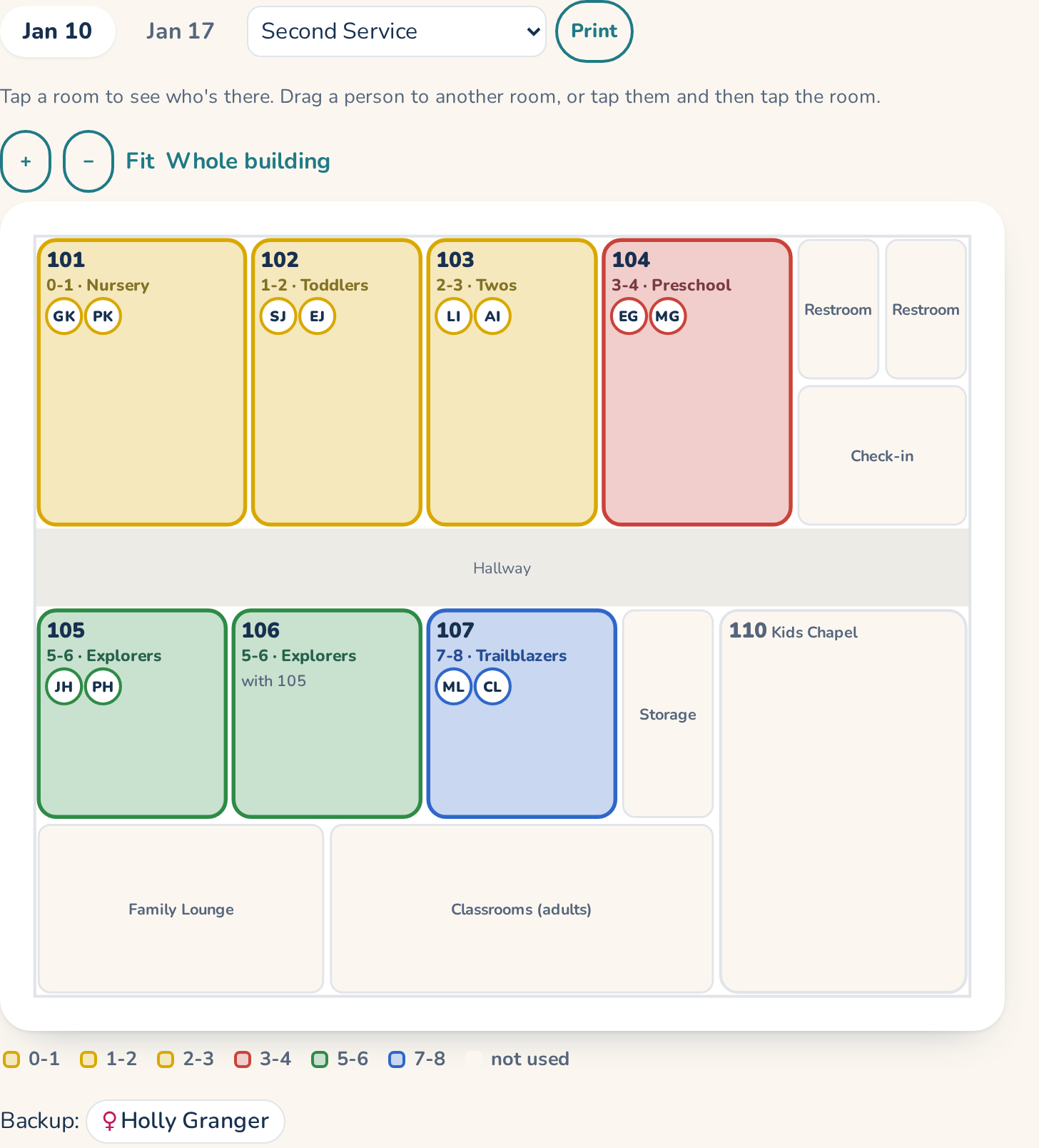
Print (next to the service picker) opens that Sunday's maps, one page per service, to print and post at check-in, with full names in each room. Until the block is approved, each page says DRAFT.