
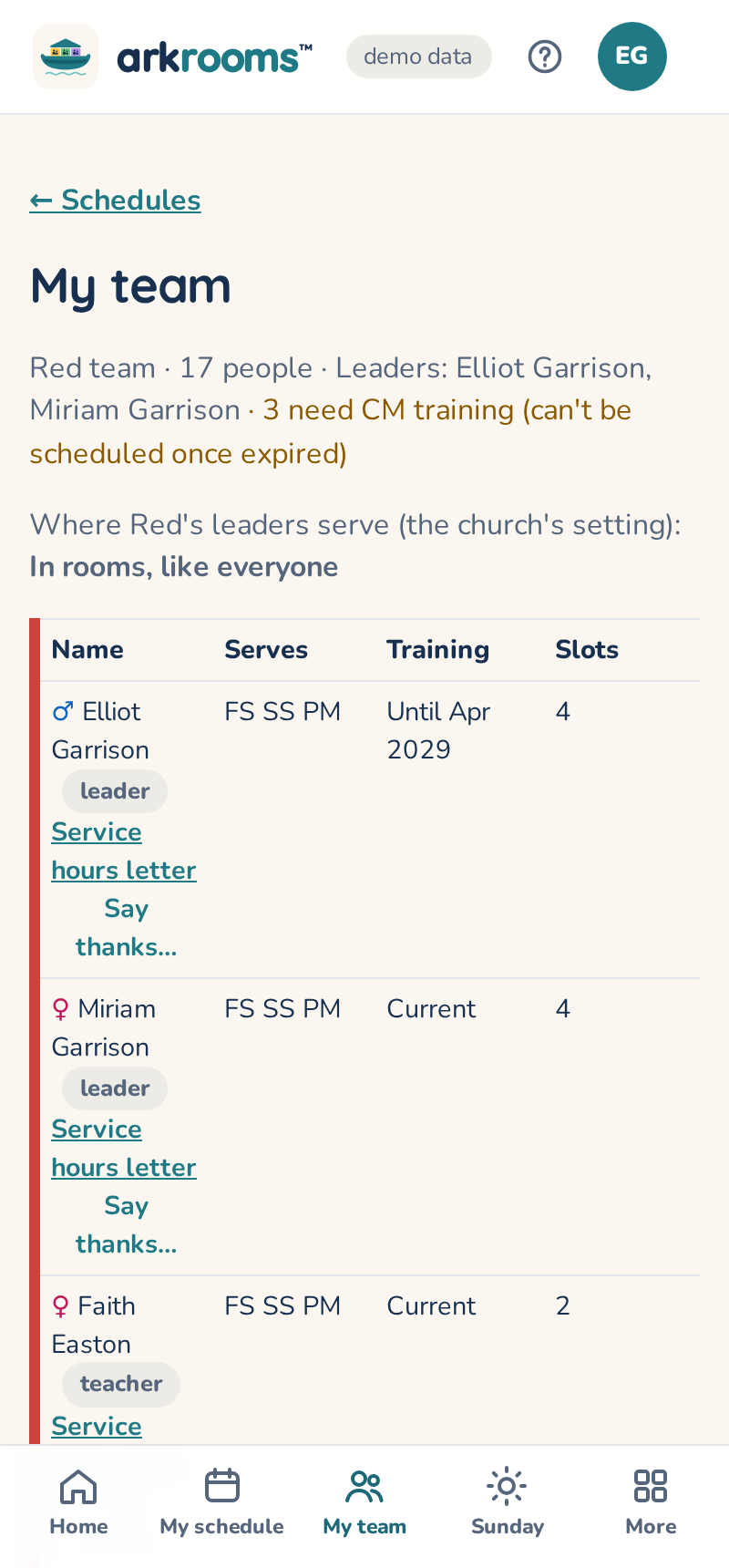
My team (admins see Teams, with every team) lists your team: roles, couples, which services each person can serve, CM training (due within 60 days in orange, expired or missing in red: they can't be scheduled until it's renewed) and how many upcoming slots they have. Admins see every team. Changes to the team are made in Planning Center for now.
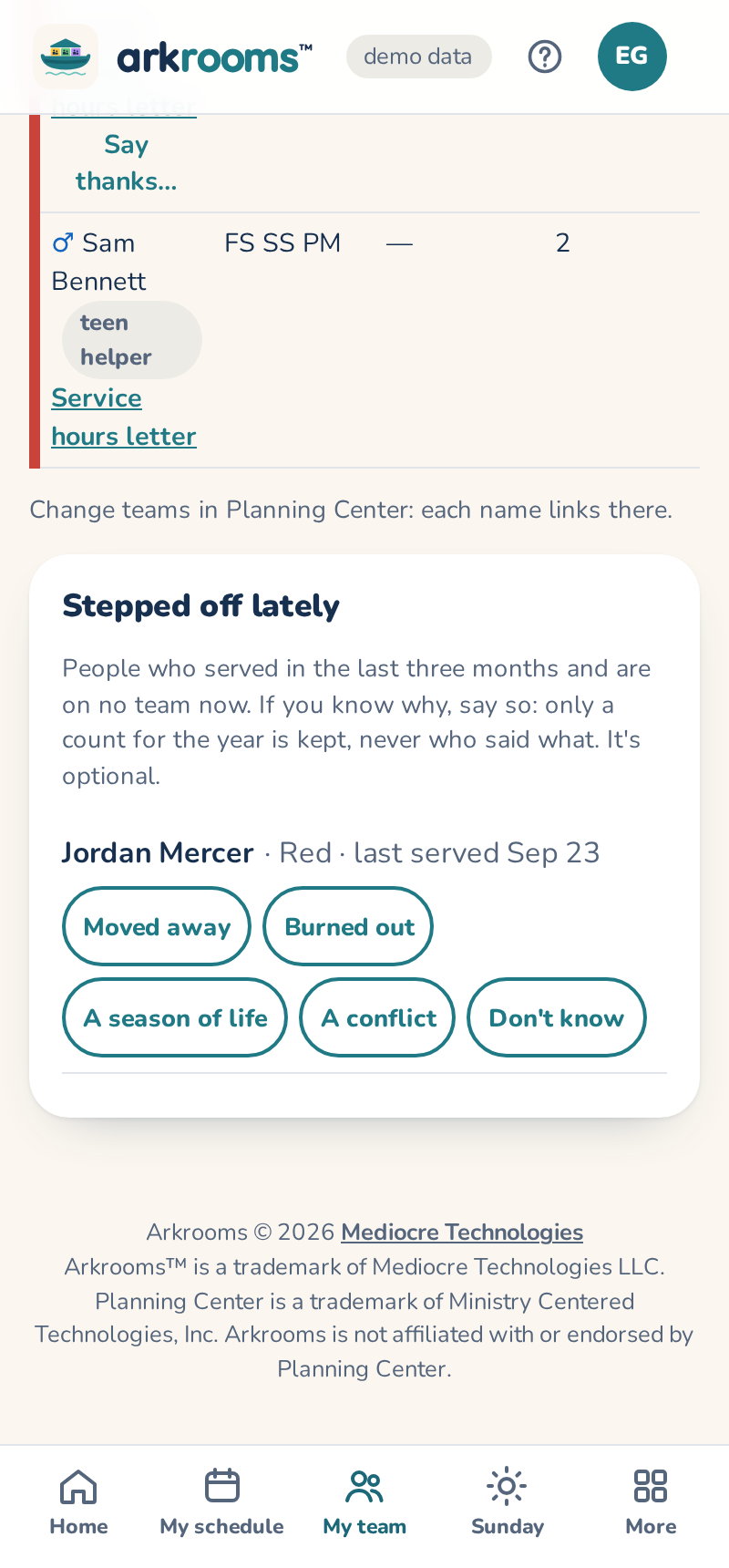
Stepped off lately (leaders and admins)
At the bottom of Teams, leaders and admins see the people who served on their team in the last three months and are on no team now. If you know why, tap a reason: moved away, burned out, a season of life, a conflict, or don't know. It's optional. Arkrooms keeps only a count per year and reason, never who said what, and admins see the counts under Why people stepped off, by year, so the church learns why people leave.
Onboarding new volunteers (admins)
With Settings → Onboarding new volunteers on, someone added to a team who has never been on an approved schedule sees Getting ready to serve on My schedule: your church's own steps, whichever it uses (the minimum age and membership, the policies to sign, training, the background check, observer Sundays), each with what's missing and the link you give for the training and the background check. Everyone already on a team when you turn it on counts as done.
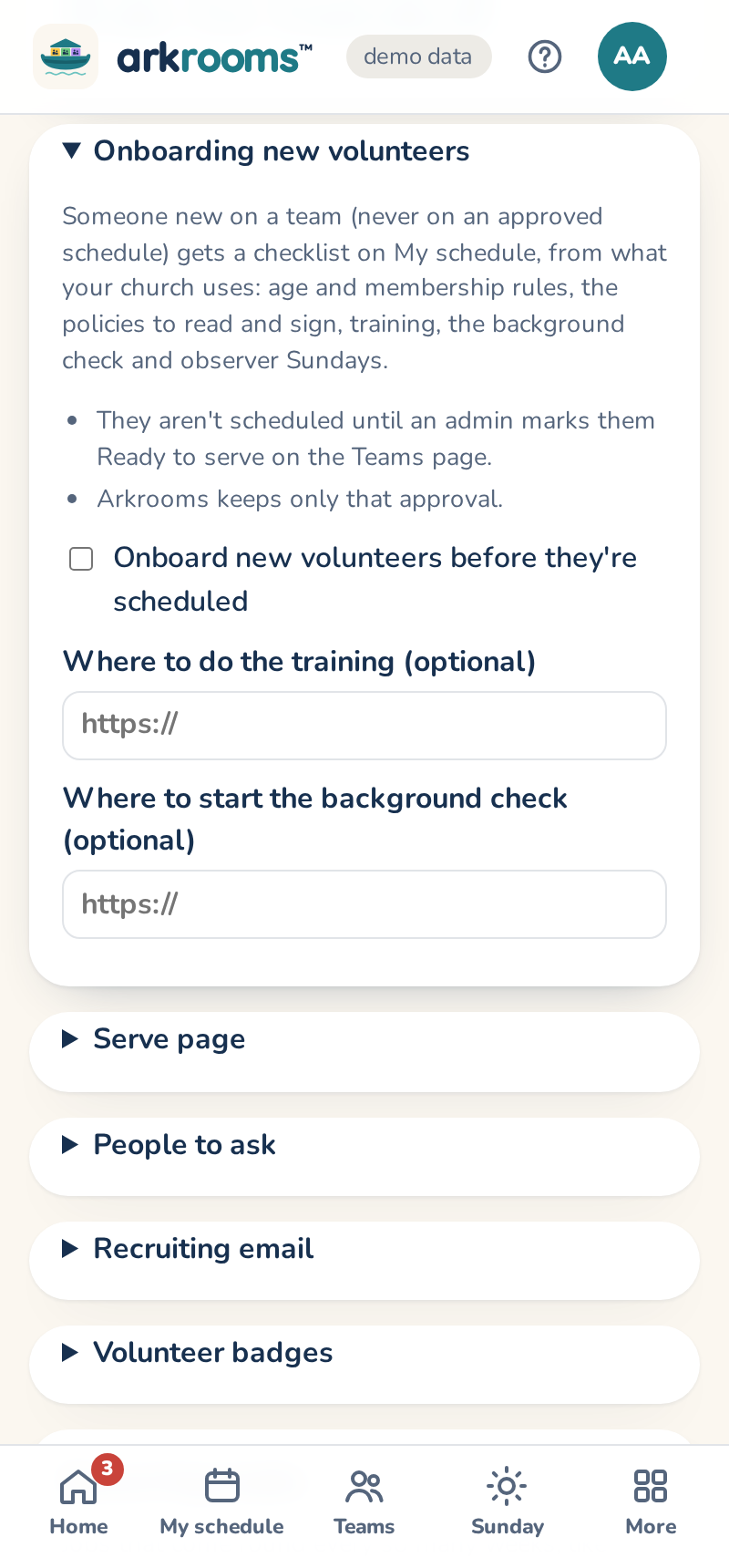
New volunteers aren't scheduled until an admin presses Ready to serve next to their name under New volunteers on the Teams page, where you also see how far along each one is. After that, the usual rules still apply to every schedule. Arkrooms keeps only that approval; training dates and background checks stay in Planning Center.
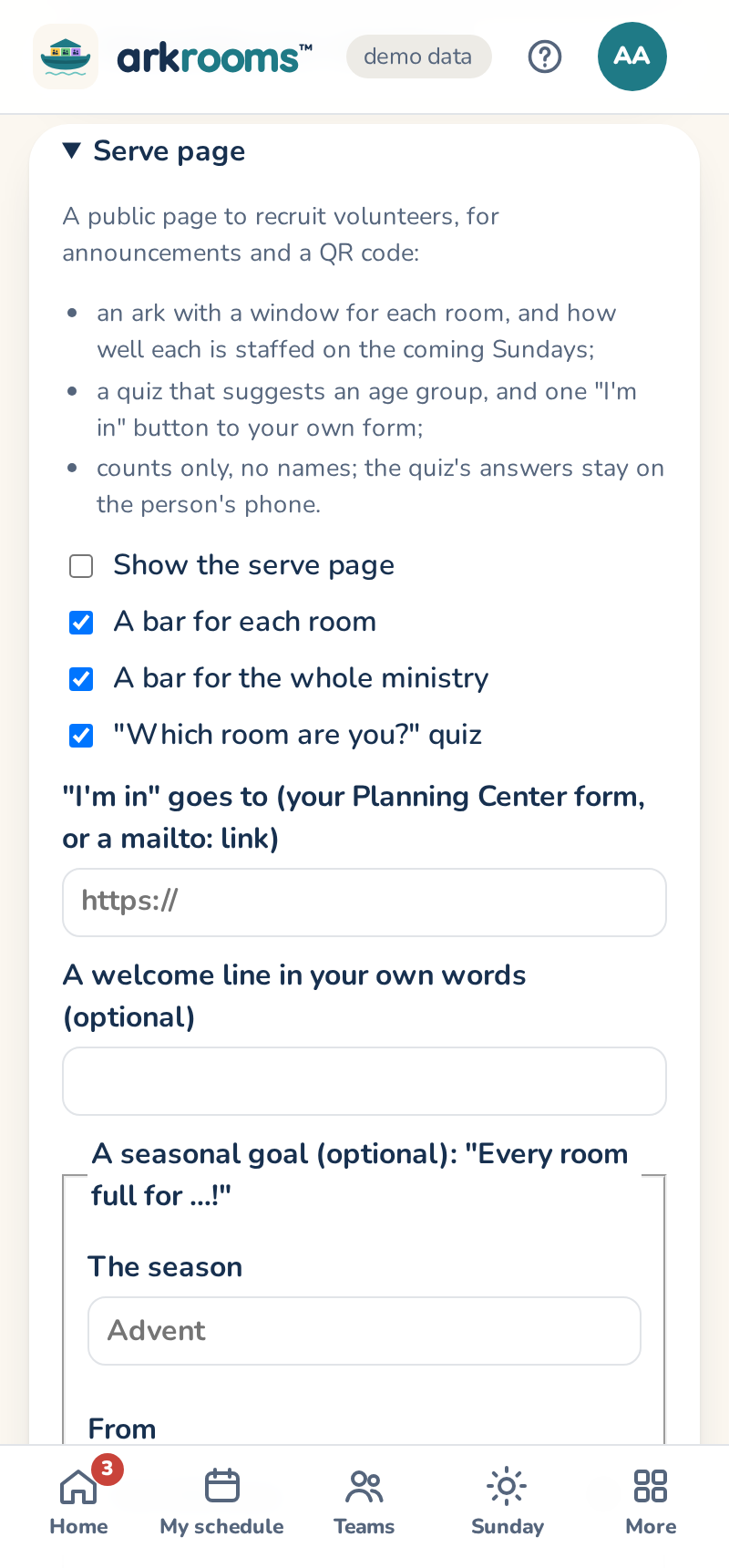
The serve page (admins)
Settings → Serve page turns on a public page at your Arkrooms address followed by /serve, for announcements and a QR code. It shows an ark with a window for each room, lit when that room is fully staffed on the coming Sundays; a bar for each room ("fully staffed on 4 of 6 coming Sundays") with the rooms that need people first; one for the whole ministry ("about 6 more adults would fill every room"); and Which room are you?, four questions that suggest an age group. I'm in goes to your own form, so contact details stay with your church. It shows counts only, never a name, and the quiz's answers stay on the person's phone.
The same settings can set a seasonal goal ("Every room full for Advent!"), with its dates: one bar for how many of the season's rooms are covered, on the serve page and with each volunteer's badges, and a 🎄 badge for anyone who serves in it. It's a shared goal: nobody is ranked.
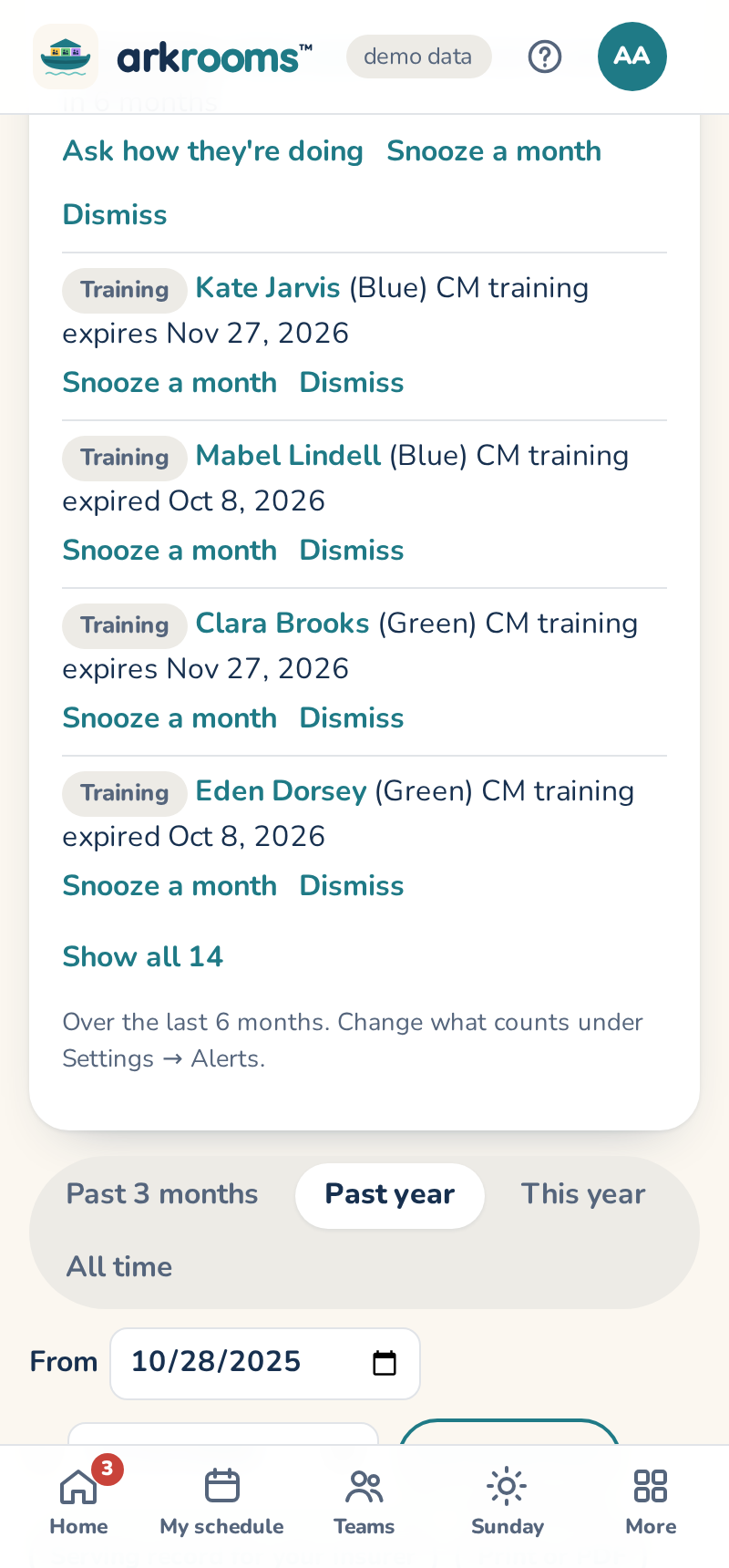
Ask how they're doing (leaders and admins)
When an alert says someone hasn't served in a while, Ask how they're doing opens a short note to them, filled in with their name, yours and the team's. Change it as you like and Send: Arkrooms sends it for you, and their reply comes to you. The alert is snoozed for a month, and nobody gets more than one of these a month. Volunteers can turn these notes off on My choices.
Say thanks… on the Teams page does the same for a thank-you to anyone on your team: their name and yours filled in, your words, their reply to you, at most one a person a week. The weekly leader email's milestones line points there.
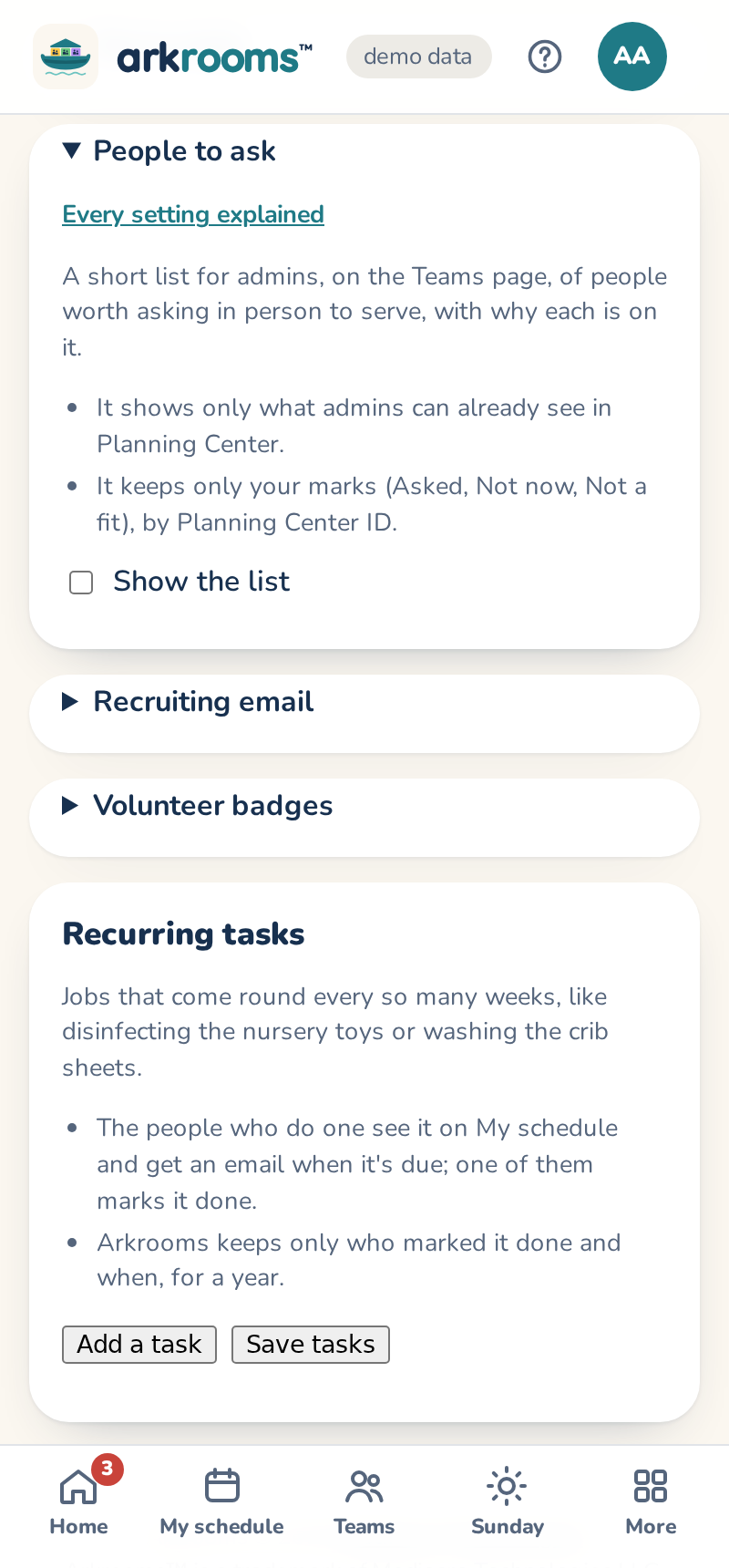
People to ask (admins)
When an admin turns it on in Settings → People to ask, Who could we ask? at the bottom of Teams lists up to 10 people worth asking in person to serve (worked out when you press it, never in an email), each with why: a volunteer who stepped off a team in the last 12 months ("Served 18 Sundays, last in March"), a teen helper turning 18 within 3 months, or, if you pick it, a parent whose child comes regularly ("Their child came 6 of the last 8 Sundays", from Check-Ins and People's households; it needs your Check-Ins event on the Rooms page). Their name opens them in Planning Center for their contact details. Mark each one Asked (hidden for 30 days, then shown again with when you asked), Not now (hidden for 6 months) or Not a fit (hidden until you clear it under Marked). Each ask (marking Asked, Email them, or Add to workflow) is kept for a year with when, by whom and how, and shows on the list ("asked 2 times, last 3 Mar by email"), so nobody is asked again and again; someone has at most one email from it a quarter. Only admins see the list.
Observers: a first Sunday that's just watching
With Settings → Rules → Observers on, a leader can add someone to a room for a Sunday to watch and help: Add an observer… under each room on the block page. An observer never counts toward the room's adults, its kids-per-adult ratio or the woman-in-room rule. They don't need CM training yet; a passed background check (on by default) and the church's policies to sign still apply, and teens can't observe (they help as teens). Each room takes one observer unless you allow more.
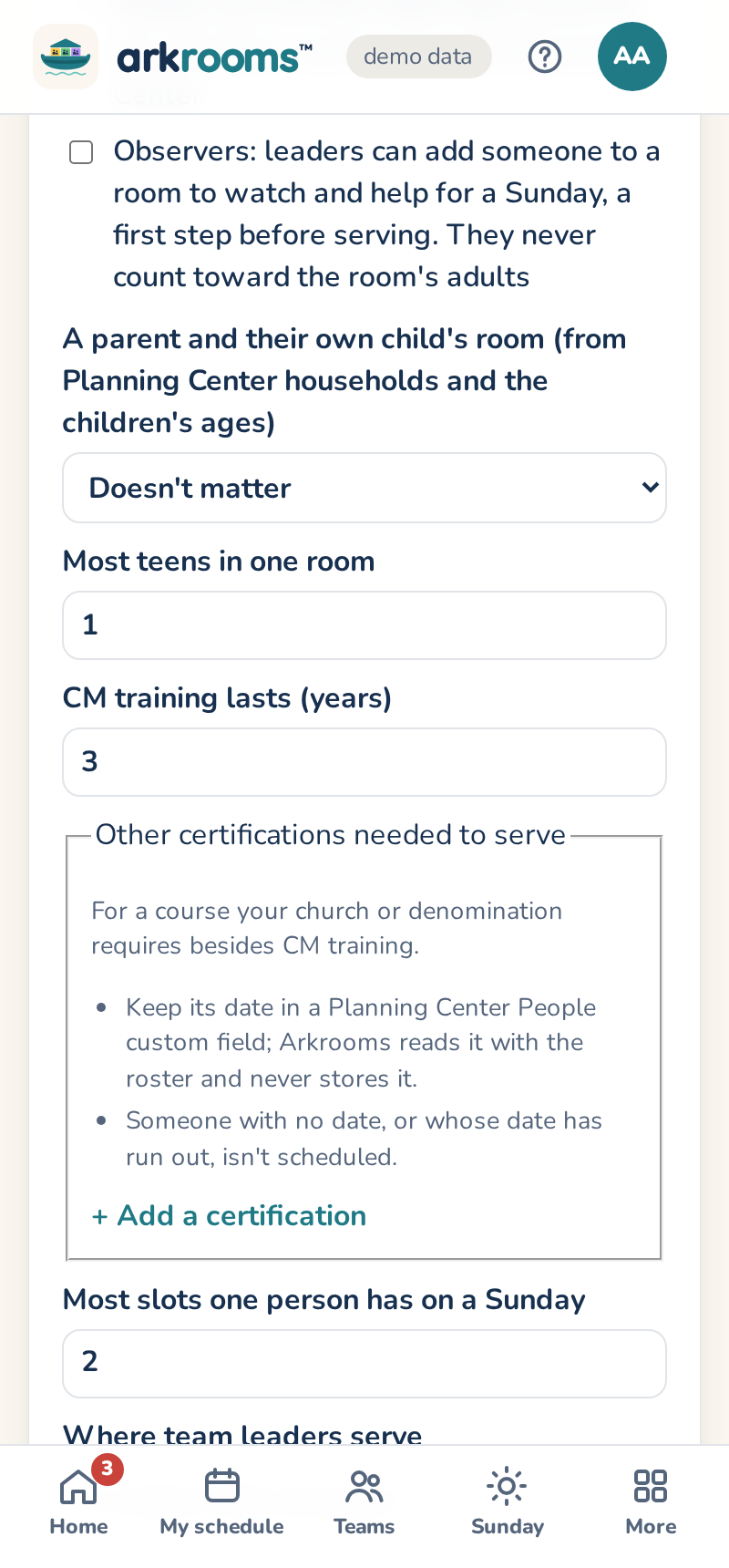
Observers get the approval email and reminders, saying they're observing and that nothing is expected of them but to watch and help, and see the Sunday on My schedule (without the sub button). After two observed Sundays (or the number you set) they get a Ready to serve badge, and their team's leaders and the admins get one email.
Sub requests on your block
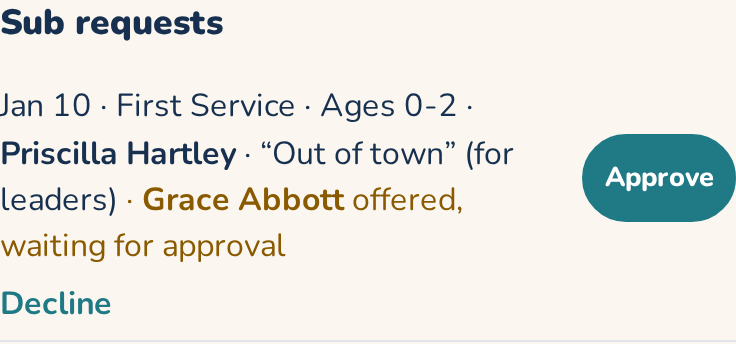
Your block lists its Sub requests: open ones and who was asked, offers waiting for you, and which are covered and by whom. When someone offers to sub you get an email with Approve and Decline links. They open the app (sign in if you need to) on that one offer, and you tap once more to confirm. Approve puts them in the slot (the rules are checked again), Decline opens the request again. Offers still waiting after a day (two hours close to Sunday) are emailed to you and the admins again. Admins can approve too, and for an emergency any team's leader can. You can also Ask every team now, Cancel, or Assign… a sub yourself (no approval needed). A sub doesn't undo your approval. Settings → Admins, features can turn approval off. Where a sub is a trade, each request says which of the sub's Sundays the person they cover takes in return, or that they owe the sub a Sunday. When you Assign… a sub, the earliest of their Sundays that works is used.
If the block was already published, a sub request says what to change in Planning Center.
Someone called out by text or phone
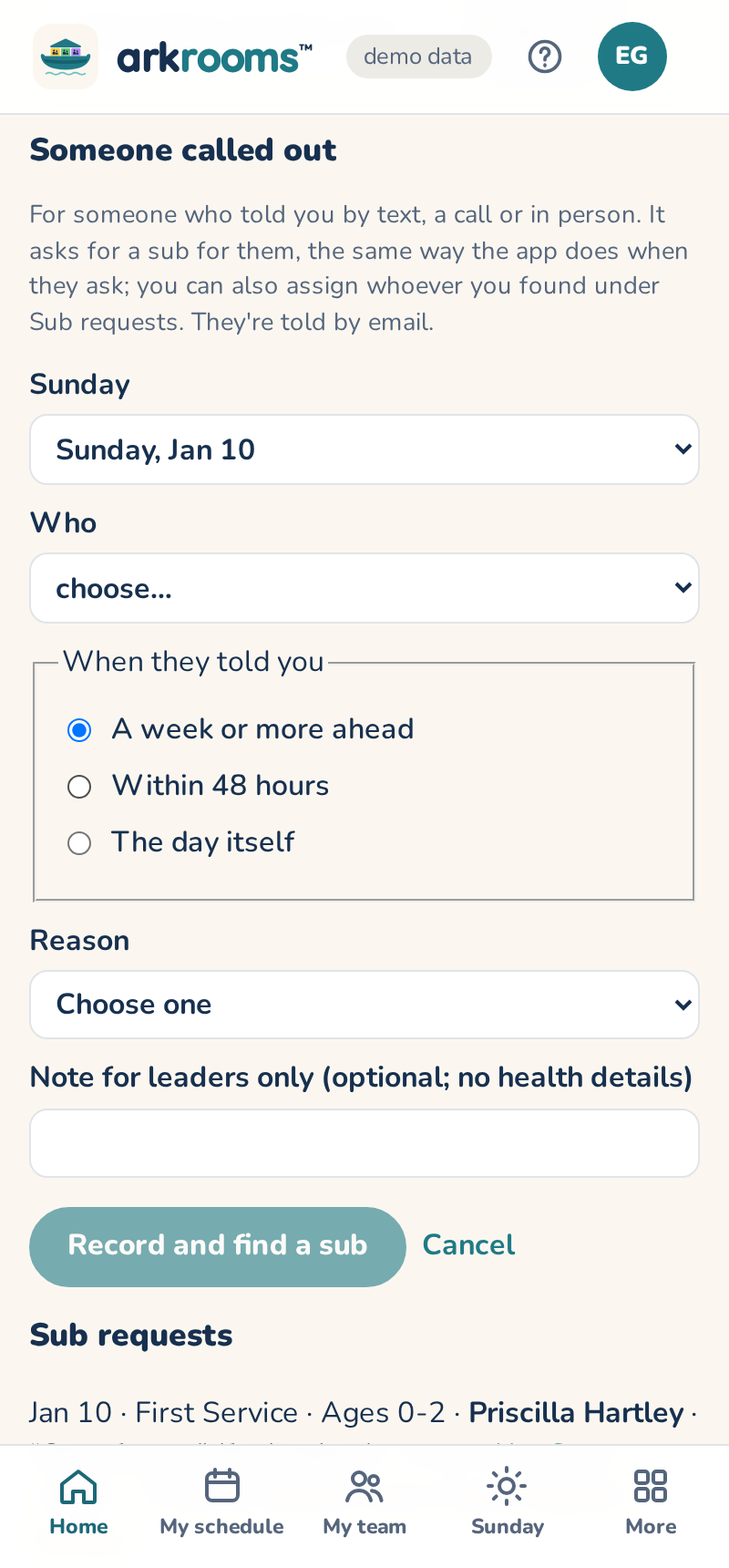
When someone tells you they can't make it, by text, a call or in person, record it on your approved block: Someone called out? → the Sunday, who, and when they told you (a week or more ahead, within 48 hours, or the day itself), with a reason and an optional note for leaders only (leave out health details). It asks for a sub for them, the same way the app does when they ask, and it's an emergency in the last 24 hours (every team asked, leaders and admins emailed). They get an email saying it's noted and that they stay on the schedule until a sub is found. If you already found someone, use Assign… on the new request under Sub requests.
This morning
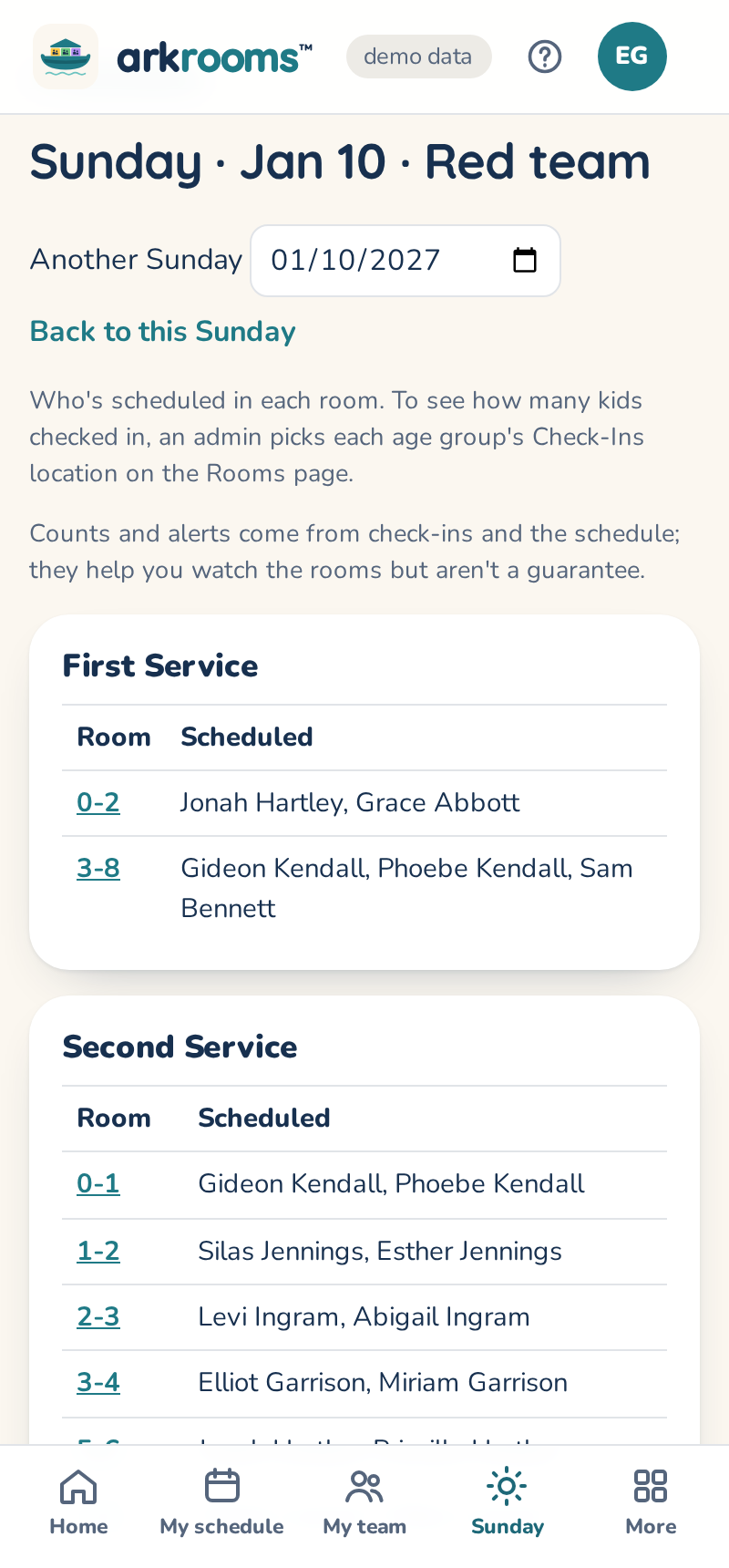
On a Sunday, This morning: every room at the top of Schedules opens one page for the morning: every room's scheduled people, grouped by service, and the rooms short of adults at the top. If your admins picked the Check-Ins locations (Rooms page), it also shows how many kids and volunteers checked in to each room and the kids per adult, refreshed every minute. Leaders and admins only.
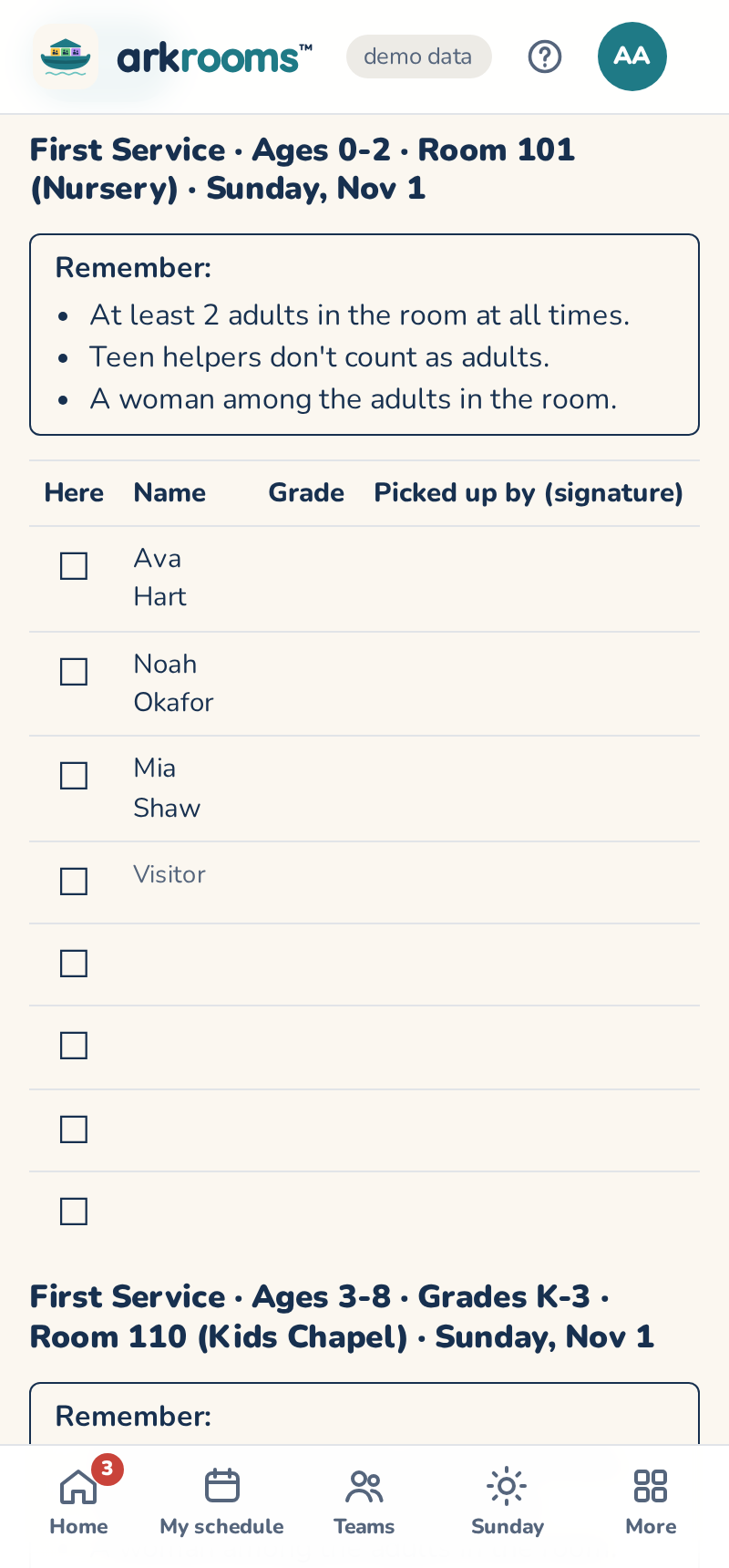
Sign-in sheets on that page prints a sheet per room for the coming Sunday, for paper sign-in, a backup when Check-Ins is down, or to record attendance afterwards. Each lists the children checked in on 3 of the last 8 Sundays, by full name and grade, with a box to tick, a line for whoever picks them up to sign, and blank rows for visitors. Its heading says the room's grades and its room number (from the floor plan), and a box reminds volunteers of the room's rules from Settings: how many adults, kids per adult, a woman in the room, and that teen helpers don't count as adults. A child goes in the room for their grade in Planning Center; with no grade, the room for their age; with neither, the room they were last checked in to. Admins see every room; a leader, the rooms they're scheduled in that Sunday. Nothing on it is saved.
Emergency alerts
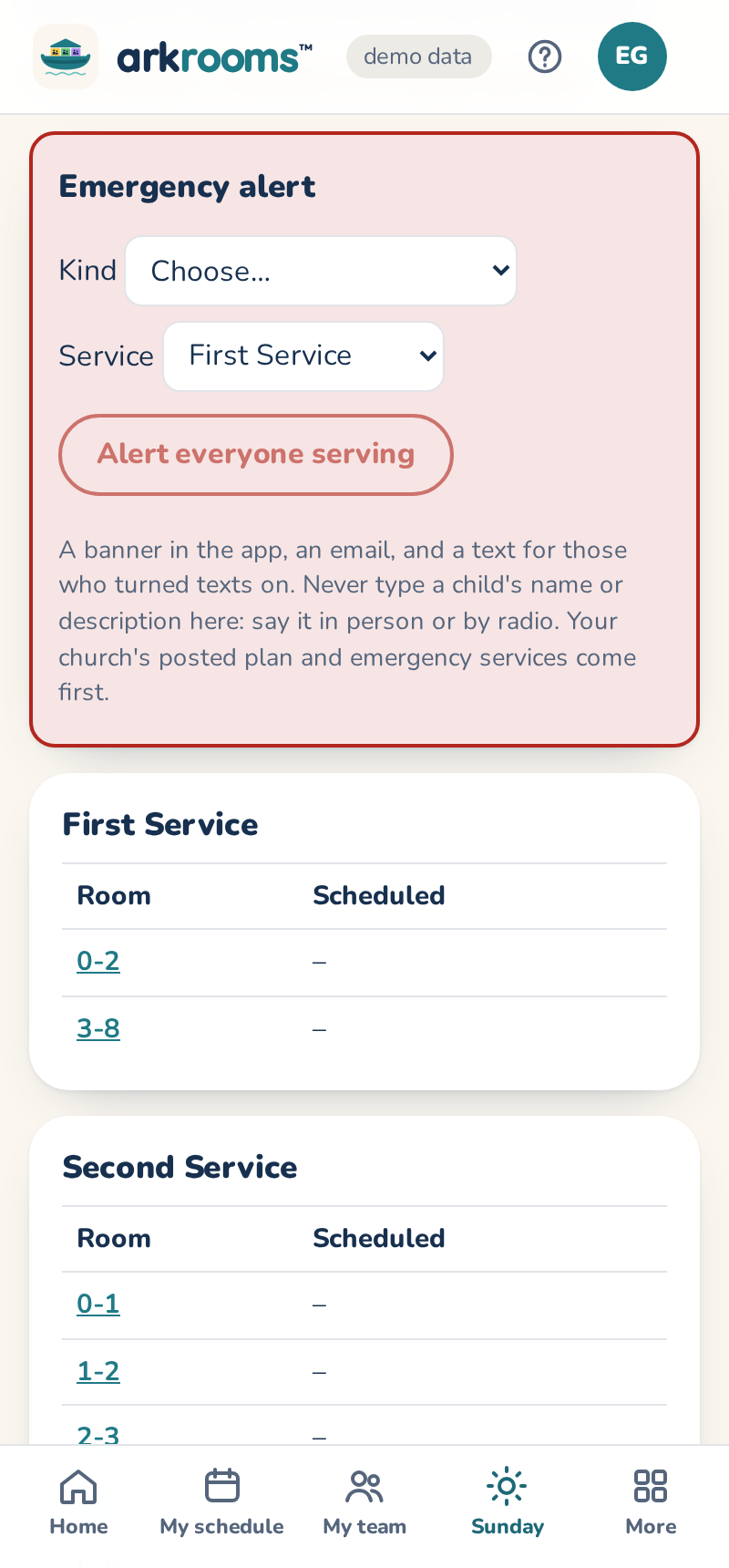
If your church turned them on (Settings → Emergencies), leaders and admins can alert everyone serving a service from This morning: pick the kind (missing child, fire, severe weather, medical emergency, lockdown) and press Alert everyone serving. Everyone serving, the leaders and the admins see a red banner in the app with your church's own steps for that kind, get an email, and a text if they turned texts on. End the alert when it's over. Never type a child's name or description: say it in person or by radio. Arkrooms keeps only which kind, which service, who and when.
Worried about a child?
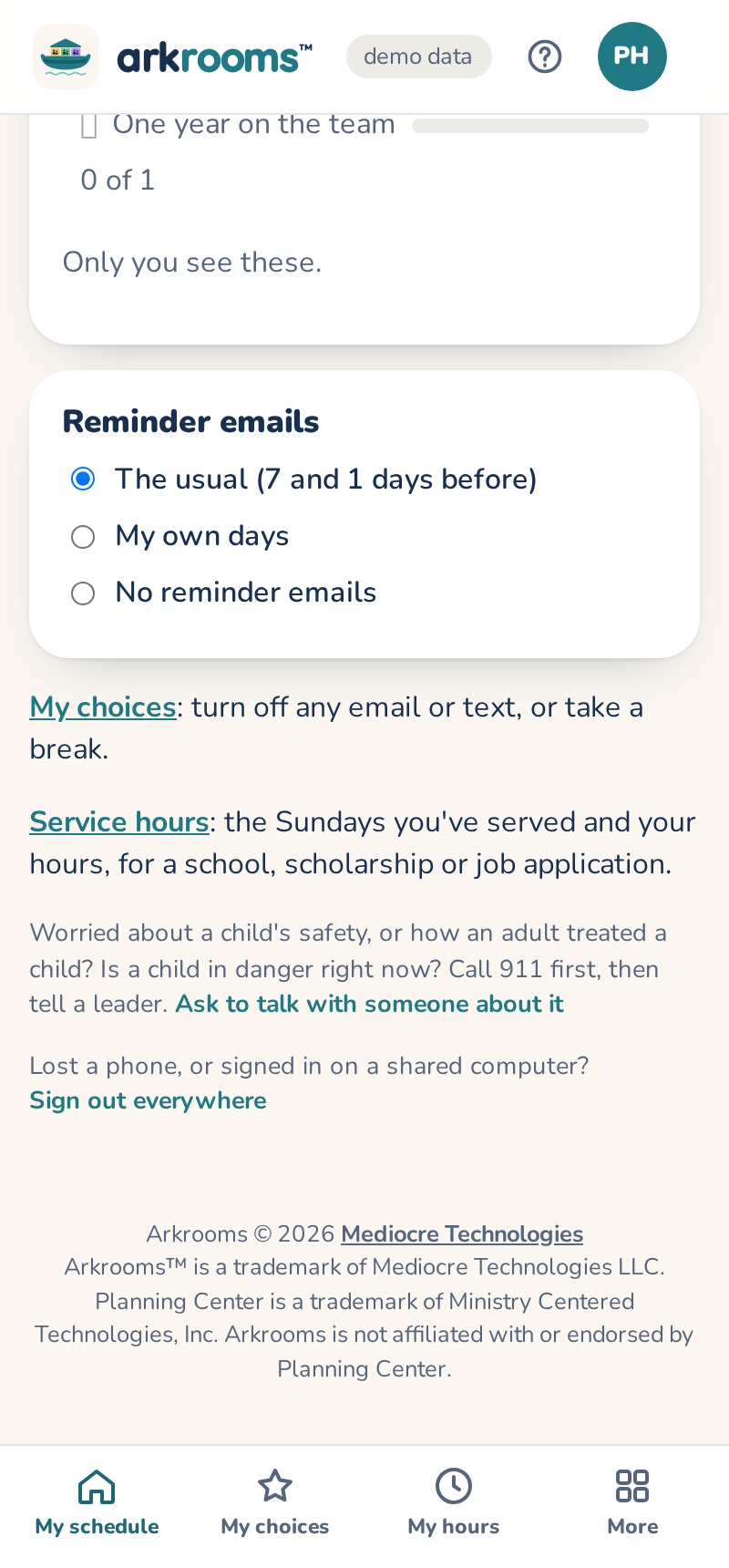
At the bottom of My schedule, anyone can ask to talk with someone about a safeguarding concern. The people your church named (Settings → Incident reports: the safeguarding contact, anyone listed under "Also tell", and the admins) are emailed that you asked, and nothing else; they'll contact you. If a child is in danger right now, call 911 first.
Reporting an incident
If your church turned on incident reports (Settings → Incident reports), each room on This morning has Report an incident:
- Your church's form: it opens the form, with the Sunday, service, room and adults on duty already filled in where the form allows.
- Into Planning Center: pick what kind, the child (from who's checked in to that room), what happened and what was done. It becomes a note on the child's Planning Center record that only the admins can see, written as you. The admins and the safeguarding contact get an email that a report was filed, with no names. Arkrooms keeps no copy.
A concern about how an adult treated a child goes only to the admins and the safeguarding contact, never the team's leaders. Reports can be filed for up to two weeks after the Sunday.
Who didn't come
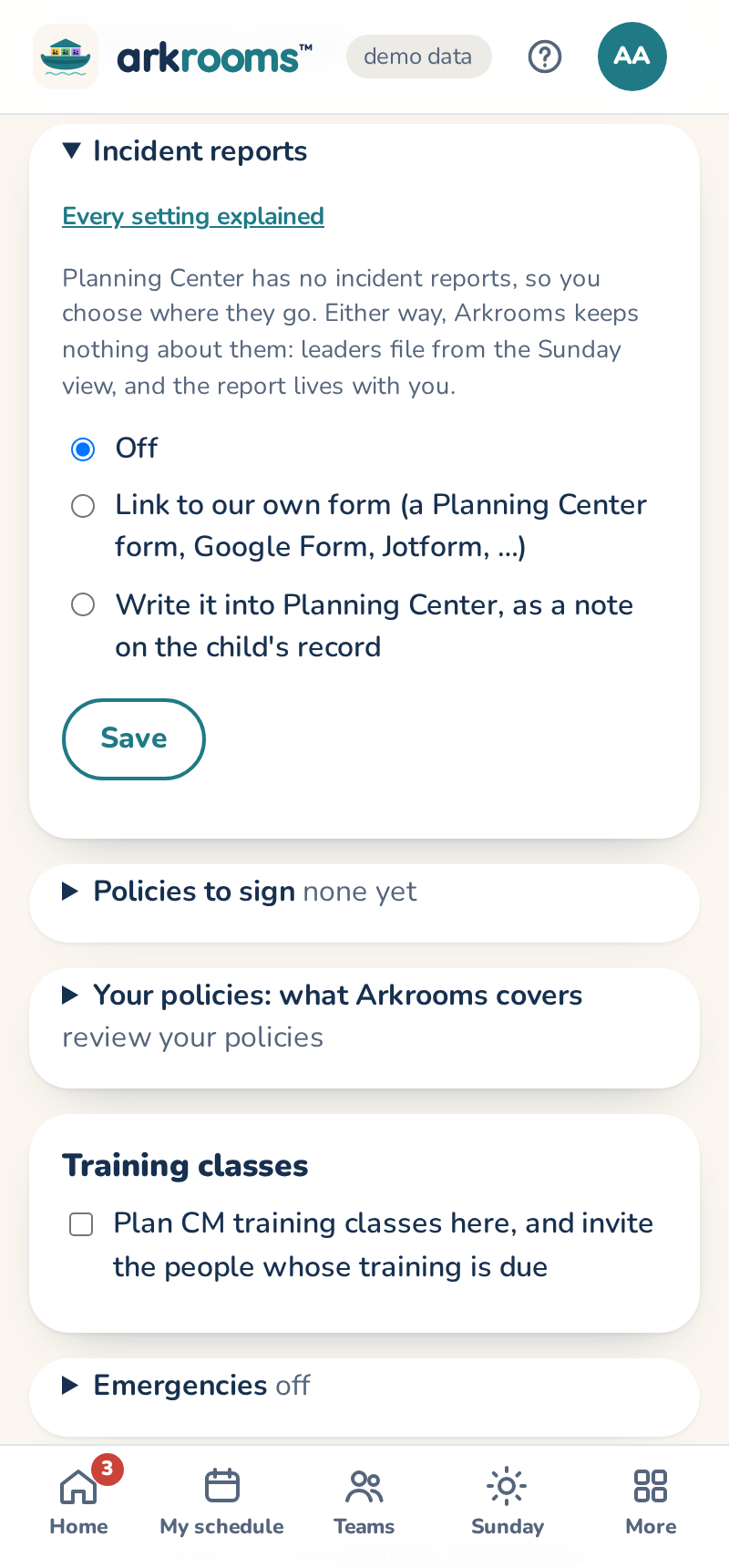
Once a Sunday has passed, your approved block has Who didn't come? with everyone who was scheduled that day. Tick anyone who didn't come (untick to undo), then say whether they let you know:
- No word: a no-show.
- Told us too late: they called out by text, a call or in person, with no time left to find a sub.
If your volunteers check in with Planning Center Check-Ins, an admin can turn on Our volunteers check in under Settings → Reminder emails. Each name then says whether Planning Center saw them check in, and Tick the … who didn't check in ticks the rest at once. You still look before you tick: someone may have forgotten to check in.
The two count separately in the stats. By default, two no-shows or three late call-outs in the alert period raise an alert (Settings → Alerts). Call-outs made in the app (a sub request or an emergency) are counted already.
If nobody was missing, press Everyone came under that Sunday. The morning after each Sunday (at the reminder hour), the team's leaders get a short email, "Who didn't come?", linking here, unless someone has already ticked a name or pressed Everyone came. A team with no leaders sends it to the admins. Admins can turn it off under Settings → Reminders.
Letting volunteers sign up
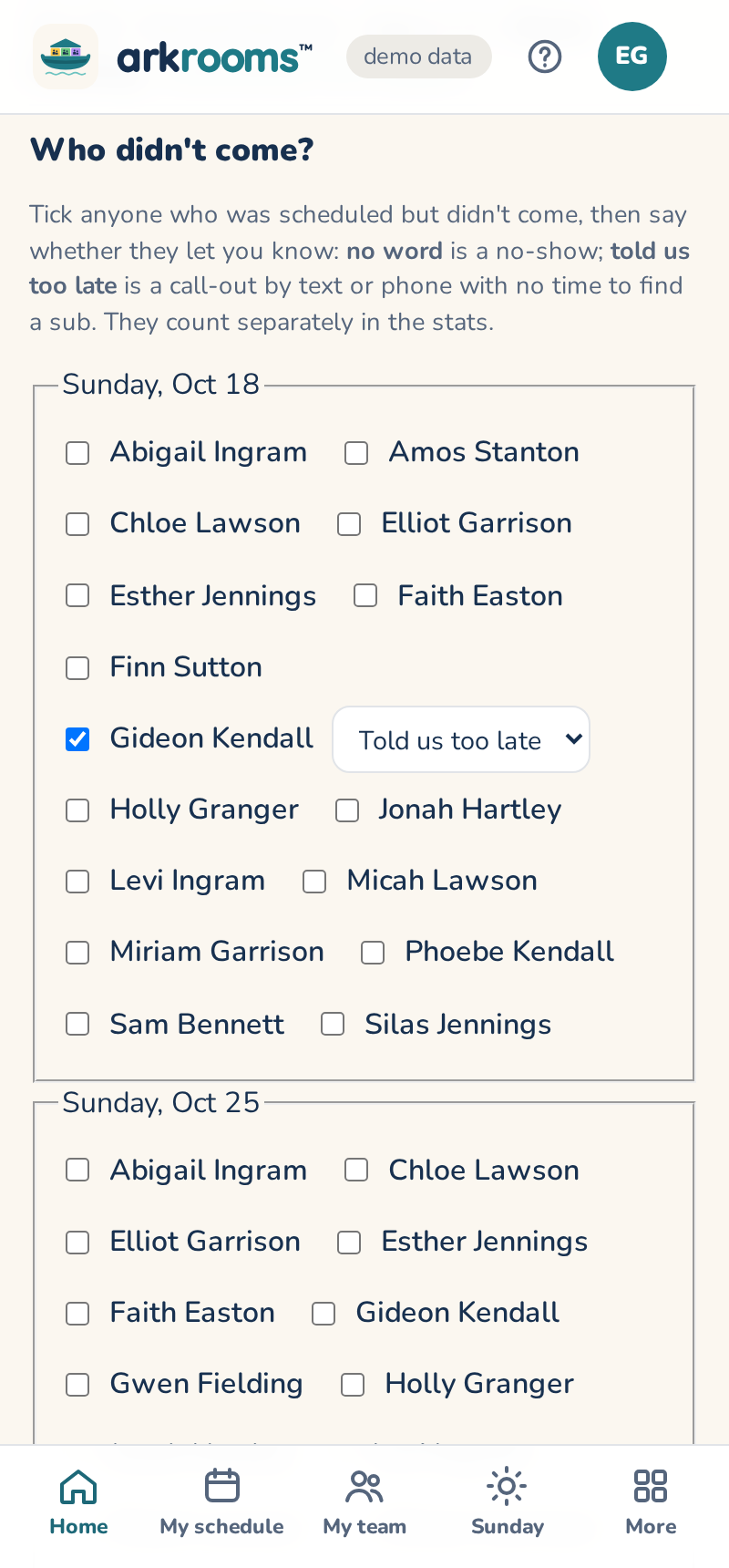
By default the leaders make the schedule. An admin can let volunteers sign themselves up instead (Settings → Admins, features and time zone), in one of two ways. Every sign-up is checked against the church's rules, the same as a sub, so nobody can pick a place that breaks one.
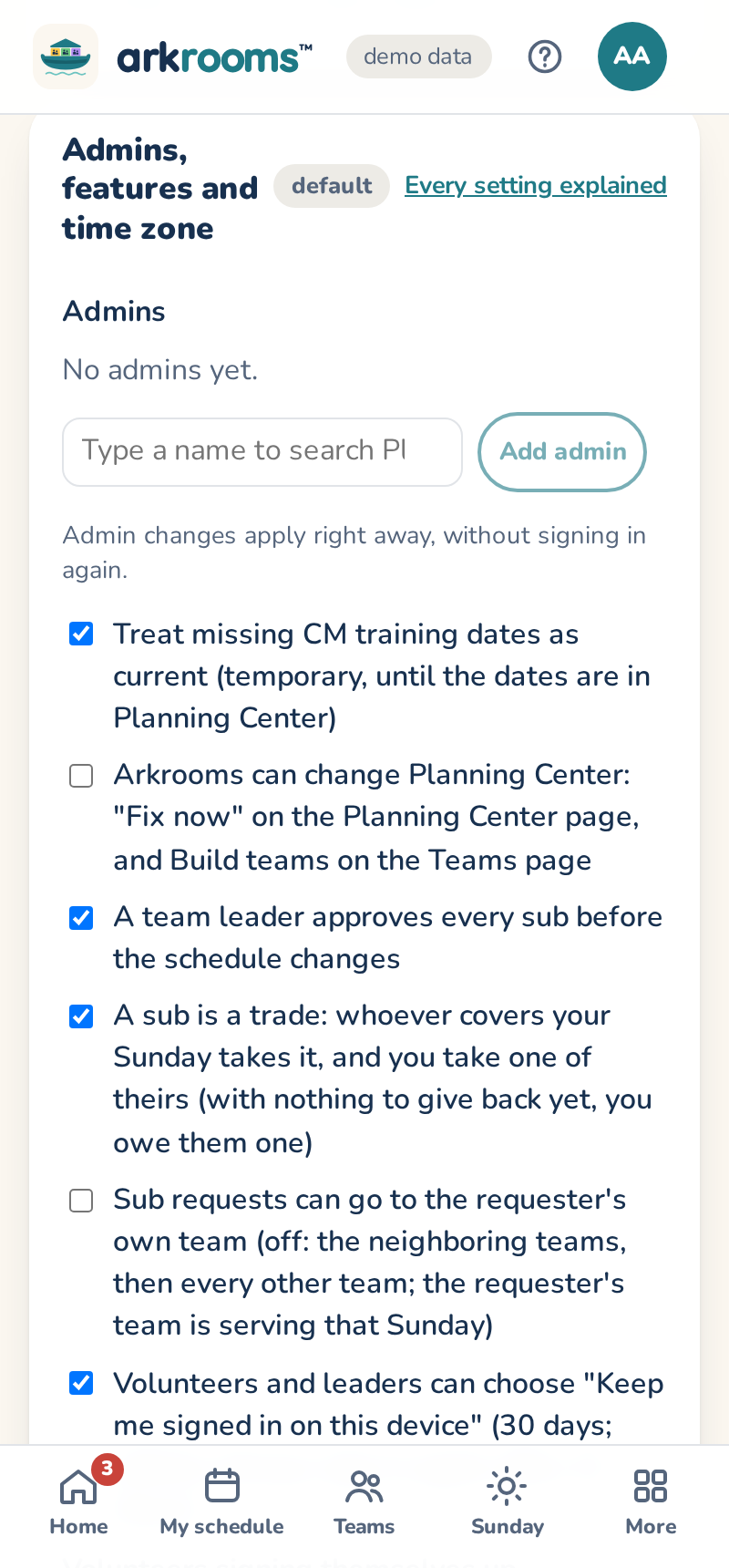
- Empty places: on a schedule that still has gaps, press Open the empty places for sign-up. Anyone on any team who could fill one gets an email, and the places show under Sign up on their My schedule page. You approve or decline each sign-up on the block page (or from Needs you); approved people are added to the schedule without sending it back for approval.
- Whole block: before anyone edits a block's schedule, press Open this block for sign-up. Your team picks their own Sundays and rooms; the schedule shows their picks as they come in (couples sign up together). While it's open you can't edit or approve it. Close sign-up and fill in the rest schedules everyone else around the picks, keeping every pick the rules allow. Then review and approve it as usual.
Volunteers can withdraw a sign-up while it's still waiting.
The weekly leader email and the lesson
Each week (Tuesdays by default) the team serving the coming Sunday gets one email for its leaders, linking to:
- that Sunday's lesson;
- who's in which room, or a reminder to approve the schedule;
- rooms still short and sub requests still open;
- anyone whose training is out of date, and anyone on the team whose training runs out before the end of its next turn, so they can renew in time;
- any services cancelled that day;
- who subbed for your team since its last turn, so you can thank them;
- who reaches a milestone that Sunday: their 10th, 25th, 50th or 100th Sunday in Arkrooms, a year (or more) since their first, or, once your church has a full rotation in Arkrooms, someone's first Sunday;
- when the team's upcoming Sundays run short, about how many more adults on the team would fill them (the same count admins see under Short of volunteers).
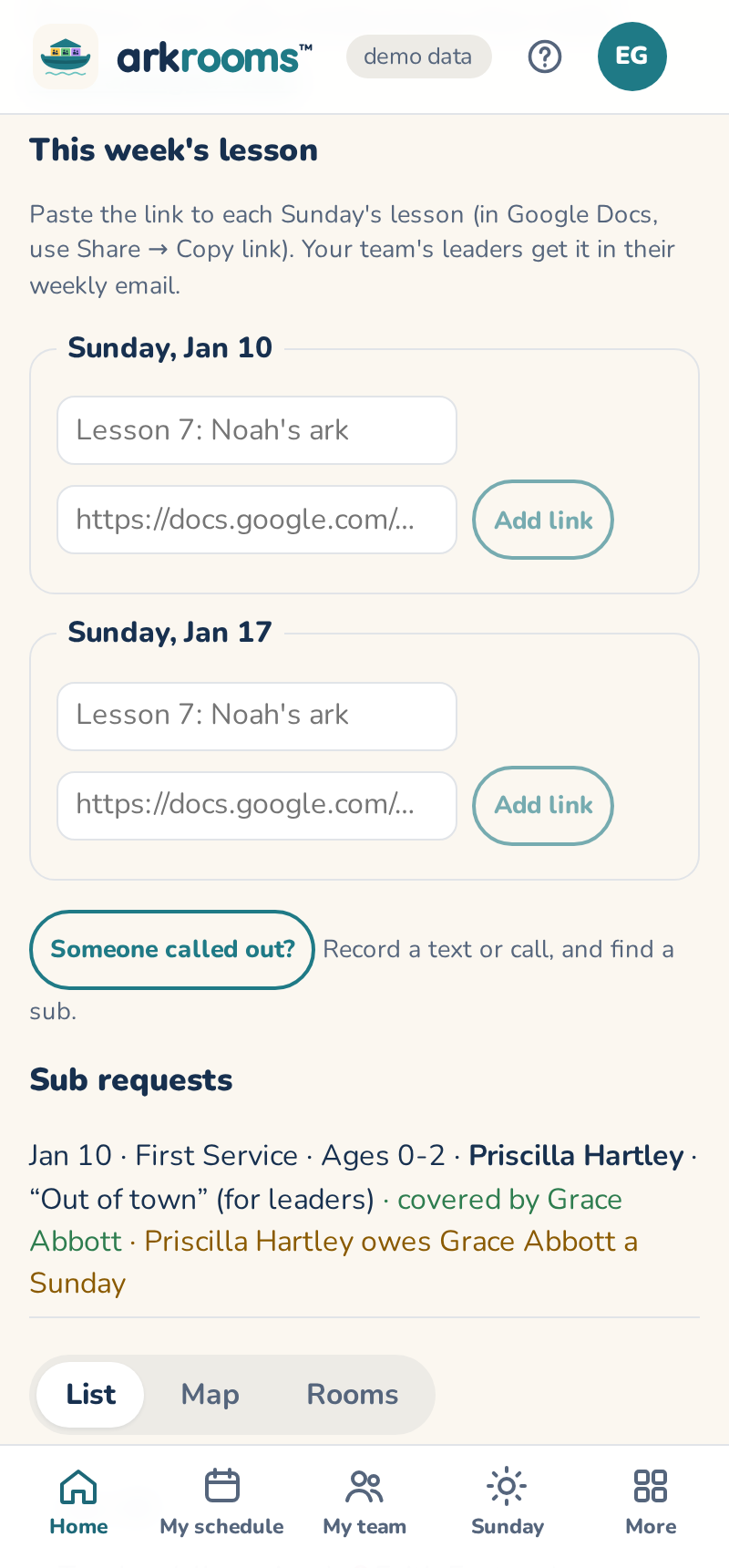
To add the lesson, open the block and, under This week's lesson, paste the link for each Sunday. In Google Docs, use Share → Copy link, and make sure the people who need it can open it. If you keep one Google Doc you update every week, an admin can put its link under Settings → Reminders instead; a Sunday with no link of its own uses that one. Admins choose the day, or turn the email off, in the same place.
Approving and publishing
When there are no rule problems, tap Approve schedule (if there are fairness notes, tick that you've reviewed them first). Only the leaders of the team serving that block can approve. Any later change sends it back for approval. Approving it again asks Why did it change? in a line ("Ann is away on the 9th, so Bo takes her room"), and everyone the change affects is told, with what changed.
Approving is your confirmation of the schedule. Arkrooms builds it and checks it against your settings and what Planning Center says, but it doesn't certify that rooms are staffed safely or that your requirements are met: a training date or background check entered late, or someone who doesn't turn up, is beyond what it can see. The Sunday view's counts and alerts are the same: a help, not a guarantee.
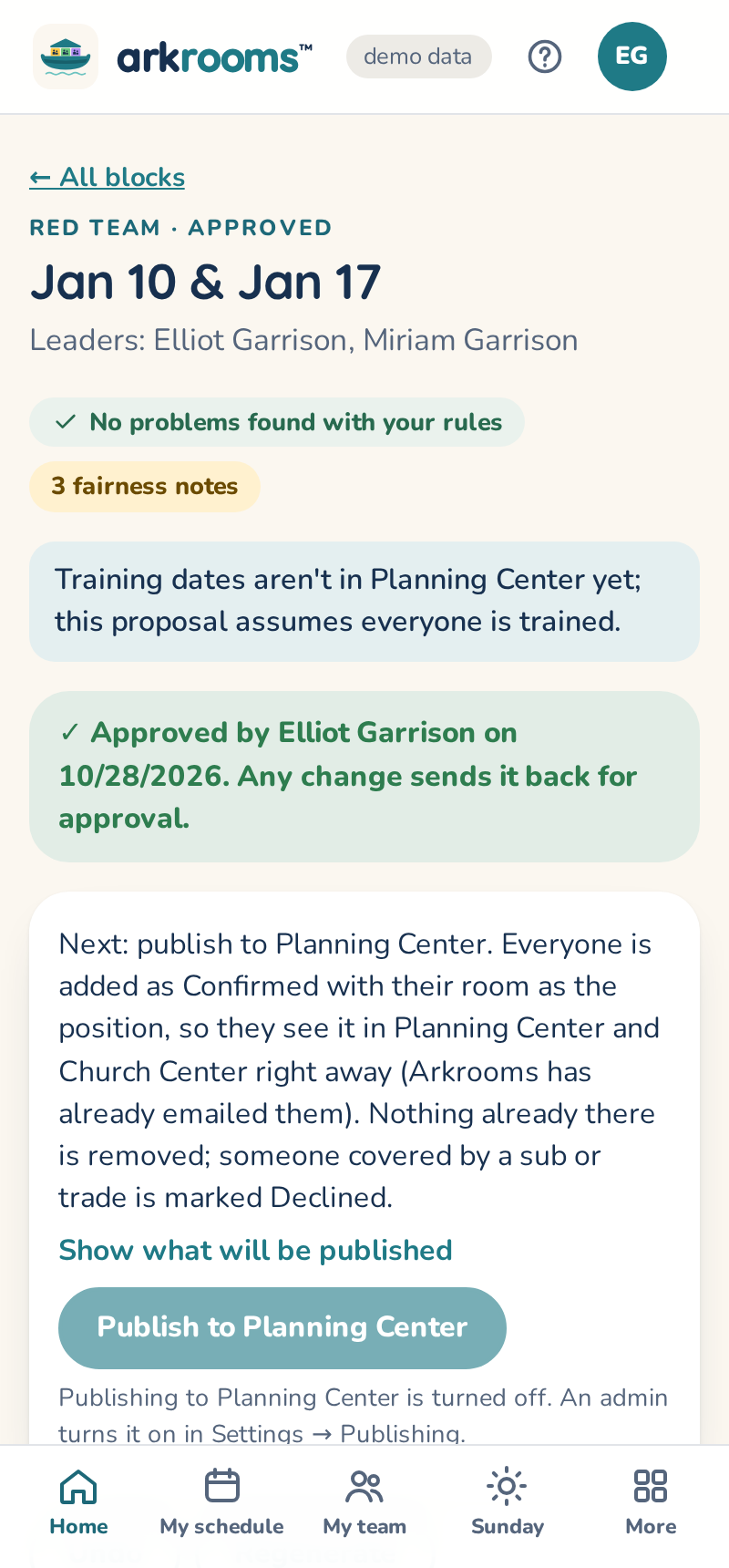
Publish to Planning Center then adds everyone to the Planning Center plans as Confirmed, with their room as the position, so they see it in Planning Center and Church Center; Arkrooms has already emailed them. (Choose Unconfirmed under Settings → Publishing if your leaders send Planning Center's scheduling email themselves: Planning Center doesn't send it for people another app adds.) Publishing never removes anyone; someone covered by a sub or trade is marked Declined there, "Covered by" the person who took their place. (It's turned on once the room positions exist in Planning Center.)