
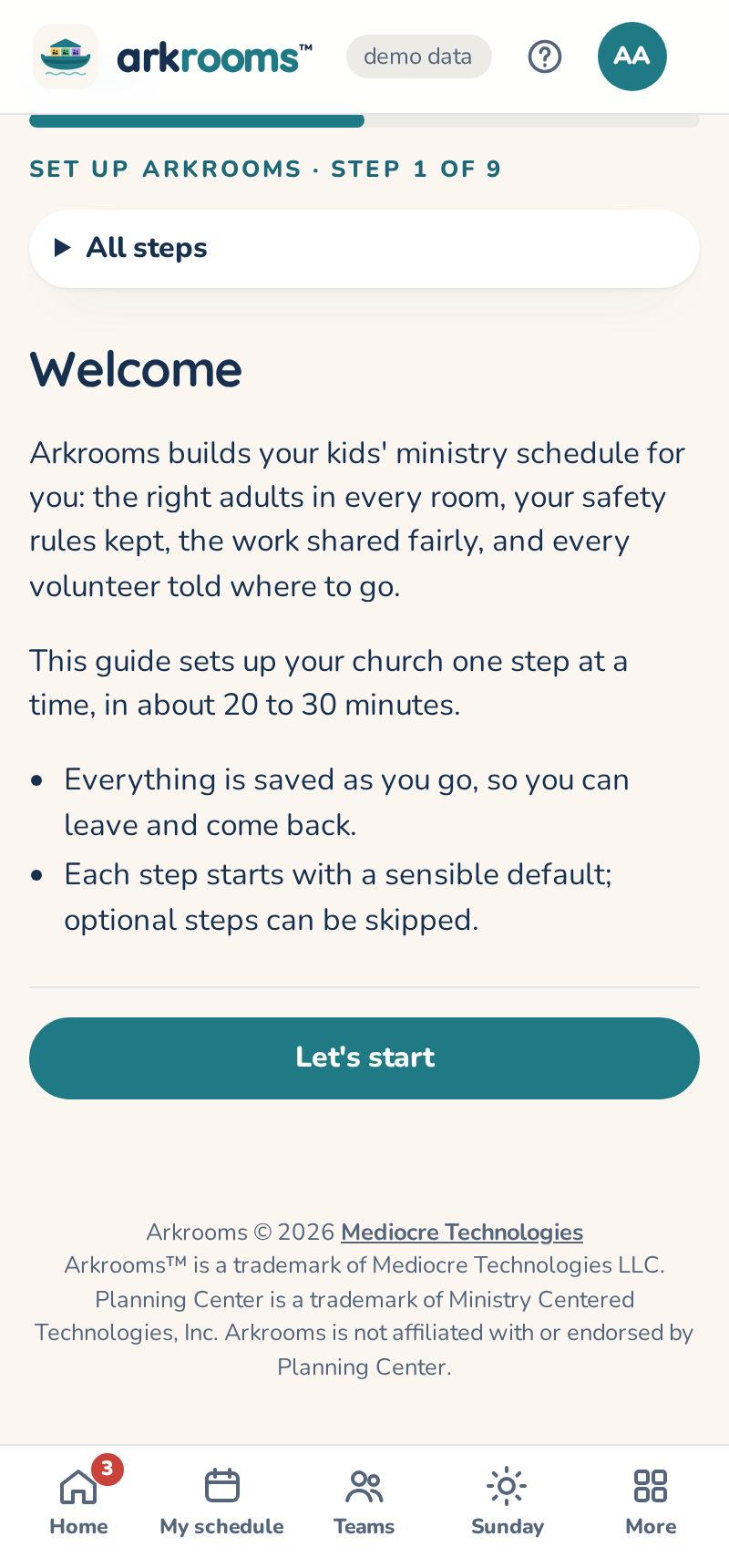
The first time a new church's admin signs in, the welcome tour's first card asks where to start: Start setting up opens the setup guide, and Take the tour shows the app first (its last card offers Start setting up too). Both are at the top of Settings any time: Open the setup guide and Take the tour; the guide is also on the home page's Set up your church list. It goes through everything, one step at a time, about 20 to 30 minutes in all:
1. Connect Planning Center: sign in with the account that schedules your kids' teams (an Editor in Services) or an organization administrator. The guide checks what it can see and lists only what needs fixing, each with who to ask or a link to where it's changed; everything that works folds into one line. Your kids' teams shows the teams it found: the short name Arkrooms uses for each (like Green), with its Planning Center name under it, and how many other Services teams aren't included. Use these teams, or Change to tick teams yourself and edit the short names (each labeled Called). Teams named for an age group (Babies, Big Kids, K-2nd) aren't ticked for you: Arkrooms schedules teams that take turns serving every room, like Red, Blue and Green. If those are what you have in Planning Center, make your rotating teams with Build teams, from your roster document or the people in Planning Center (or tick them, if your church does rotate them). May Arkrooms change Planning Center? starts on Also make the changes I approve: each change is shown first and made as you. Choosing Only read it asks first, since everything would then be done by hand in Planning Center. Who else can change settings? (optional) adds other admins: tap one of your kids' team leaders, or find anyone in Planning Center by name; each is saved as you tap. 2. Your services and age groups, then teams and rotation (with a preview of the next blocks). The services step opens with what it read from Planning Center: each service time on your next Sunday plans in Services, and the age groups from your Check-Ins locations' age or grade ranges. It shows them as a checklist, Is this right?: Yes, that's right saves them and goes on; Change something (or a row's Edit) opens the editor, where Where Arkrooms looked says where it looked. The rotation step does the same from your past Sunday plans: the order, how many Sundays in a row each team serves, and who's next up. Admins and time zone shows your organization's time zone from Planning Center. When Planning Center doesn't have the answer, each of these asks one question instead, with answers to tap: each Sunday service time (as many as you have, then which has the most kids), how many Sundays in a row a team serves (with a preview of who serves when), or your time zone. Something else opens the full editor. 3. Your floor plan and rooms for each age group (these open their own pages; come back to the guide after). The rooms step opens with what it read from Check-Ins: each age group's location (by its age range or name), and the floor plan room with that location's name. Fill in gives those rooms to the age groups that have none yet; How each was matched says why any age group wasn't. 4. Admins and time zone, then who's who: each team as Arkrooms reads it from Planning Center, its leaders, and anything missing, each fixed right there: a team with no leader gets one, and someone with no gender gets Woman or Man (written to Planning Center People as you). 5. Your serving rules: pick Strict (Recommended), which adds a passed background check and teens only with a parent, or Basic (the one in use is marked), or Custom to open every rule and turn each on or off. The rules stay folded away until then. Custom also shows the rules your Planning Center People custom fields can back: CM Training Date, a background-check Date field and other dated certifications (only the fields' names are read), each one tap, then Save. If your background checks are kept somewhere else (a screening provider's site, a binder), tick Background checks are managed outside Arkrooms instead: Arkrooms then doesn't check them, and says so. With the check on, the step lists anyone on a team without a passed check. Add your own rules if you need them. Training shows who has a current training date on each team. 6. Your first schedule. That's all Arkrooms needs. Finish, or set up more then lists the optional steps, each with what it's for: tick any to go through now (none are ticked), or Finish. They are: your floor plan and rooms, who's who, your own rules, Check-Ins, reminders and alerts, your name, logo and colors, publishing to Planning Center and inviting your leaders, including how to put Arkrooms in Church Center (below). The reminders step offers, for replies to the church's emails, the email of the account Arkrooms is connected as (Planning Center keeps no address for the church itself). The name and logo step opens with your church's name and picture in Planning Center People, each one tap. The publishing step finds the service type each service's schedule goes to: the one whose next Sunday plan has a service at that time (the one with your kids' teams, when two do). The ones you don't pick stay under More you can set up in the list of steps.
The welcome tour that shows people around waits until you leave the guide.
After setup, Arkrooms reads your services from Planning Center again each day. A service added there (or one of yours that's gone) shows on Needs you and at the top of Settings → Services: Add it or Not ours for a new one, Remove it or Keep it for one Planning Center doesn't have. Nothing changes until you choose and save.
Start over…, at the bottom of the guide, clears your setup and every schedule in Arkrooms and starts the guide again; nothing in Planning Center changes. It says what it clears and what stays, offers a download of your settings first, and asks once more. Once the guide is finished it's off, so nobody starts over by accident; an admin can turn it back on in Settings.
Arkrooms in Church Center
Your volunteers already have the Church Center app, so put Arkrooms there: in Planning Center, open Publishing → Church Center → Navigation and add a link (or a tab in the Church Center app) named Serving schedule, pointing to your church's address followed by /auth/login (the guide's last step shows the exact link, with a Copy button). It opens Arkrooms and signs them in with Planning Center, straight to their schedule. If Church Center opens it in its own browser and sign-in doesn't stick, Open in browser there fixes it.
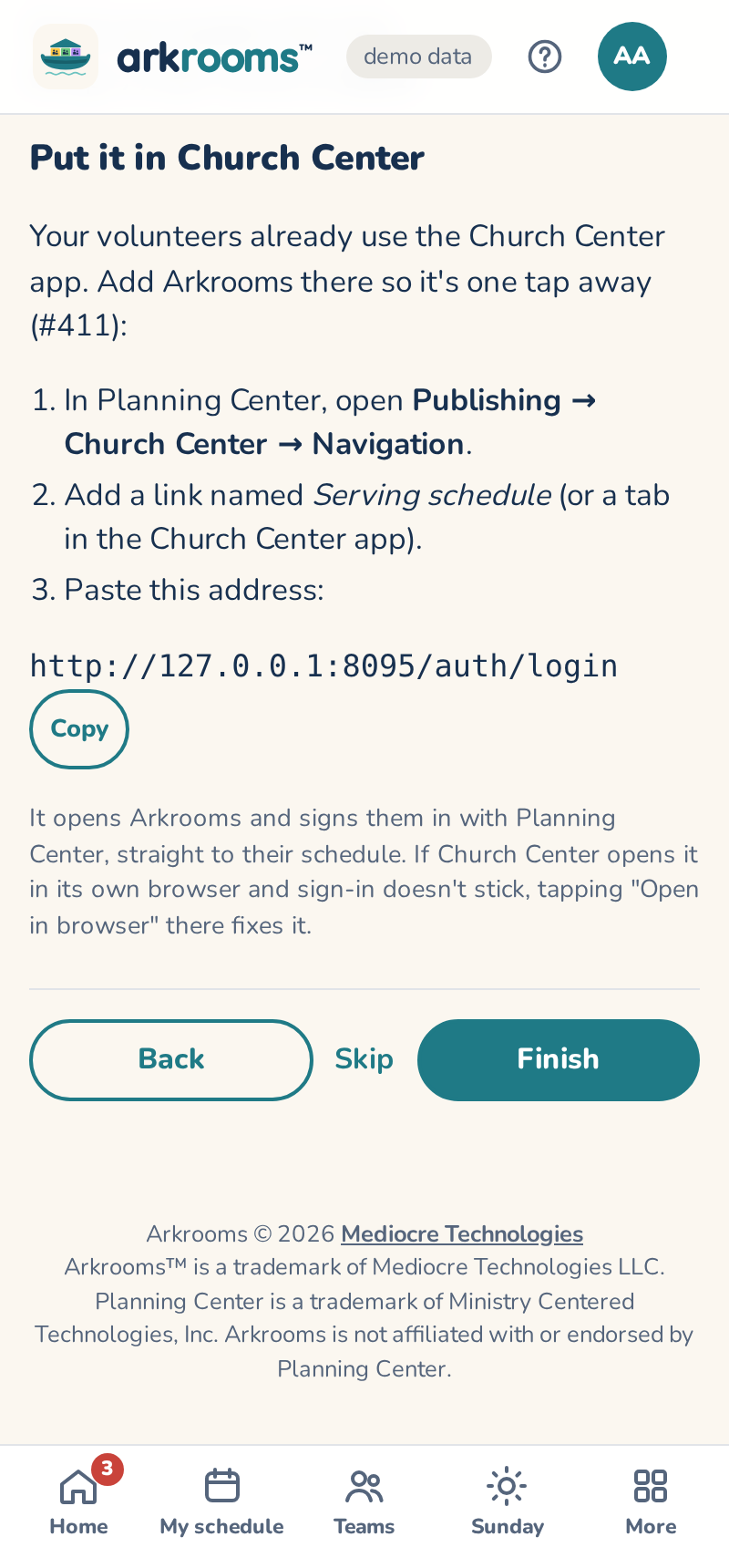
Each step starts with one line saying what it's for; Why this matters opens the longer explanation. Each does its setting right there, with the same checks as Settings, and says where to change it later. Looks good, next keeps what's shown; Come back to this later (or Skip, for optional steps) leaves it for later. Your place is saved, so you can leave and pick up where you stopped; the list of steps shows what's done and what's waiting. In the public demo the guide works too, but nothing is saved.