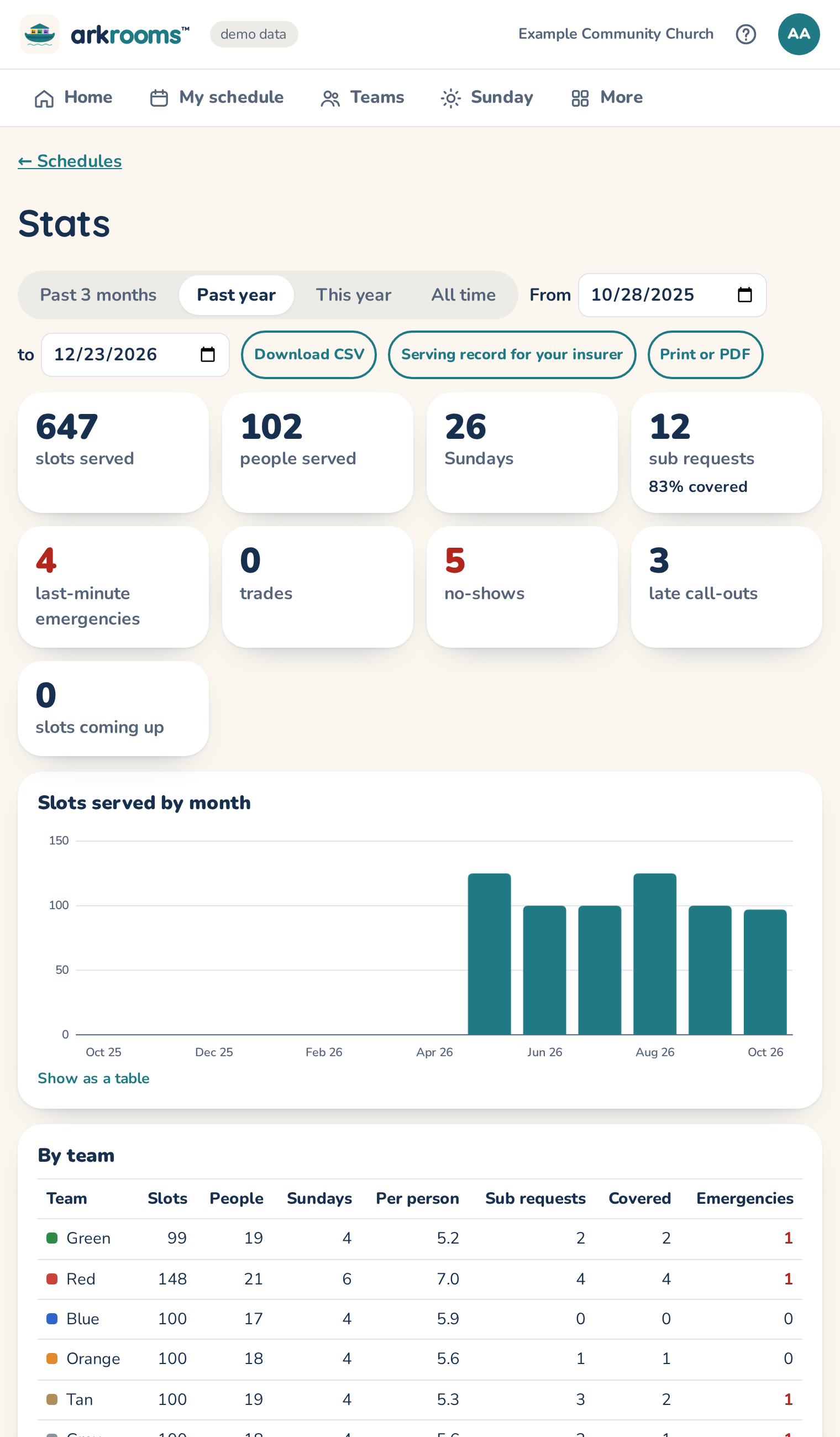
Stats in the top bar shows who served and how subs went (admins see every team; team leaders see their own team, including people who subbed on it), for a period you pick (past 3 months, past year, this year, all time, or your own dates).
At the top, Needs attention lists things to look at: someone serving well above their team's average, adults on a team who haven't served lately, many sub requests or emergencies from one person, and CM training that's missing, expired or expiring soon (highlighted when they're scheduled after it runs out). Tap a name to find them in the table; Snooze a month or Dismiss (for a year) hides one. What counts, and a Monday email to the admins, are under Settings → Alerts.
- Totals: slots served, people who served, Sundays, sub requests and how many were covered, last-minute emergencies, and slots coming up.
- Slots served by month, with sub requests and emergencies when you point at a month (or Show as a table).
- By team: slots, people, slots per person, sub requests, covered, emergencies.
- Stepping up: the people who subbed most in the period, so you can thank them: how many subs, how many were last-minute (an emergency, or taken in the last three days before the Sunday), how many were for a team they don't serve on, and how many were trades. Subs with nothing back come first. They're marked stepped up in the table below.
- By person: slots (and how many are coming up), by service and by role (room, backup, teacher), times they subbed for someone, subs they asked for, emergencies, and when they last served. Search, filter by team, and sort by any column.
Download CSV gives the by-person table for a spreadsheet. Slots come from approved schedules; subs and emergencies from sub requests in the app; no-shows and late call-outs from what leaders tick under Who didn't come. In demo mode the app makes up six months of history so there's something to see.
Serving record for your insurer (admins) downloads one row per person per room per Sunday in the range, up to today: the role (and whether they were a sub), whether they're a teen, whether their CM training and background check were current that Sunday, and how many adults were in the room (fewer than two is marked). It's worked out from the approved schedules and what Planning Center says now. Planning Center keeps only the latest training date and background check, so someone who renewed after a Sunday shows "renewed since" for it. The activity log notes who downloaded it. Print or PDF opens the same record as a page grouped by Sunday, with a summary at the top and anyone not current, or a room short of adults, shaded: print it, or choose Save as PDF in the print dialog.
A room needs another adult (during services)
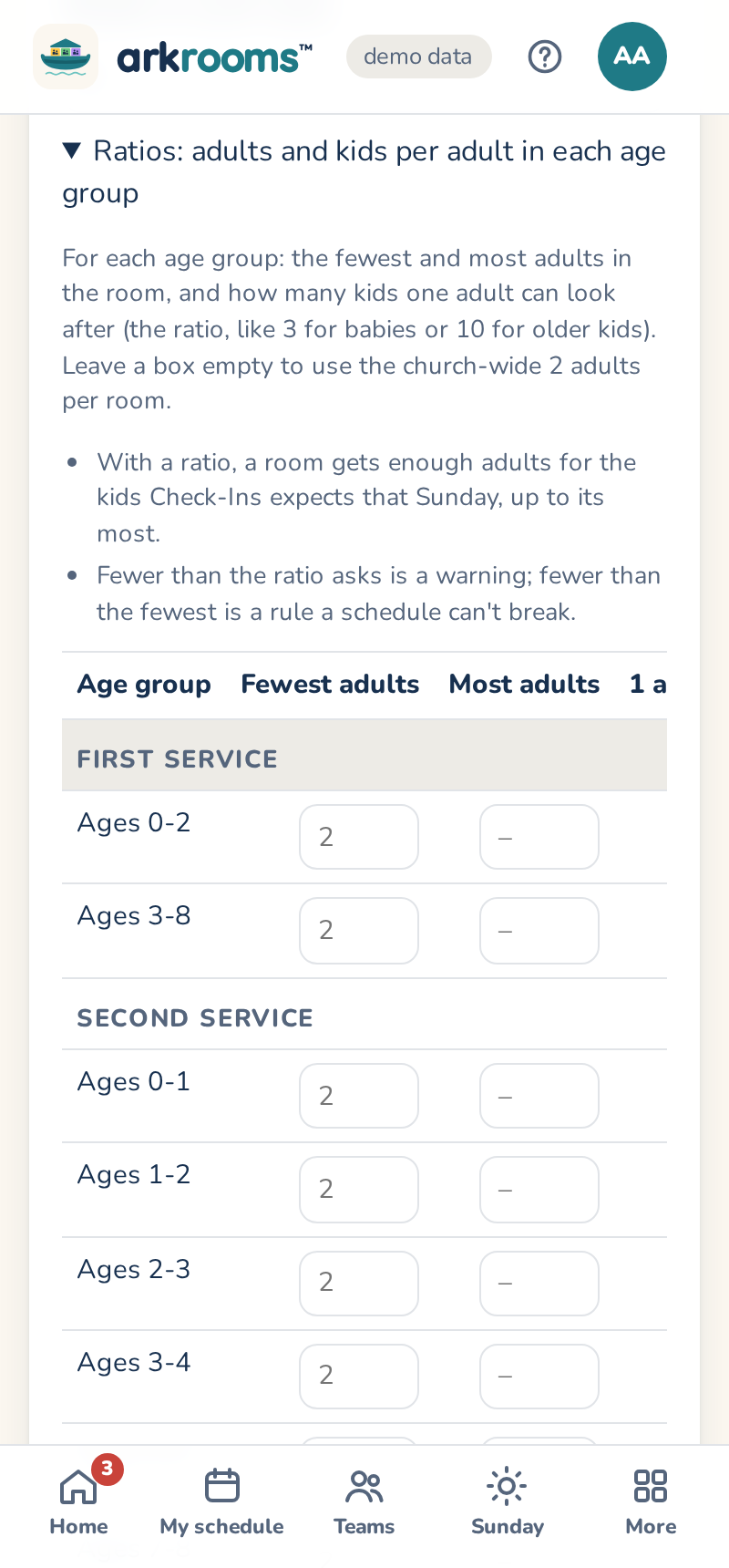
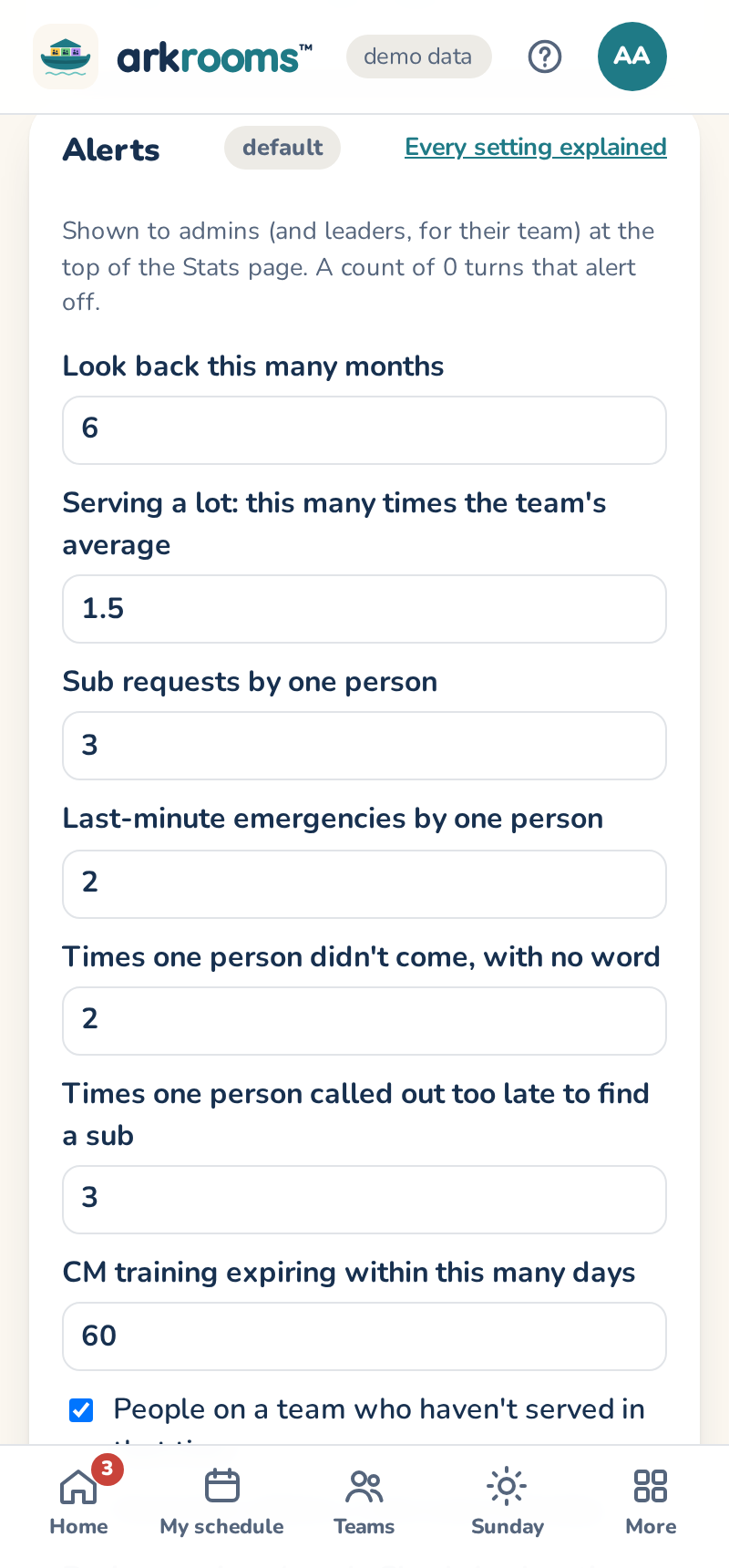
While a service runs, the app checks each room's Check-Ins count every few minutes. When a room has more kids than its adults cover (its fewest adults, or its kids per adult from Settings → Rules) two checks in a row, the serving team's leaders and the admins get an email, and a red banner at the top of the app says which room, until it's covered. Each room is reported once per service, and again only if it needs more adults still. Settings → Alerts turns it off, and says whether a room's adults are who's scheduled or (for churches that check volunteers in) the volunteers checked in to it.
A room with a kids-per-adult ratio is also reported before it's short: when it has room for just one more child ("7 kids, 2 adults; 1 more kid fills it"), or is full, the same people get a Nearly full email and a yellow banner that names the backups and hall monitors on the schedule who could step in. The app can't stop a check-in (Planning Center Check-Ins does those), so the check-in desk sends families to another room or closes the location in Check-Ins until another adult comes. Settings → Alerts sets how early (room for 1 to 5 more kids) or turns it off. The Live page shows how many more kids each room can take.
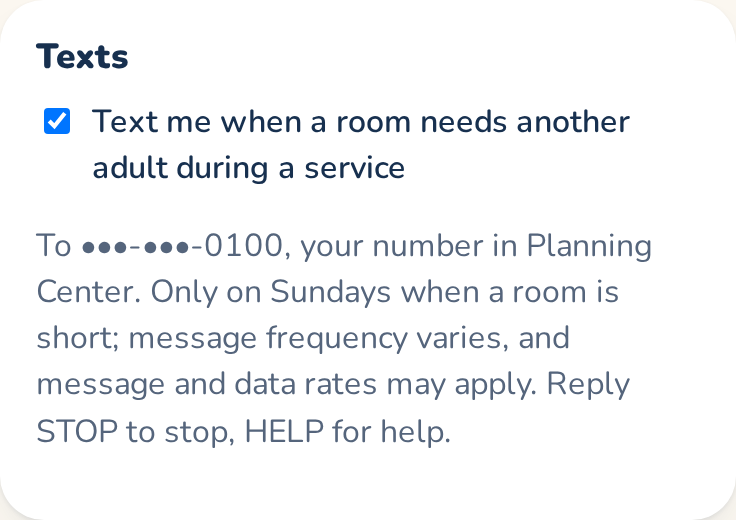
Leaders and admins can get these by text too: on My schedule, turn on Text me when a room needs another adult during a service. Texts go to the mobile number on your Planning Center profile (the app shows its last four digits and doesn't keep it), only when a room is short. Reply STOP to stop, or turn it off in the app. Admins can stop texting everyone with Settings → Alerts (Also text the leaders and admins who turned texts on).
Badge emails
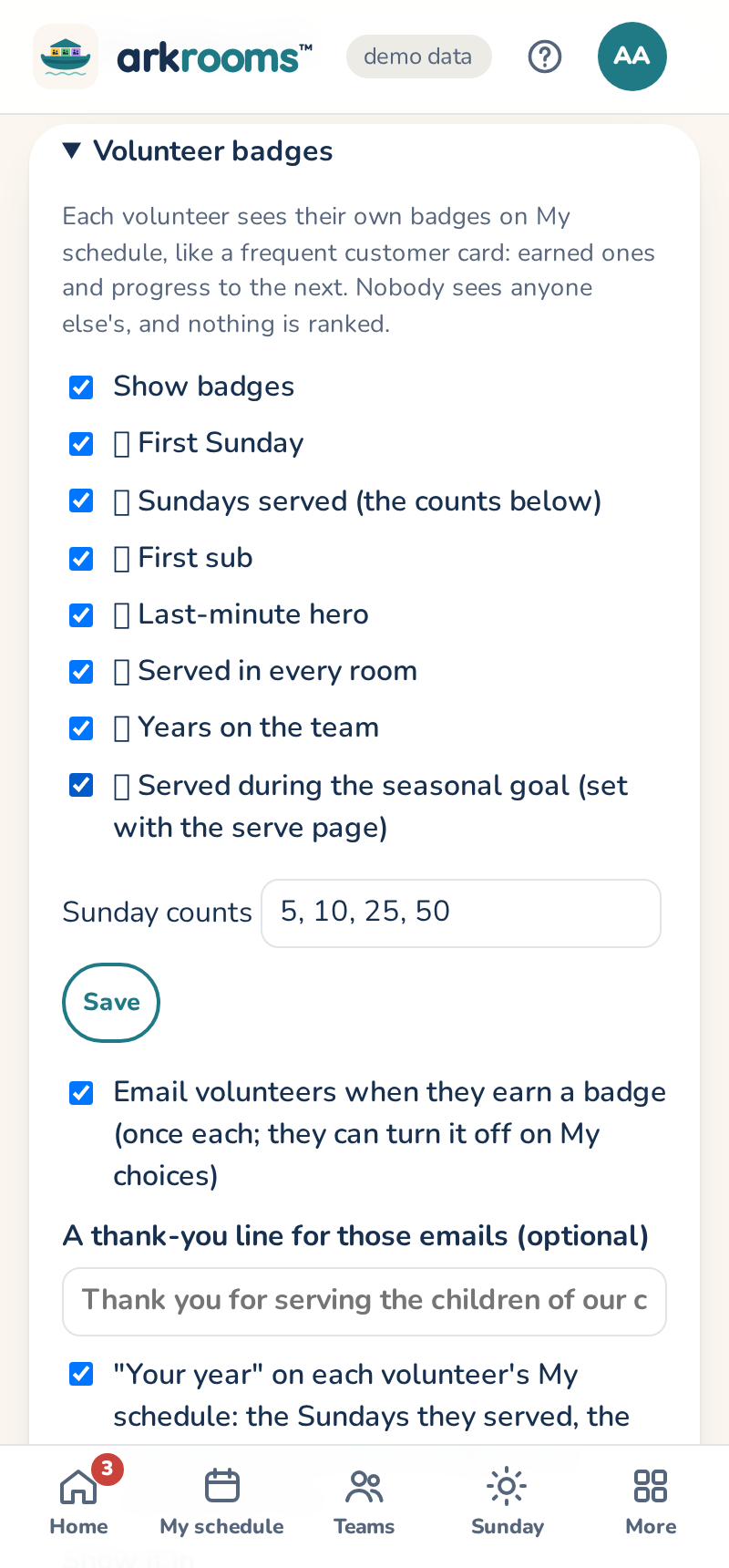
When badges are on, a volunteer also gets a short email when they earn one (or several, in one email that day), with a thank-you line the church can set in Settings → Volunteer badges. Each badge is emailed once, and badges earned before this started aren't sent at all. Volunteers can turn these off on My choices.
Service hours, for school or work
A school, scholarship or job application may ask for your volunteer hours. My schedule → Service hours lists the Sundays you've served in a date range, where you served, and your hours: from when volunteers arrive before each service to its end. Print or save as PDF keeps a copy.
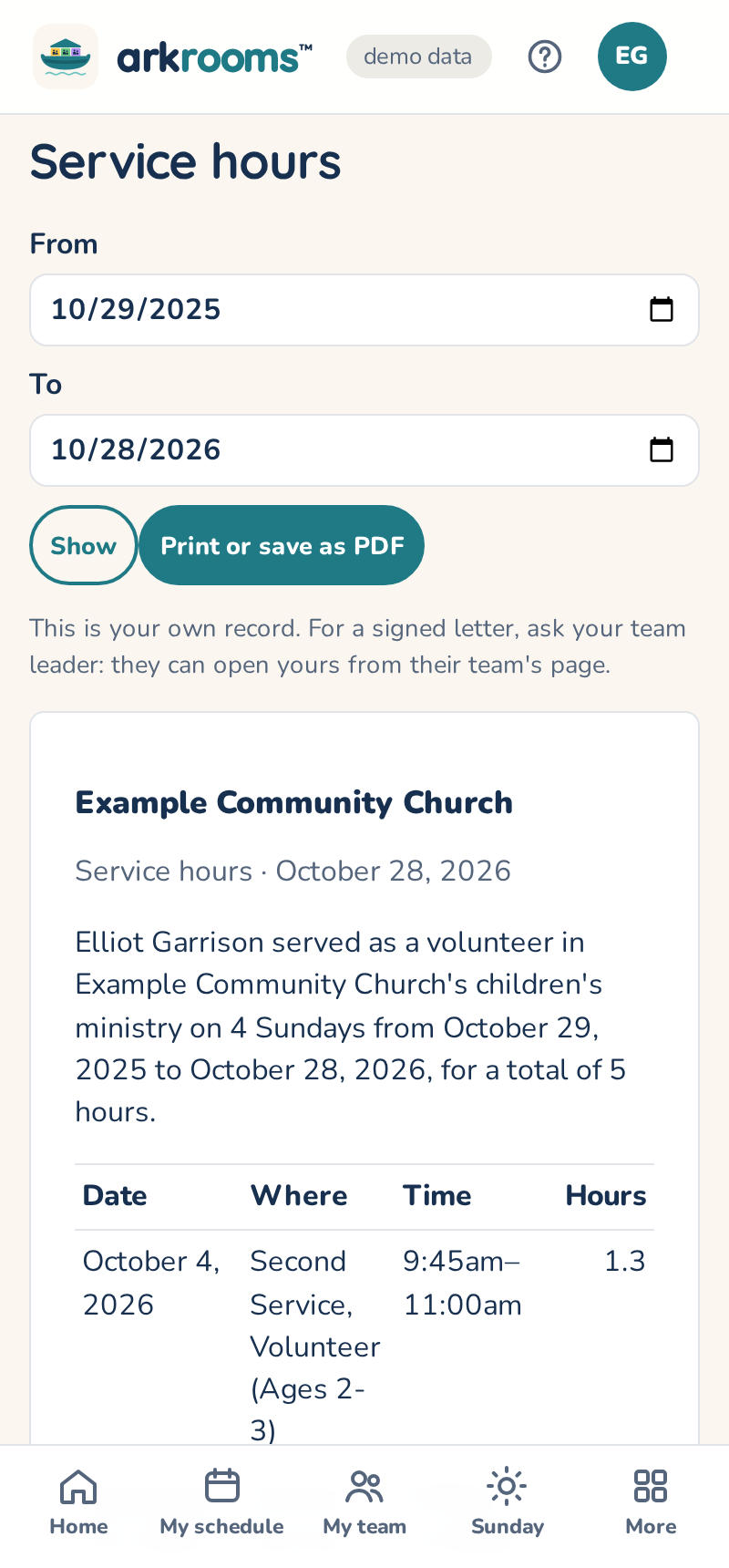
For a signed letter, ask your team leader. On My team, under your name, Service hours letter opens the same page signed by them, with their name, their role and the date. Nothing new is kept: the hours come from the approved schedules, and Sundays you were marked as not coming aren't counted.
My choices: turn off what you don't want
My schedule → My choices lists every optional email and text: reminders, sub requests (they come from other teams: yours serves your Sundays), trade asks, training renewals and classes, the check-in welcome, away-date asks, recurring tasks, and for leaders and admins their weekly emails and tips. Untick any of them. About me hides your badges, keeps you off the admins' "people to ask" list, and keeps your name out of Stats' "Stepping up". Take a break until a date leaves you off new and regenerated schedules, sub lists and sign-ups, like away dates, and stops every optional email and text. Sundays already approved stay as they are (ask for a sub for those), and your team's leaders are told, as for an away date.
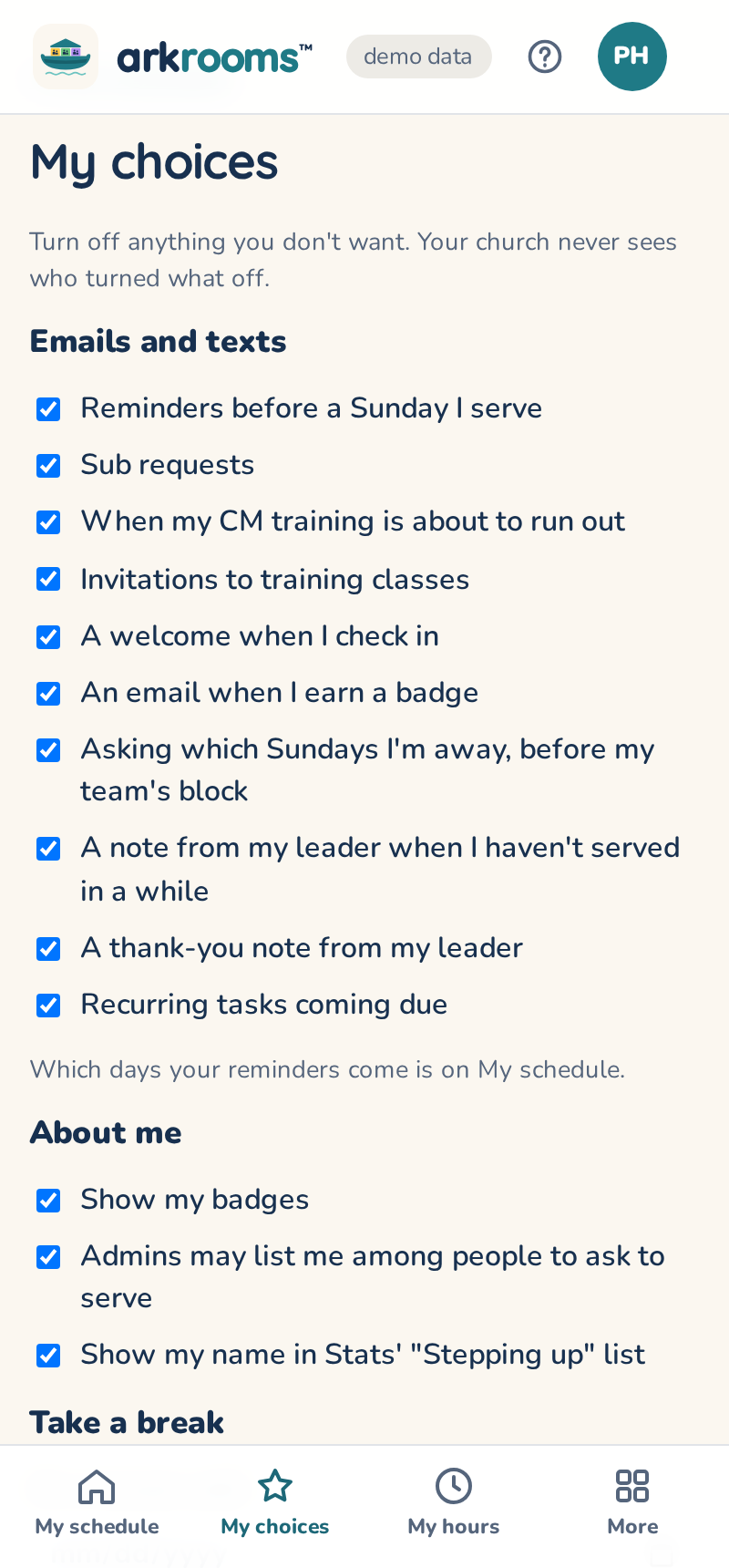
Some emails always come, and the page says why: your Sundays when a schedule is approved, a sub or trade you agreed to, emergency alerts and a room that needs another adult while you lead, a policy your church asks you to sign, and sign-in emails. Every optional email ends with a link that turns that kind off in one click, without signing in. Admins see on the Email page how many people turned each one off, never who.
Mandated reporters
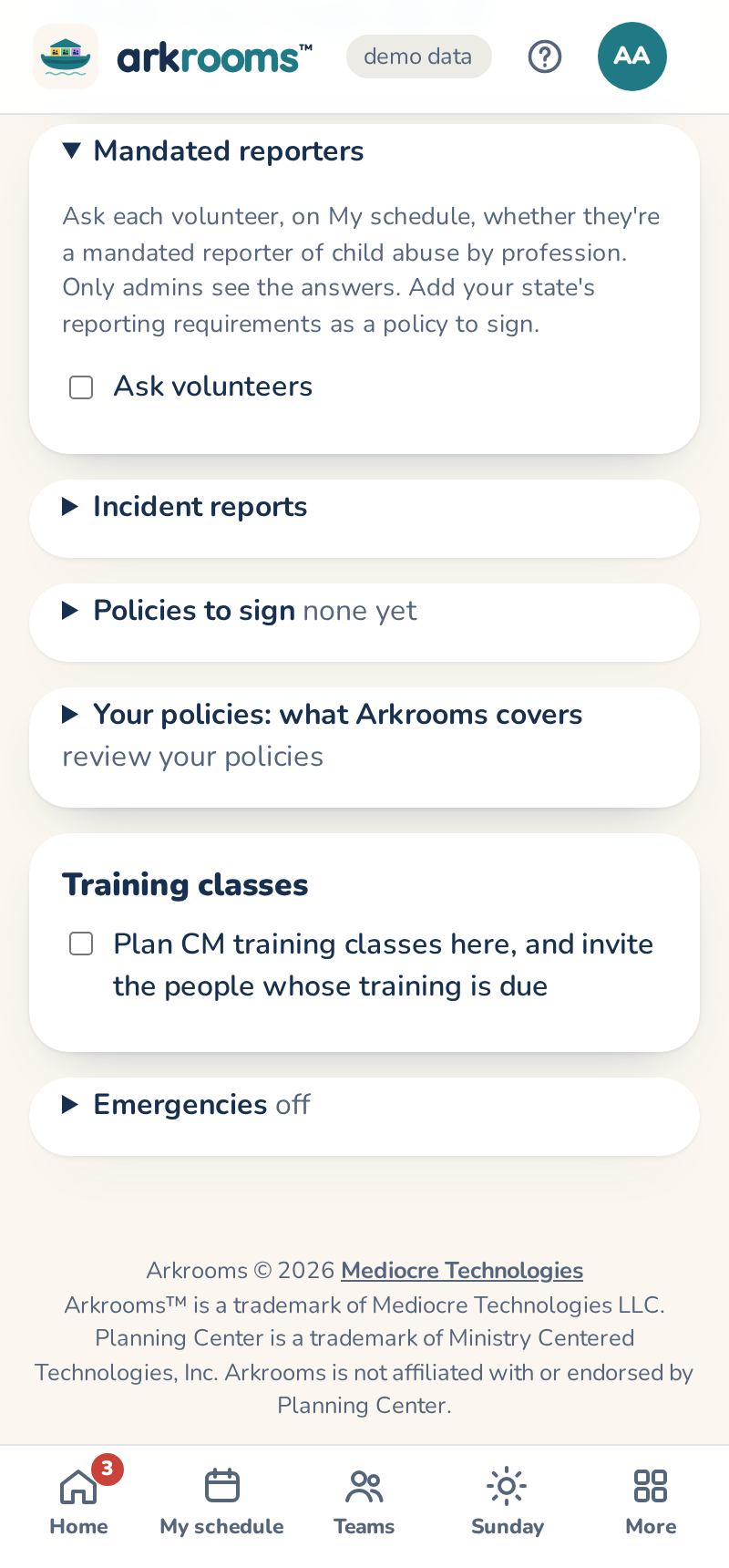
Many child protection policies ask that the elders know who is a mandated reporter of child abuse by profession (teachers, nurses, counselors…). Turn on Settings → Mandated reporters → Ask volunteers: each volunteer is asked once on My schedule (yes or no) and can change it there. Admins see who said yes and how many haven't answered; nobody else does. Add your state's reporting requirements as a policy to sign, so everyone gets a copy.
How you compare
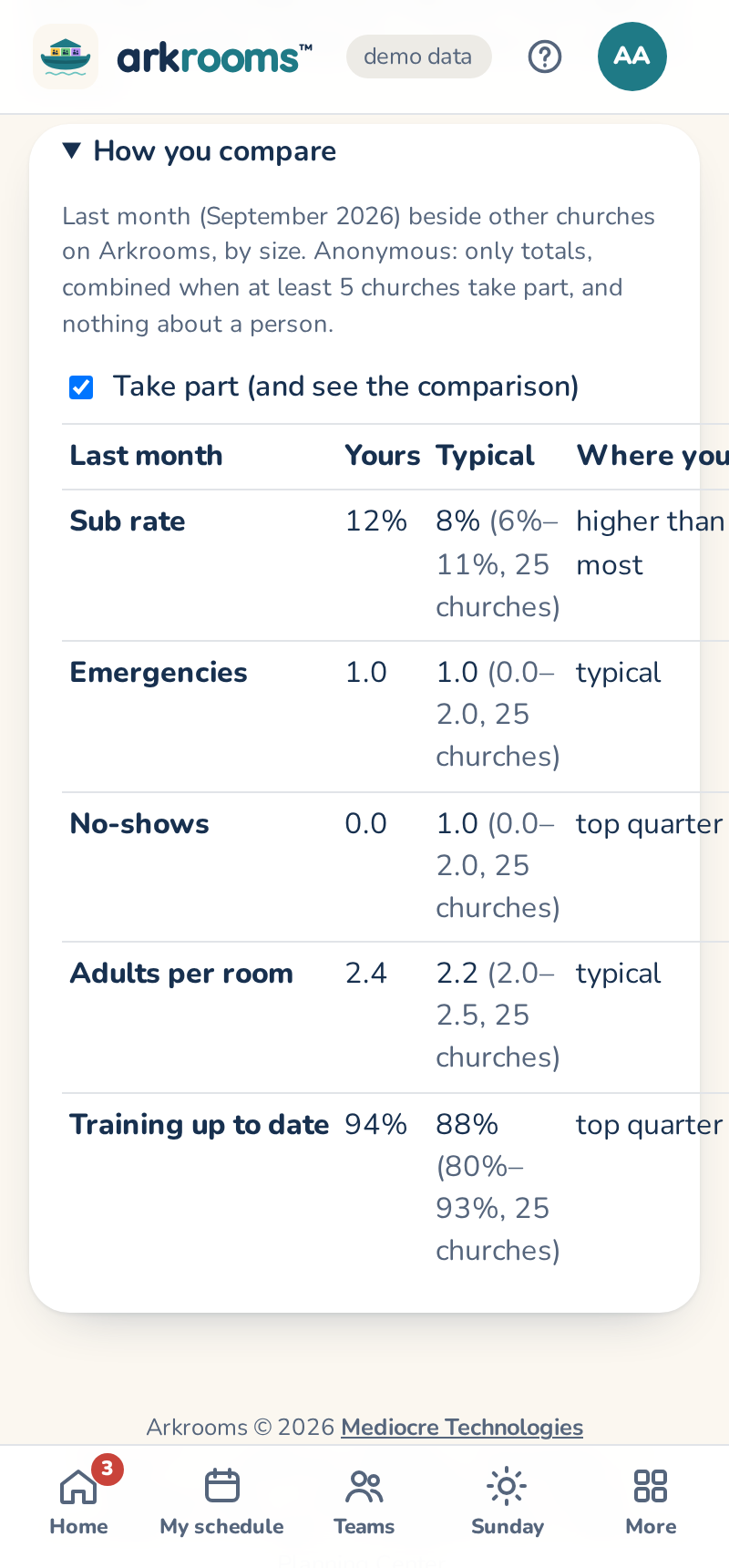
On the hosted service, Stats → How you compare (admins) shows last month's sub rate, emergencies, trades, no-shows, adults who served, adults per room and training up to date, beside the typical range for churches your size: "Your sub rate: 12%. Typical: 8% (6%–11%, 25 churches)", and whether you're in the top quarter. Only monthly totals take part, never anything about a person, and the comparison appears only once at least five churches take part. Untick Take part to stop: your church's numbers are deleted and you see nothing.
What else can Arkrooms do?
Arkrooms has a lot that's off until a church turns it on. What else can Arkrooms do? (a link on the Schedules page, for admins) goes through the features your church isn't using yet, one at a time. The ones your own data suggests come first ("you have 3 teens on your teams" for teen helpers). Each one says what it does, why a church might want it and what it keeps, with Open the setting. Not for us hides a feature for good (you can bring it back). It also lists anything left undecided, such as incident reports with nobody to tell.
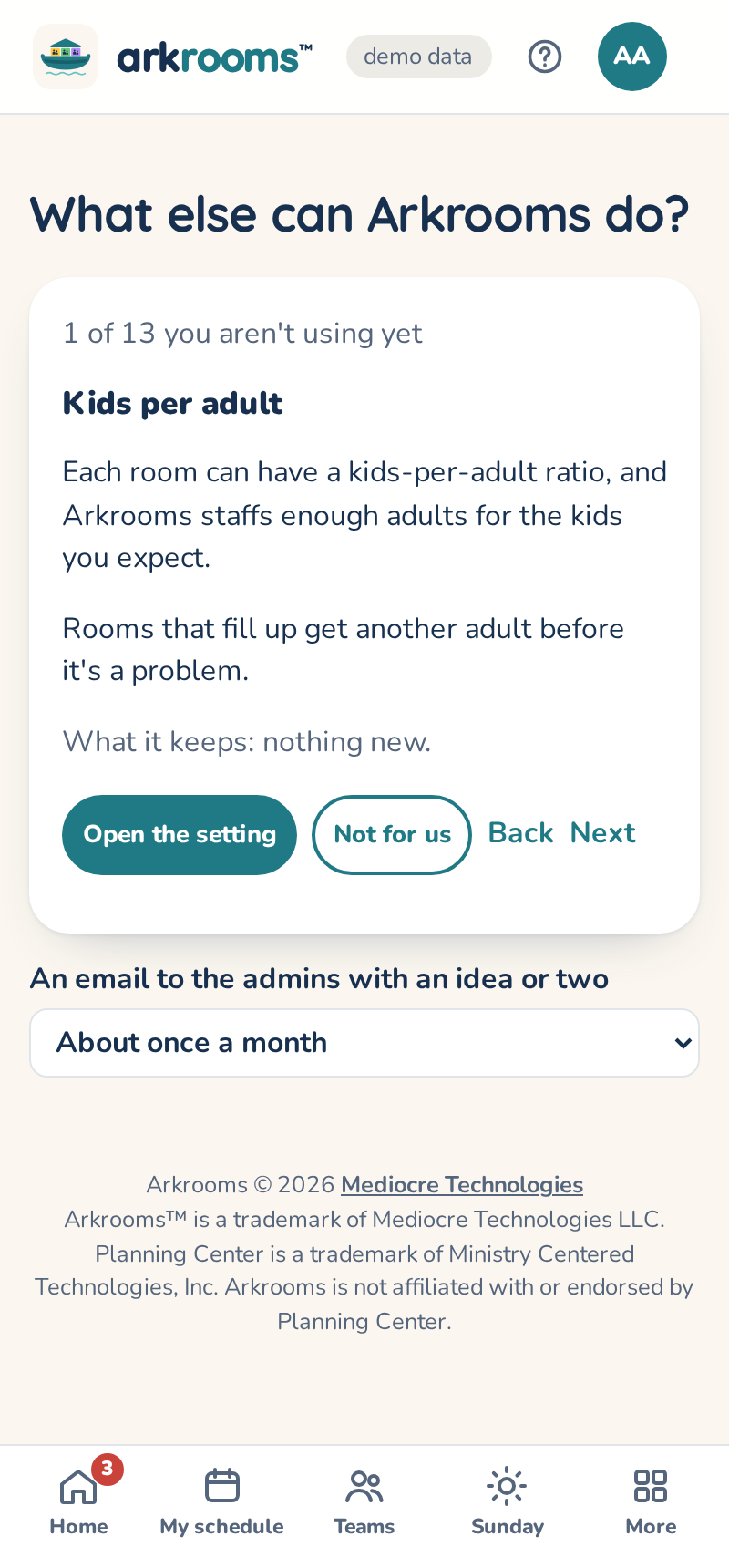
About once a month (or each quarter, or never: set it on that page), the admins get a short email with an idea or two from the same list. It never comes in your first month or at a weekend, and never repeats a feature within three months. Each admin can turn it off for themselves on My choices.
A display for the check-in desk
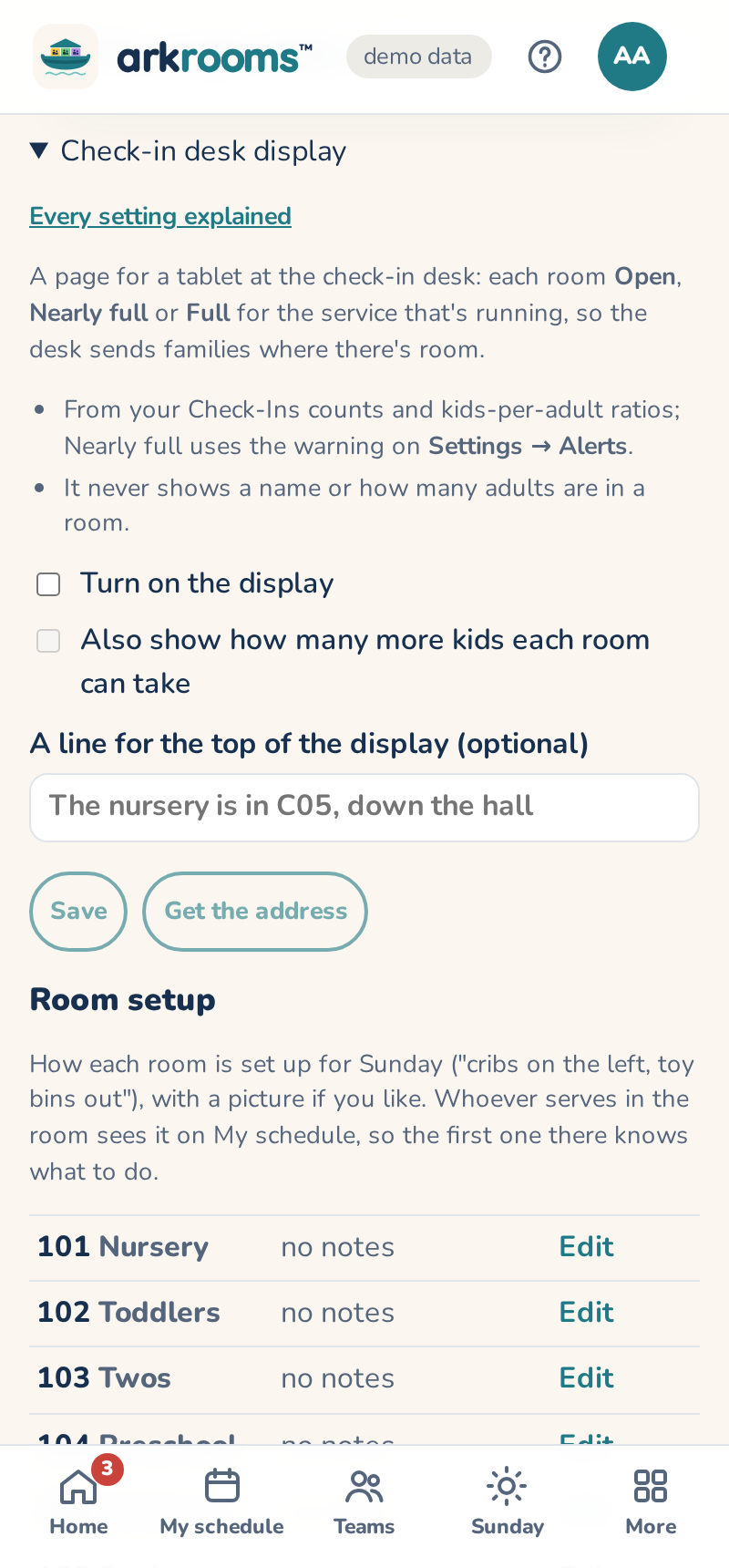
The people who send families to rooms are at the check-in desk. Rooms → Check-in desk display gives them a page for a tablet there: each room Open, Nearly full or Full (green, amber, red) for the service that's running, from your Check-Ins counts and each room's kids per adult. Between services it shows the next one. It never shows a name, how many adults are in a room, or that a room is short: that's for leaders. Turn it on, choose whether to show "room for 3 more" too, add a line for the top ("The nursery is in 101"), and press Get the address. Open the address on the tablet; it refreshes itself every 30 seconds. The address is shown once: New address replaces it and the old one stops working.
Pickup: matching the parent's tag
When an admin turns on Rooms → Pickup, the people in each room, its leaders and the admins get the room's pickup roster on Sunday, from an hour before the first service until two hours after the last: Pickup on My schedule's room card, or on each room of the Sunday view. It shows the children checked in to the room, live from Check-Ins. Arkrooms keeps none of it: a release records only the check-in number, when and by whom.
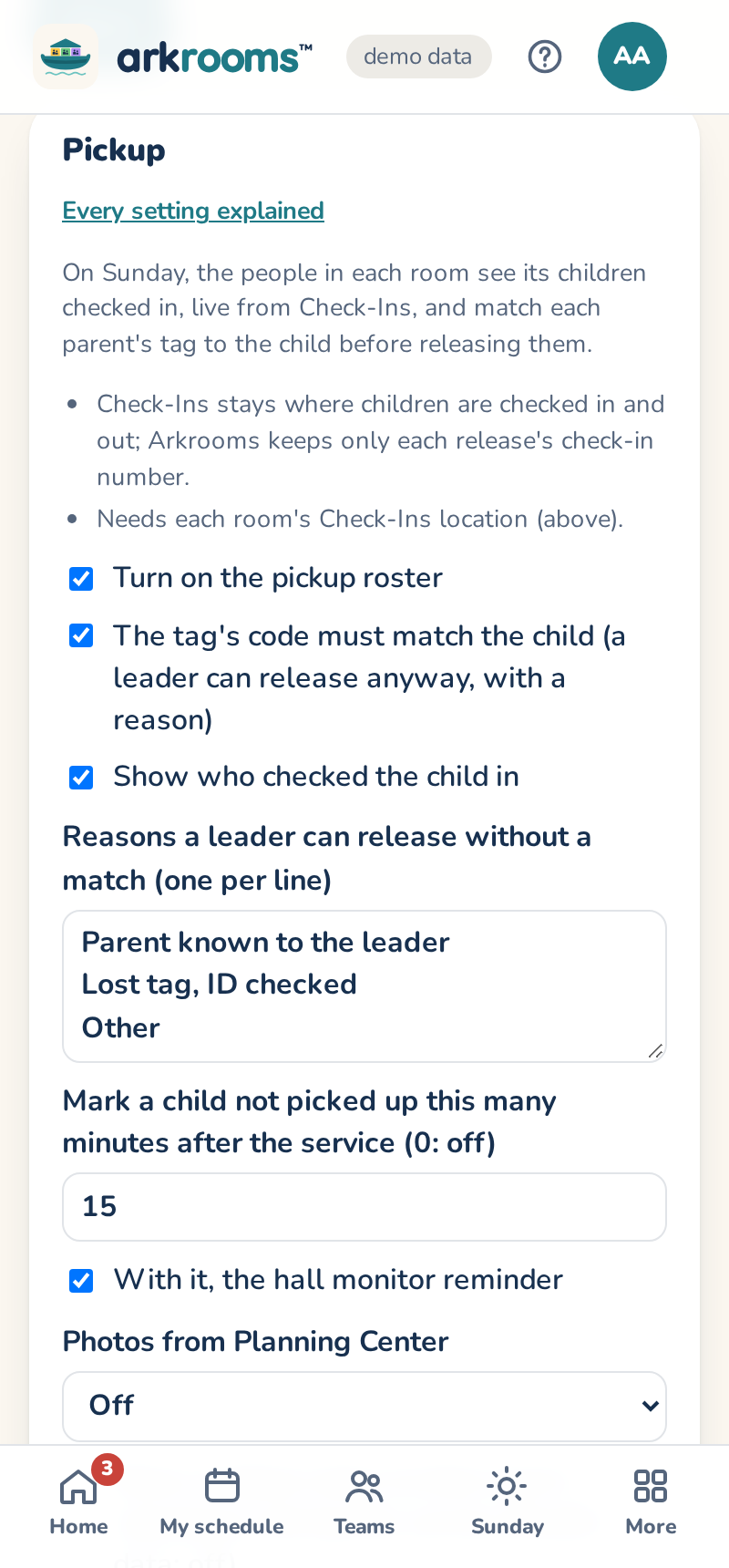
At the door, type the code on the parent's tag and press Find the child. On Android phones, Scan the tag reads the tag's barcode with the camera instead, when the barcode holds just the code; anything else asks you to type it. iPhones don't offer scanning yet, so type the code there. A match shows the child and who checked them in; if that's the adult in front of you, press Released. A code that matches nobody in the room says to get a leader. Leaders can Release anyway with one of the church's reasons, or Undo a release.
If phones or Planning Center might let you down, Print a paper sheet at the bottom of the page once the children are in. It lists each child, who checked them in and who's already gone, with blank columns for who picked up, the time and your initials. Match the code on the parent's tag to the code on the child's label, write it down, and shred the sheet after the service.
Children not picked up yet
For churches using Check-Ins, a while after a service ends (15 minutes by default; Settings → Alerts), This morning shows each room that still has children checked in, as a number ("Ages 2-3, 2 children"), with the backups and hall monitor to ask to find the parents. Arkrooms reads only the count, never who.
A welcome when volunteers check in
For churches that check volunteers in with Planning Center Check-Ins: turn on Settings → Alerts → When a volunteer checks in, send them a welcome. During a service, each volunteer who checks in gets one message that morning with where they're serving, who with, today's lesson links and a sentence you add ("Coffee's in the hallway"). Someone who isn't on the schedule gets a plain thank-you that sends them to a leader. Send it by email, by text, or both; for now only leaders and admins can turn texts on, so everyone else gets the email. It needs your Check-Ins event chosen on the Rooms page.
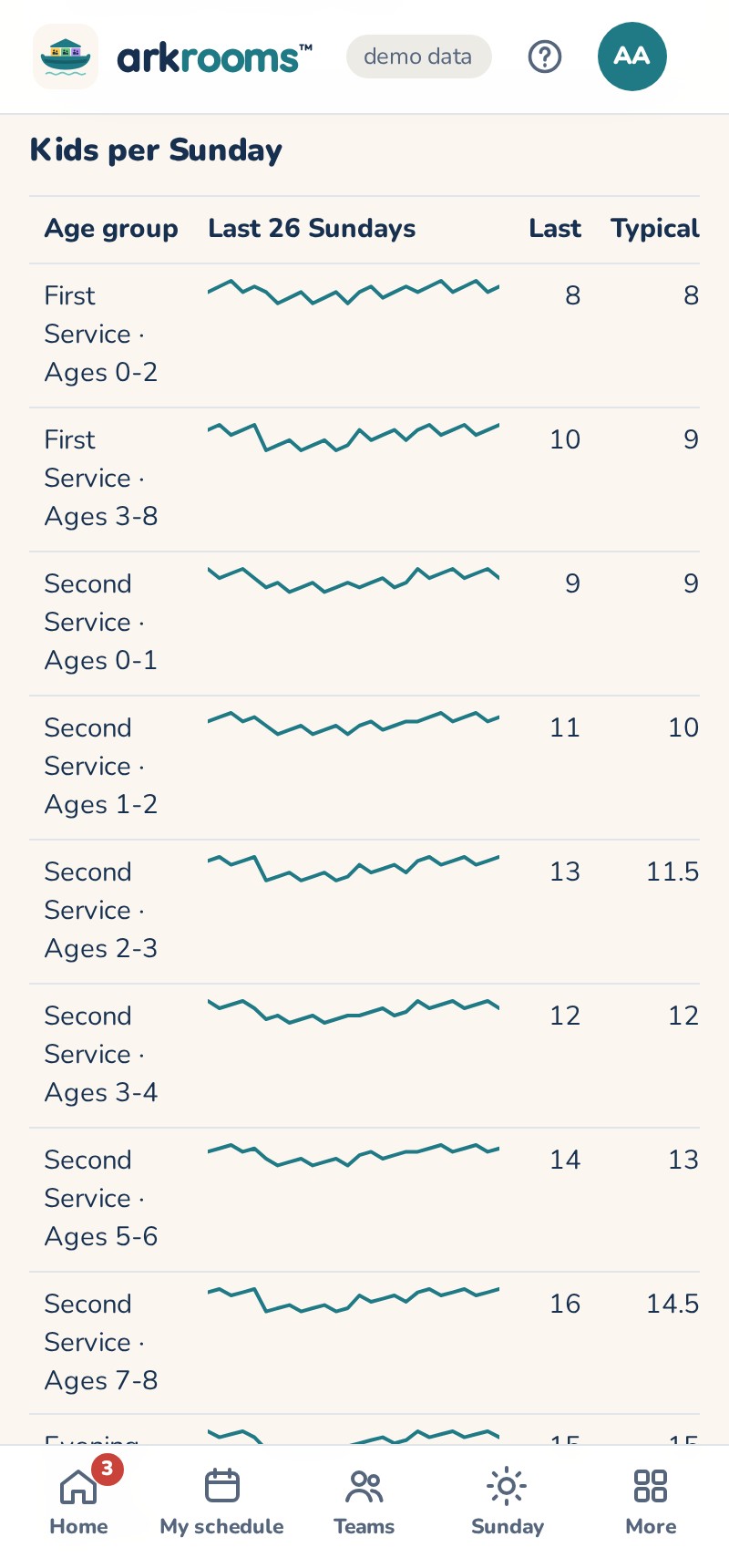
Kids per Sunday
With your Planning Center Check-Ins locations mapped (Rooms → Check-Ins), the bottom of Stats shows how many kids checked in to each age group on each of the last 26 Sundays, and for the coming Sunday:
- Typical: the middle of the last 12 Sundays.
- Plan for: enough to cover 4 Sundays in 5 (the 80th percentile of the last 12), so a busy week is covered without staffing every room for the busiest Sunday of the year.
Admins can Change the number for one Sunday they expect to be different (Easter, VBS, a holiday weekend); Use history goes back. Counts are read once a day, numbers only (no names); the first time, a year back.