
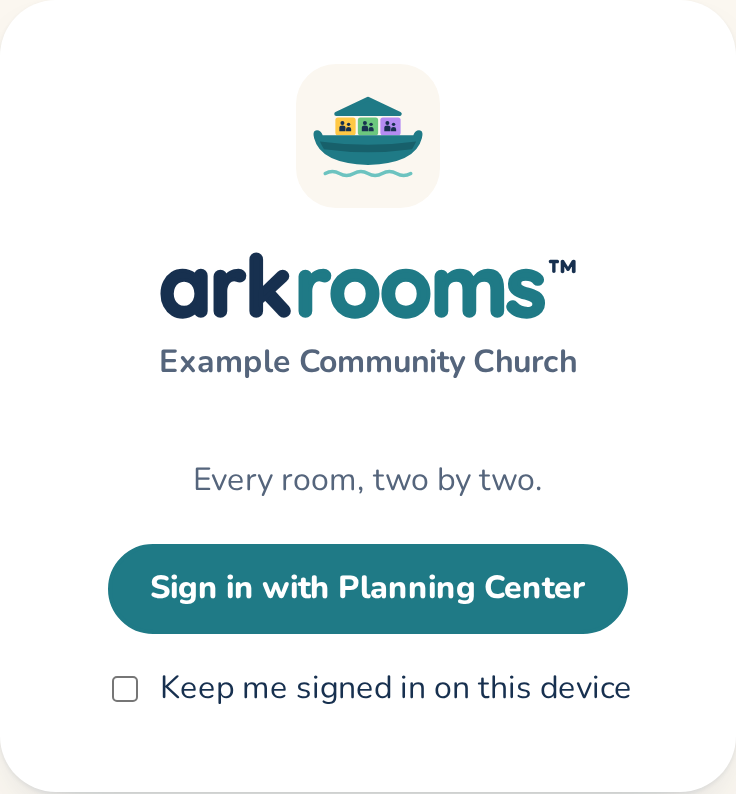
Open your church's Arkrooms address (like yourchurch.arkrooms.com) and tap Sign in with Planning Center. Don't have the address? Go to app.arkrooms.com and tap Sign in with Planning Center under Find your church: Arkrooms sends you to the church connected to your Planning Center organization, and remembers it on that device. It only finds your church by your Planning Center sign-in, never by name. Use the same Planning Center login you use for Services. Only people on one of the children's ministry teams (and the admins) can sign in. On your own phone or computer, tick Keep me signed in on this device first to stay signed in for 30 days instead of 12 hours (not for admins; on a shared device, leave it off).
The first time you sign in, a short welcome tour walks you through the pages you'll use, for your role: volunteers, team leaders and admins each see their own. Skip it any time; take it again from Help → Take the welcome tour (admins also have Take the tour at the top of Settings). Help → What you can do here lists the things you can do as a volunteer (and as a leader, if you lead a team), with a link to each; only what your church has turned on is listed. If you later become a team leader or an admin, it shows you just what's new.
On your phone, add the app to your home screen so it opens like an app, with your church's name and icon: on an iPhone, tap Share → Add to Home Screen in Safari; on Android, tap the ⋮ menu → Add to Home screen (or Install app) in Chrome.